Job positions
In Odoo’s Recruitment application, all job positions are shown on the default Job Positions dashboard, which includes both active and inactive positions.
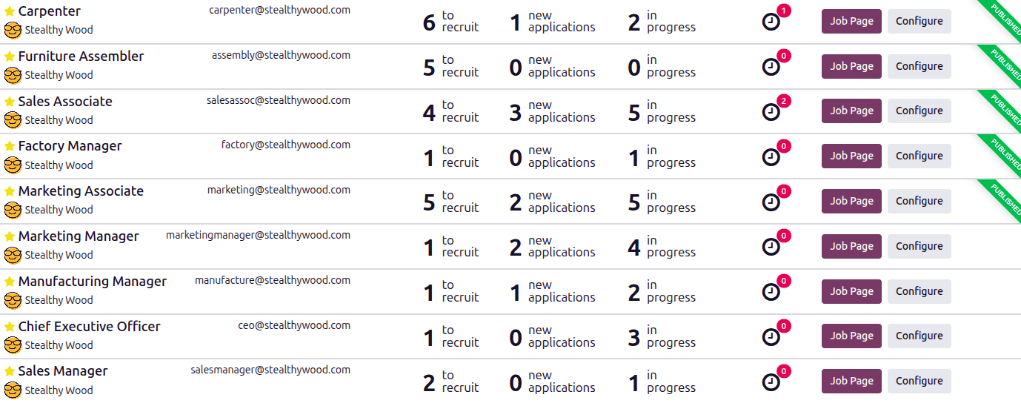
Each job position is shown in an individual Kanban card. If the job position is active, and candidates can apply, a green Published banner appears in the top-right corner of the card.
View submitted applications by clicking anywhere on a job position card, except the (Activities) icon, the Job Page button, or the Configure button.
Create a job position
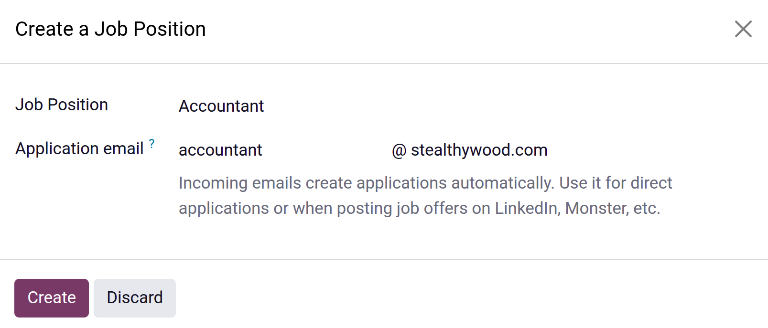
To create a job position from the main dashboard in the Recruitment app, click the New button in the top-left corner, and a Create a Job Position pop-up window appears.
First, enter the name of the Job Position (such as Sales Manager, Mechanical
Engineer, etc.) in the corresponding field.
Next, enter an Application email by typing in the first half of the email address in the first field, then select the second half of the email using the drop-down menu in the second field. Applicants can send a resumé to this specific email address, and Odoo creates an application for them automatically.
When complete, click the Create button to save the entry, or the Discard button to delete it.
Note
Once the Create button is clicked, the Applications dashboard for the newly created job loads. The Applications dashboard is empty, as there are no applicants. Click the Job Positions breadcrumb to return to the main Recruitment app dashboard.
Configure a job position
Once the job position has been created, the details must be configured. On the main Recruitment app dashboard, click the Configure button at the end of the Kanban card, and the detailed job position form loads.
Configure the Details, Summary, Application Info, and Trackers tabs, as described below.
Details tab
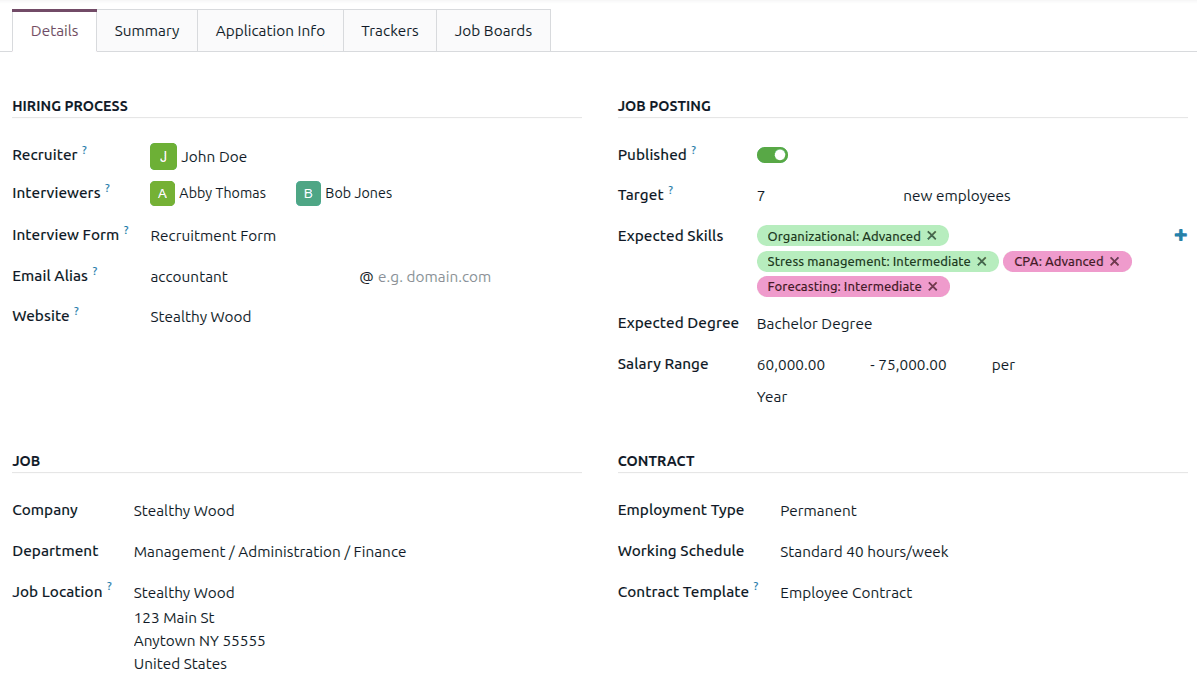
All the basic details about the job position are housed in the Details tab.
None of the fields are required, but it is important to configure and populate the Department, Job Location, and Employment Type fields, as they are all visible to prospective applicants on the website.
Note
Some fields listed below may not appear depending on the installed apps and database configuration.
Enter the information in the following sections.
Hiring process section
Recruiter: Select the person responsible for recruiting this role.
Interviewers: Select who should perform the interviews. Multiple people can be selected.
Interview Form: Select an interview form that applicants fill out prior to their interview.
Email Alias: Enter an email address to which applicants can send a resumé. Once emailed, Odoo automatically creates an application for them. If an email was entered when creating the job position, this field is populated.
Website: Select the website the job is published on.
Job section
Company: Select the company the job is for. This field only appears if using a multi-company database.
Department: Select the relevant department for the job position. This is visible on the website.
Job Location: Select the physical address for the job. If the job position is remote, leave this field blank. This is visible on the website.
Job posting section
Published: When the job position is ready to be published on the website, click the Published toggle to publish the job position. The toggle changes to green, indicating the listing is live on the website.
Target: Enter the number of employees to be hired for this position.
Expected Skills: Select all the desired skills for the job position in this field. To add a skill, click the (plus sign) icon, and select the Category, Skill, and Skill Level for each skill added. The skills presented are configured in the Employees app.
Expected Degree: Select the level of education desired, using the drop-down menu. The default options are: Graduate, Bachelor Degree, Master Degree, and Doctoral Degree.
Salary Range: Enter both the minimum and maximum salaries offered for the position in the two fields. Then, set the last field to the time-frame for the salary range. The default options are Hour, Day, Week, Bi-Week, Month, and Year.
Contract section
Employment Type: Select what type of position the job is, using the drop-down menu. The default options are Permanent, Temporary, Interim, Seasonal, Full-Time, Part-Time, Intern, Student, Apprenticeship, Thesis, Statutory, and Employee. Depending on the installed localization, other options may be available. This is visible on the website.
Working Schedule: Select the working schedule for the job position. Odoo provides one working schedule by default, Standard 40 hours/week, but all working schedules in the database are available.
Contract Template: Select a contract template to be used when offering the job to a candidate.
Summary tab
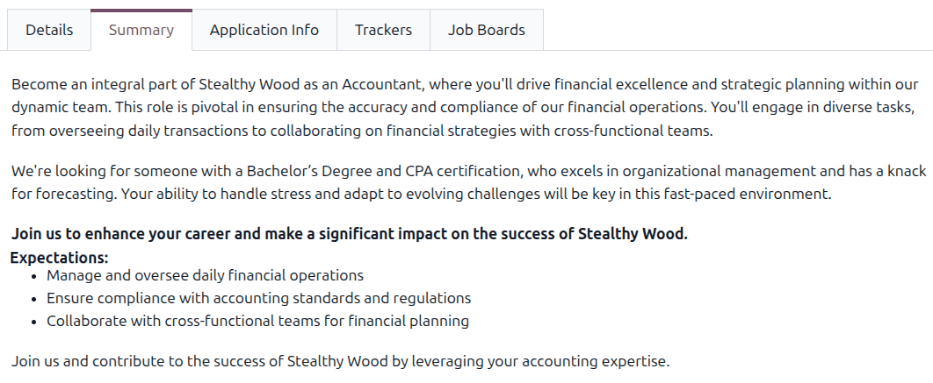
Enter the complete job description in the Summary tab. This description is visible on the website, and should convey any relevant information for the position that is not covered or explained in the Details tab. This may include information such as specific tasks the job requires, any required past experience, or uncommon benefits or compensation.
Application info tab
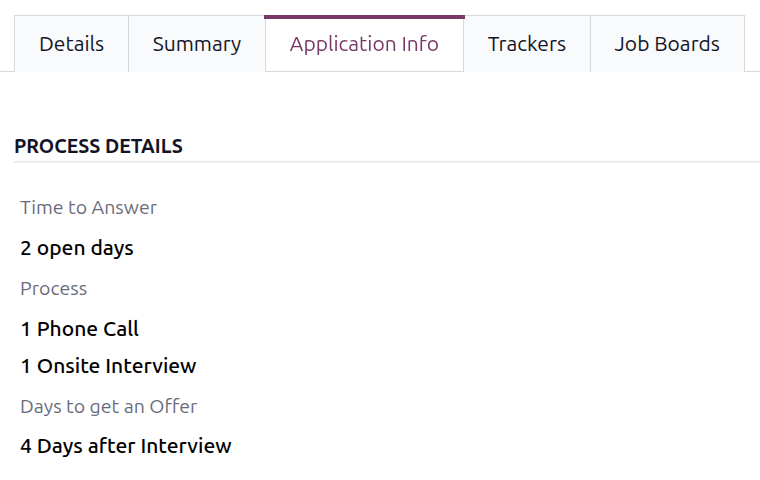
The Process Details section of the Application Info tab contains information that is displayed online for the job position. This informs the applicants of the timeline and steps for the recruitment process, so they know when to expect a reply.
The following fields are populated by default, but can be modified to suit the recruitment timeline of the business:
Time to Answer: The number of days before the applicant is contacted. 2 open days populates this field by default.
Process: The various stages the candidate goes through during the recruitment process. By default, two process steps are visible: 1 Phone Call and 1 Onsite Interview.
Days to get an Offer: The number of days before the applicant should expect an offer after the recruitment process has ended. The default is 4 Days after Interview.
Note
The Process Details section of the Application Info tab is a text field. All answers are typed in rather than selected from a drop-down menu. The text is displayed on the website exactly as it appears in this tab.
Trackers tab
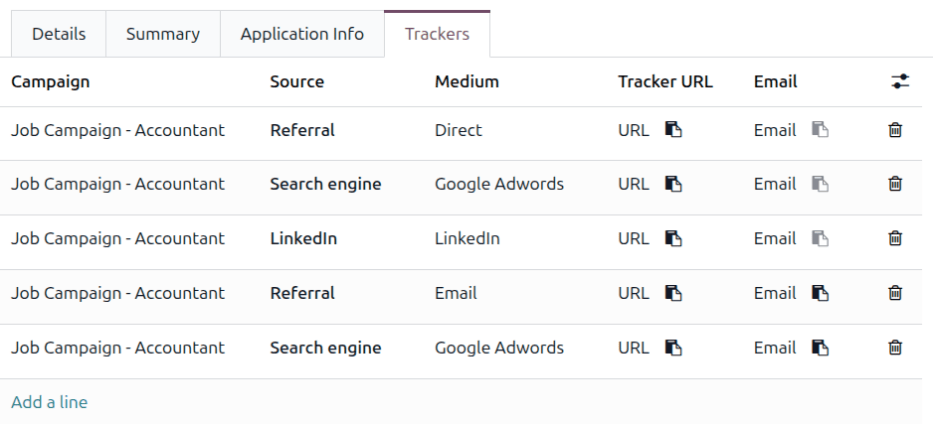
When reaching potential applicants, recruiters often share the job position across multiple websites, including social media sites, job board sites, and third-party hosting sites. The Trackers tab provides a centralized place for recruiters to keep a record of all the places a tracking link has been shared. This allows recruiters to determine which sites were the most successful in terms of receiving applications from them.
Tip
Before creating trackers, first publish the job on the company website.
To add a tracking link, click on the Trackers tab, click Add a line, and a blank line appears at the top of the list. Configure the following fields for each tracker:
Campaign: Select the campaign the job position falls under using the drop-down menu.
Source: Select where the tracker was used using the drop-down menu. There are ten default options, such as Search engine, Newsletter, and LinkedIn, but more may be available depending on the installed applications and created events.
Medium: Select the method used to share the tracker from a list of ten default options, such as Banner, Email, and Google Adwords.
Tracker URL: Once the Campaign, Source, and Medium are defined, Odoo automatically creates the corresponding tracking link. Click URL to copy the link to the clipboard, then share the link where appropriate.
Email: Once the Campaign, Source, and Medium are defined, Odoo automatically creates the corresponding email. Click Email to copy the email address to the clipboard, then share the email where appropriate.
Job boards tab
The Job Boards tab is automatically populated as the job position is shared on a job board. As each listing is created, the information appears in this tab.
See also
