Campaign workflow activities
In Odoo Marketing Automation, a workflow defines the sequence of actions (i.e., activities) executed for each participant in an automated campaign. An activity is an individual step in the workflow that defines what happens to each participant at a particular point in the sequence (e.g., send a communication, create a server action, etc.). Each campaign contains a single workflow consisting of any number of activities.
This documentation covers how to design campaign workflows using a workflow builder interface.
Design a campaign flow
To access the workflow builder, select an existing campaign or create a new campaign from the dashboard.
Important
If creating a new workflow, a trigger must be defined before any activities can be added.
In the builder interface, a workflow is represented as a connected sequence of nodes (activities), which can be dragged and dropped anywhere in the view. All workflows begin with the initial trigger node, and each subsequent node defines what happens to the participants’ records targeted by the trigger.
To add a new node, click a (Add a step) button anywhere in the flow. In the popover, select a node from the Communicate, Flow Rules, or Actions sections.
After selecting a node, configure the activity, then click Save to add it to the workflow, or Discard to cancel.
To remove an activity, click its corresponding node, then click Remove.
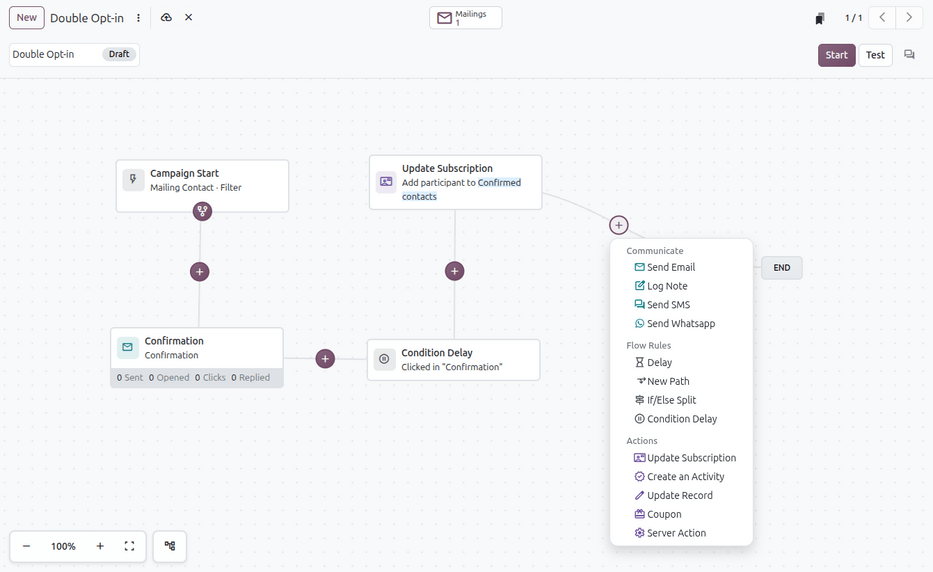
Campaign activities
The following sections list the available activities that can be added to a workflow.
Communicate
The Communicate section provides the following options to send communications to campaign participants:
Send Email: Create an email to send to recipients, optionally specifying a filter.
Log Note: Log a note in the chatter of the participant record.
Send SMS: Create an SMS message to send to recipients, optionally specifying a filter.
Send Whatsapp: Create a WhatsApp template to send to recipients, optionally specifying a filter.
Flow rules
The Flow Rules section provides the following options to define new paths or conditions in the workflow:
Delay: Wait for a number of hours, days, weeks, or months before the next activity.
New Path: Create a new branch from the current node. Nodes on the same branch level run in parallel.
If/Else Split: Create a split branch to sort participants into either branch depending on whether they match a Filter rule or interacted (e.g., opened, replied, clicked, bounced) with a previous activity.
Condition Delay: Create a delay for an activity until the records match a Filter rule or interacted with a previous activity. Optionally, if the condition is not met, a Time limit can be set to wait before canceling the step.
Actions
The Actions section provides the following options to modify data on participant records:
Update Subscription: Add or remove a participant from a mailing list.
Create an Activity: Schedule an activity on the participant’s record.
Update Record: Change a specific field on the participant’s record.
Coupon: Create a coupon from a Coupon Program and email it to the participant’s customers using the Mail Template. Only coupons of type Coupons, Discount Code, or Next Order Coupons can be created. This option is only available if the Sales app’s discount and loyalty programs are enabled.
Server Action: Execute a specific server action on the participant record.
Tip
To view all server actions in the database, activate Developer mode (debug mode) and navigate to .
