ShipStation integration
ShipStation is an all-in-one shipping and fulfillment platform. Integrating ShipStation with Odoo makes it possible to calculate shipping costs and print shipping labels directly through Odoo.
ShipStation supports integration with carriers including UPS, USPS, FedEx, and DHL. International carriers such as Mercado Libre and OnTrac are also supported.
See also
Configuration
To enable ShipStation as a delivery method in Odoo, retrieve the API key and set carrier preferences in ShipStation, then create ShipStation delivery methods in Odoo.
Configuration in ShipStation
To configure carrier preferences in ShipStation, go to the ShipStation website and sign in or create a ShipStation account.
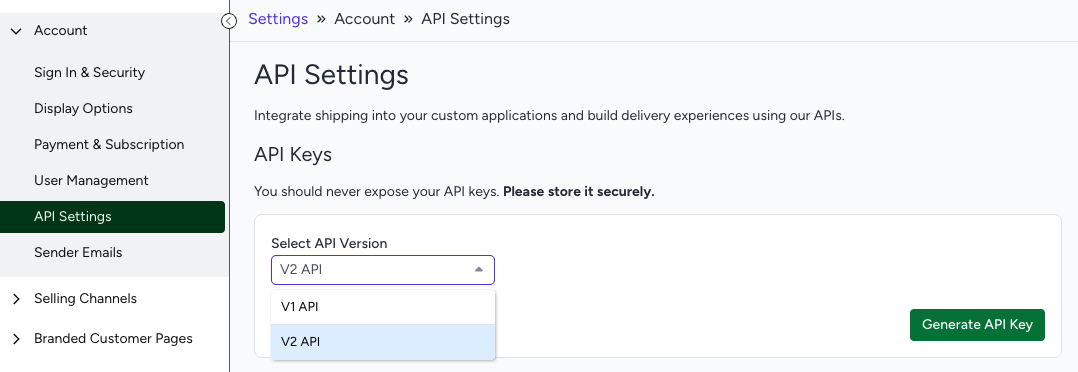
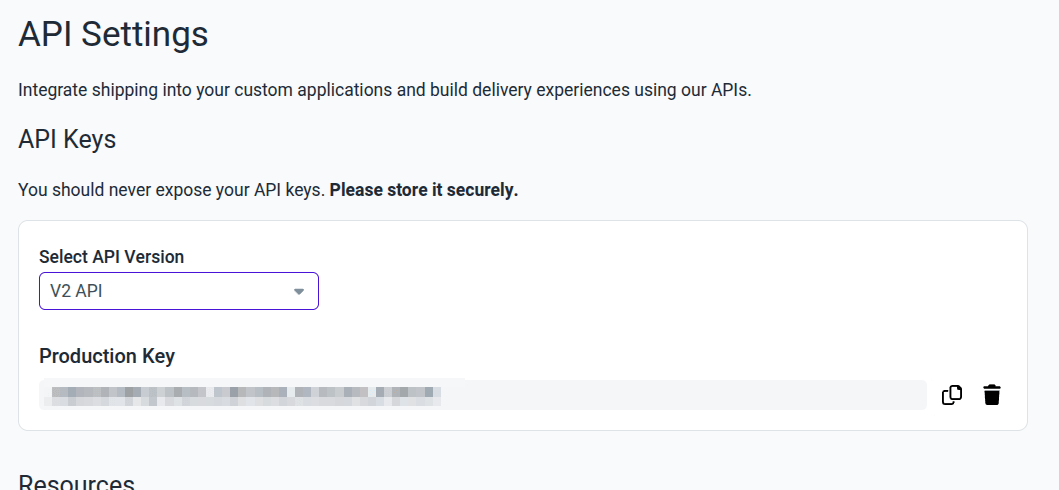
Obtain test and production API keys: Go to , select V2 API, and click Generate API Key.
Important
For the integration to work in Odoo, the V2 API needs to be selected from the version drop-down, as it is the only one supported.
Copy the production key: Keep the Production Key on hand for delivery method configuration in Odoo.
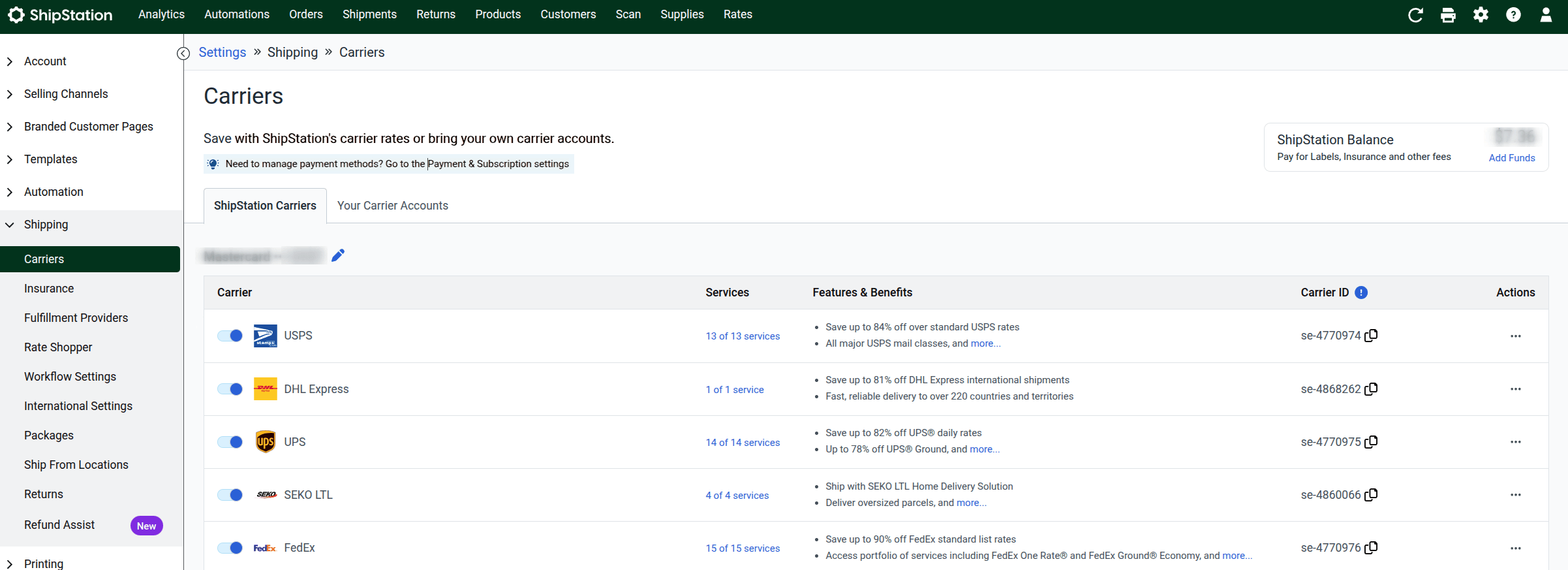
Enable the carrier: Go to . In the ShipStation Carriers tab, enable the desired carriers.
Configuration in Odoo
To enable ShipStation delivery methods in Odoo, install the ShipStation Shipping module.
Create one delivery method for each carrier and service enabled in ShipStation. Delivery methods created in Odoo can be selected in the sales order form.
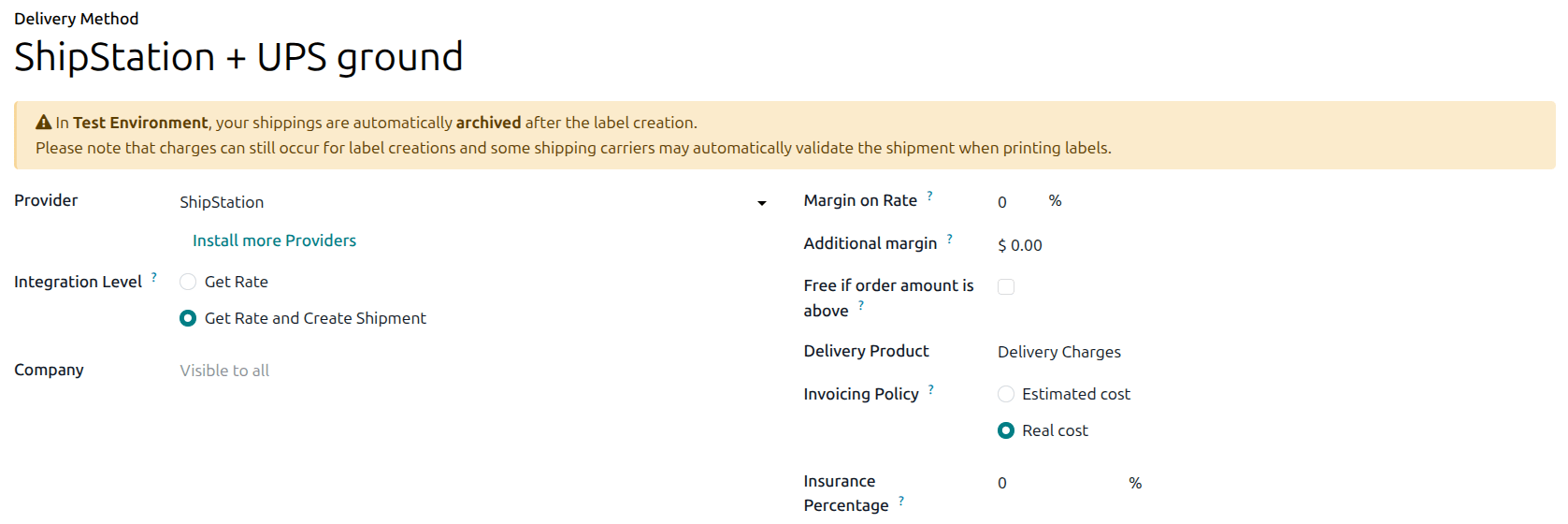
To create a delivery method, go to , then click New. In the Delivery Method form, fill in the following fields:
Name: Enter a name for the delivery method, e.g.,
ShipStation + UPS Ground.Provider: Select ShipStation as the provider.
Integration Level: Select Get Rate and Create Shipment to generate shipping labels through Odoo.
Delivery Product: Select a generic delivery product (Delivery Charges), or create a dedicated ShipStation delivery product specifically to track delivery orders that use this method.
Important
To generate ShipStation shipping labels through Odoo, the Integration Level field must be set to Get Rate and Create Shipment.
When the Provider is set to ShipStation, the ShipStation Configuration tab appears. Fill in the following fields in the ShipStation Configuration tab:
ShipStation API Key: Paste the ShipStation V2 API Production Key.
ShipStation Label Layout: Optionally select a label size.
ShipStation Label Format: Optionally select the desired label file format.
ShipStation Insurance Provider: Optionally select an insurance provider.
Important
When selecting an insurance provider, make sure to set the Insurance Percentage field.
ShipStation Service Name: Click the (Sync Carriers/Services from ShipStation) button to synchronize the available carriers and services from the ShipStation account, then click the field to select the desired carrier and service.
ShipStation Default Package: Select or create a package type for this delivery method. The available package types are defined in the ShipStation account. Make sure the package measurements (length, width, height) match the selected service.
Important
When selecting a package type, make sure it is available for the service selected above. This can be verified from the ShipStation website.
Generate labels with ShipStation
Once a ShipStation delivery method is configured, labels and shipping costs can be generated from within a quotation or sales order form.
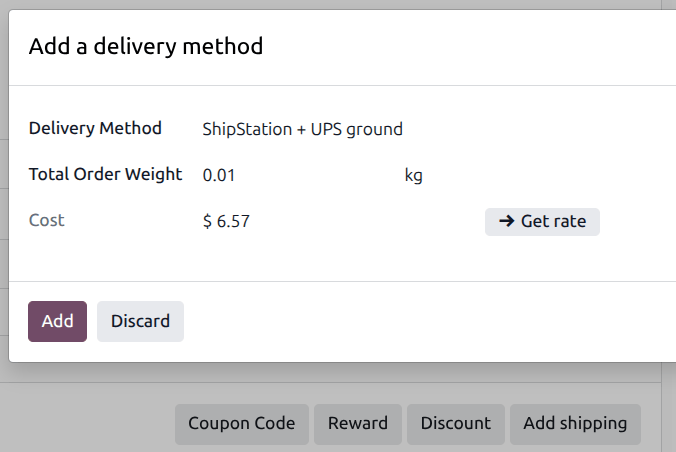
Create a quotation, then click
Add Shipping, and select the delivery method (ShipStation + the selected carrier and
service). The delivery product associated with the method is added to the quotation.
Important
The product added to the quotation must have a weight associated with it to avoid errors.
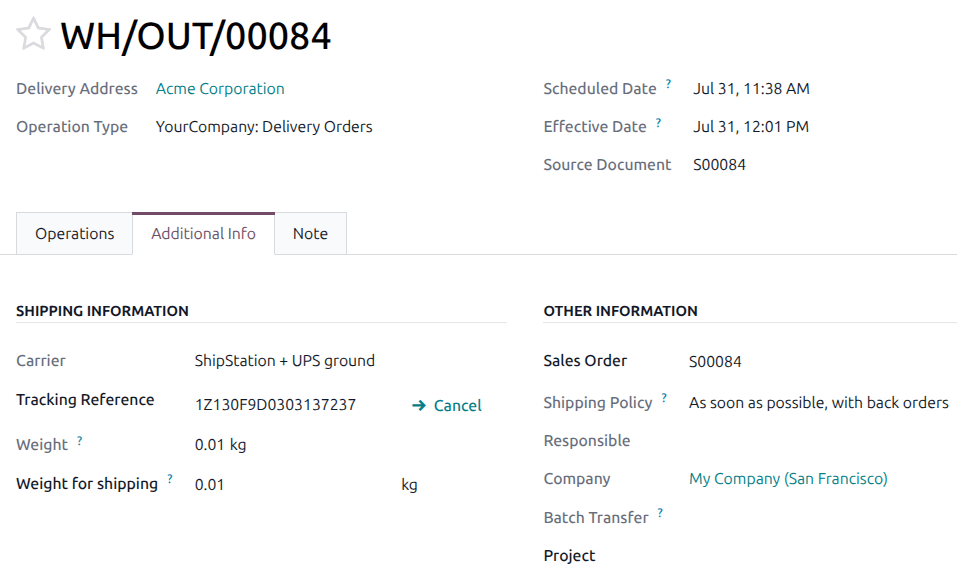
After confirming the quotation, validate the delivery order to view the shipping information and label.
See also
