Salary adjustments
Salary adjustments are portions of earnings taken directly out of a payslip for a specific purpose, whether voluntary or required.
When the deduction is voluntary, they are typically considered deductions. When the deduction is court-ordered, or involuntary, it is sometimes referred to as a wage garnishment. In Odoo, these are all universally called salary adjustments.
Note that salary adjustments can also be used to give recurring amounts of money to employees, like a bonus divided into multiple payments.
Salary adjustment types
To view the currently configured salary adjustment types, navigate to , and the Salary Input Types dashboard loads. This displays all other salary inputs, not only the various salary adjustments.
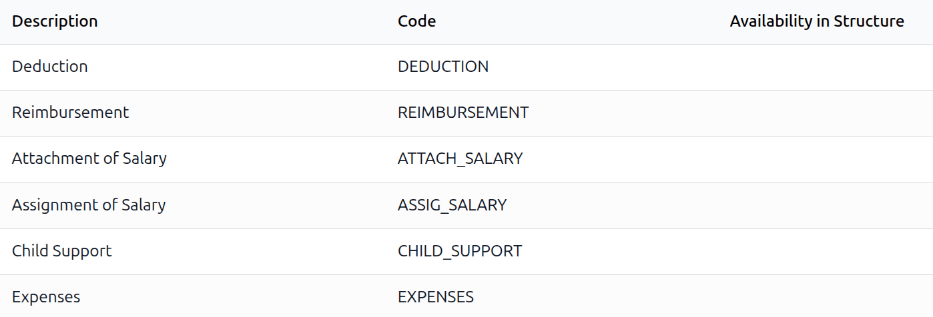
The three default salary adjustment types and uses that appear in this list are:
Attachment of Salary: Used primarily for voluntary regular payments from the employee’s wages, such as paying into a savings program, charity contributions, union dues, etc.
Assignment of Salary: Used primarily for legally enforceable orders requiring part of an employee’s wages to be paid to another party. This is typically used when repaying debts, court-ordered judgments, etc.
Child Support: Used for any child support payments.
Each salary adjustment type displays the Description of the adjustment type and the Code used when calculating payslips. If it is restricted to a specific salary structure, it is listed in the Availability in Structure column.
Create new salary adjustment types
Danger
Upon installation of the Payroll application, the preconfigured default salary adjustment types are linked to a variety of rules that are linked to various salary structures, as well as the installed localization package.
It is not recommended to alter or modify any of the preconfigured salary adjustment types, especially if they have been previously used on payslips in the database. Doing so may affect various salary rules and can prevent the creation of payslips.
A new salary adjustment type can be created, but this should only be done when absolutely necessary. A salary adjustment type must be linked to a salary rule to be considered in the salary computation.
To make a new type of salary adjustment, navigate to . Click the New button on the Salary Input Types dashboard, and a blank Salary Input Types form loads. Configure the following fields on the form:
Description: Enter a description for the new salary adjustment type.
Available in adjustments: This option must be enabled to indicate the input type is available to use as a salary adjustment. When enabled, additional fields appear on the form.
Is quantity?: Leave this option unchecked, as it removes the ability to enter a set monetary amount.
No end date by default: Enable this option if the adjustment is indefinite, such as an attachment to pay regular fees such as dues or licenses. Do not select this if the adjustment is based on a total amount that must be reached, such as a court settlement repayment.
Code: Enter a code to be used in the salary rules to compute payslips.
Availability in Structure: If the salary adjustment type should only be used in a specific payroll structure, use the drop-down menu to select the structure.
Salary adjustment dashboard
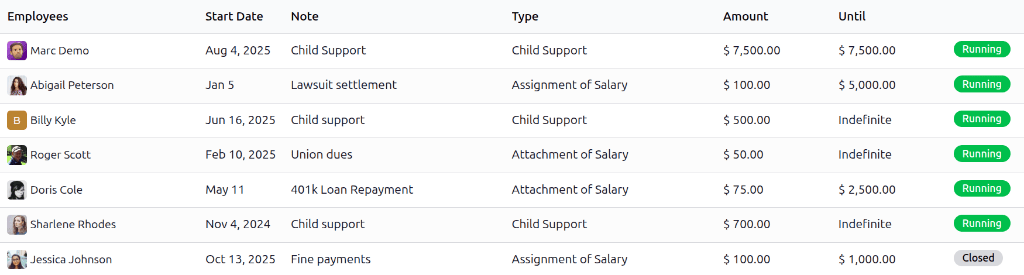
To view the currently configured salary adjustments, navigate to , and the Salary Adjustment dashboard loads.
All salary adjustments appear in a list view. Each salary adjustment displays the name of the Employees, the Start Date, a descriptive Note, the salary adjustment Type, and the Amount. An Until column appears as well, which details when the salary adjustment ends, either a monetary amount to be reached, or Indefinite if the adjustment has no end.
At the end of each line is a status tag, with a green Running tag for active adjustments, or a gray Closed tag for adjustments that have ended.
Create salary adjustments
To create a new salary adjustment, click the New button on the Salary Adjustment dashboard, and a blank Salary Adjustment form loads. Enter the following information on the form:
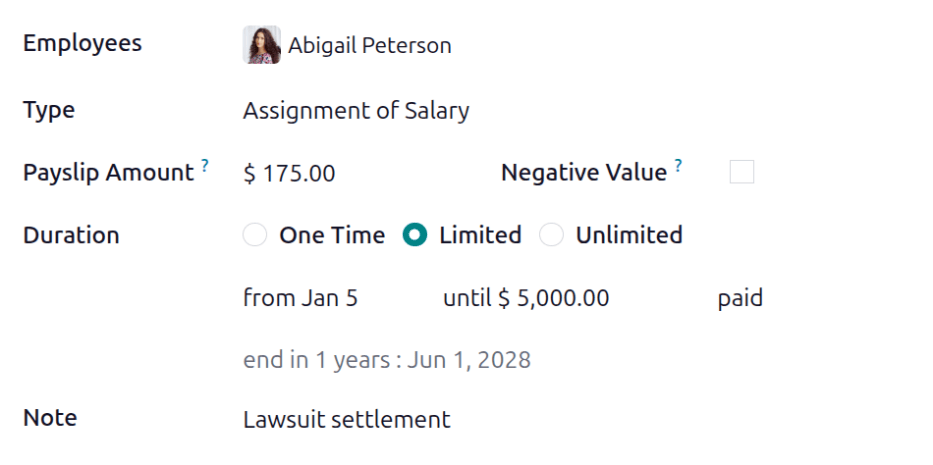
Employees: Select the desired employees using the drop-down menu. Multiple employees can be listed in this field only if all the other field values are identical.
Type: Select the specific salary adjustment type using the drop-down menu.
Payslip Amount: Enter the amount taken out of each paycheck in this field.
Negative Value: Enable this checkbox if the salary adjustment is taken into account as a negative value.
Duration: Select the length of time for the salary adjustment. The options are:
One Time: Only one payment is taken from the employee’s paycheck.
Limited: The employee is paying a specific monetary amount in total, divided up among multiple paychecks. The salary adjustment automatically ends once the specified total is paid.
Unlimited: The employee is making recurring payments towards something with no end point, such as contributions to a retirement fund, or a donation to a charity.
from: Using the calendar selector, select the date the salary adjustment goes into effect.
Note
If the Duration field is set to Limited, an until (amount) paid field appears. Enter the monetary amount that must be reached to end the salary adjustment.
Note: Enter a short description of the salary adjustment.
If creating salary adjustments for multiple employees on a single salary adjustment form, after the form is filled out, click the Create Individual Attachments button. This creates separate salary adjustments for each of the employees listed in the Employees field.
After the individual salary adjustments have been created for multiple employees, the screen loads a list view of the newly created individual salary adjustments. All the salary adjustments have a status of Running, since they are currently active.
Manage salary adjustments
Salary adjustments that have a set amount due in total are automatically closed once the Until amount entered on the salary adjustment form has been paid in full. For all other salary adjustments, it is necessary to manually close the adjustment to stop taking money out of future paychecks.
If a salary adjustment has been fulfilled or the employee no longer wishes to contribute voluntary funds, the record must be manually updated. To change the status, open the Salary Adjustment dashboard by opening the Salary Adjustment dashboard.
Click on the record to update, and the detailed Salary Adjustment form loads. On the individual record, click the Mark as Completed button in the corner, and the status changes to Closed.
Example
The following is an example of when a payroll manager may need to manually change a salary adjustment from Running to Closed.
Rose Smith has a salary adjustment for a lawsuit settlement, where she is required to pay $3,000.00. A salary adjustment is created that takes $250.00 a month out of Rose’s paycheck to go towards this settlement payment.
After six months, Rose has paid $1,500.00 from her salary. She receives a tax refund and uses the money to pay off the remainder of the lawsuit settlement. After sending the relevant documentation to the payroll manager, showing the settlement has been paid in full, the payroll manager manually changes the status of her salary adjustment to Closed.
