Restaurant features
Odoo Point of Sale provides various features to manage a restaurant or a bar:
To create a restaurant from scratch, go to the POS settings and click + New Shop. Enter a name and enable the Is a Bar/Restaurant setting, then click Save.
POS interface
The POS interface opens when a register is opened. Three main buttons at the top of the screen allow navigation between views:
Tables: Opens the floor plan to manage table occupancy.
Register: Opens the POS register to take and process orders.
Orders: Displays an overview of all orders.
Note
If Booking is enabled in the POS settings, a Booking button also appears at the top of the interface to view and manage table reservations.
Default start screen
The POS can be configured to open either the floor plan or the register directly. After an order is sent, users are automatically redirected back to this default view.
To set the default view, go to the POS settings, scroll down to the PoS Interface section, and select Tables (i.e., floor plan) or Register under the Default Screen setting.
Note
When Register is set as the default screen, a new direct sales order opens automatically after an order is sent.
Floors and tables
Creating a restaurant from scratch creates a Floor in the Floors & Tables Map setting, under the Point of Sale section of the POS settings. This floor is named after the company and is automatically assigned to the restaurant.
There are two ways to create a floor plan:
Go to the Point of Sale section of the POS settings. Under Floors & Tables Map, type the floor name in the Floors field, and press
Enter.Go to and click New.
Tip
To edit the names of automatically-created floor plans in the backend, go to and click the desired floor plan. In the frontend, click the (Edit Floor Plan) icon.
To access the floor plan, open the register of a restaurant, and ensure you are on the Tables view. That view allows for managing restaurant floors and tables and monitoring table status in real time (occupancy, reservations, kitchen orders) using the following action buttons:
New Order: Create a direct sales order that is not linked to any table. Take the order, click Set Table to assign it to an existing table, or click Set Tab to record the open order’s name.
Buttons for navigating between configured floors (e.g., Main Floor/Patio).
(Edit Floor Plan): Edit the floor plan.
(Table Selector): Enter an existing table number and click Jump to access it.
Note
Following the onboarding by selecting the Restaurant card automatically creates and assigns the Main Floor and Patio floor plans to the restaurant.
Selecting a table on the floor plan or accessing it through the Table Selector automatically confirms the table’s occupancy.
To merge tables for a large party, click and hold a table and drag it onto another table. The linked tables share a single order and automatically separate back to their original positions once the order is paid.
To order free physical QR codes adapted to the floor plan, activate the QR menu setting, then click Get QR Codes on the floor plan. This offer is available worldwide and for all subscription types.
Example
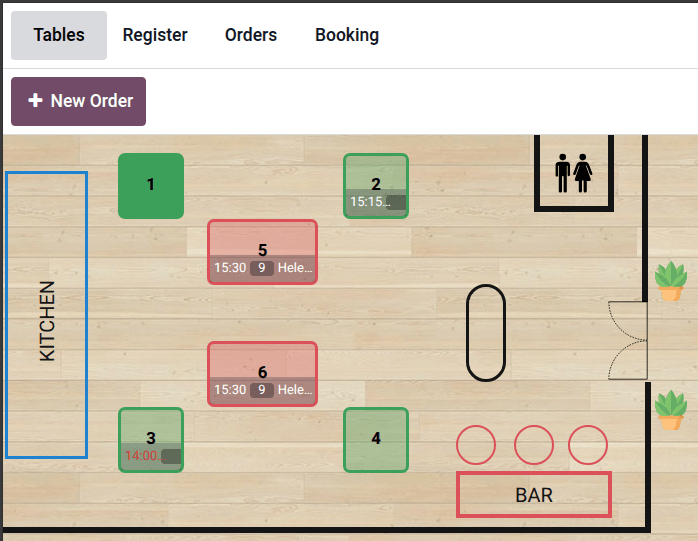
Table 1: The table is occupied.
Table 2: The table is available but booked for 15:15.
Table 3: The 14:00 table is running late.
Table 4: The table is available.
Table 5: The table has been merged with Table 6 for a larger group.
Decor: Edit the floor plan with walls, images, and shapes.
Floor plan configuration
To edit a floor plan from the frontend, open the POS register, access the Tables view, click the (Edit Floor Plan) icon in the top-right corner to open the Floor plan editor, then customize the plan using the relevant buttons:
The dropdown menu (e.g., Main Floor ): Select the floor plan to edit. Additionally, click Add Floor to create a new one.
Add Table: Select the table shape among Square, Rectangular, Round, and Oval.
Add Decor: Customize the floor plan with Walls, Images, and Shapes.
(Edit Floor): Change the floor’s Name, select a Background, or click Set a Background Image to upload your own. To delete the floor, click Delete Floor.
Click an existing table or decor to perform additional actions:
(Properties): Edit the table or decor using the tools in the side panel.
(Duplicate): Copy the table’s or decor’s properties.
(Delete): Delete the table or decor.
Click the turquoise borders to manually reduce or increase the table’s or decor’s shape. Hold the (spin) icon to rotate the table.
The following table and decor editing tools are available. To discard all changes, click Discard. To save all changes, click Save:
Tool |
Use |
|---|---|
Alignment |
Set the text alignment. |
Color |
Click the preferred color. |
Corner rounding / Size / Thickness |
Adjust the slider using the cursor. |
Layers |
Arrange the order within the floor plan. Send backward or move forward. |
Number of Seats |
Click the (plus) or (minus) icons to increase or decrease the number of seats. |
Shape |
Click the desired shape. |
Style (Text) |
Select the preferred text formatting style. |
Style (Walls) |
Select the preferred line style. |
Table Number |
Enter a number. |
Text |
Enter a text and click Apply. |
Warning
Removing a Table, Decor, or the whole floor plan is permanent.
Note
To revert the last change or reapply the last undone change, click the (undo) or (redo) icons.
Tip
To get a simpler Tables view, click the (hamburger) menu, then Switch Floor View. Repeat this action to get back to the customizable view.
Booking
The Booking setting allows for creating and managing reservations for a designated point of sale directly from the POS interface.
Note
Enabling the Booking setting automatically installs the Appointments app.
See also
Booking configuration
To enable and configure bookings, follow these steps:
Go to the POS settings, scroll down to the PoS Interface section, and enable Booking.
Enter a name in the Appointment type field and click Create and edit.
Configure the Appointment type form and click Save.
Click Save in the POS settings.
Important
To ensure that only existing resources can be booked for a specific point of sale, set the Book field to Resources in the Appointment type form and select tables. Then, enable Group Bookings to ensure the maximum capacity does not exceed the combined capacity of the selected resources.
Tip
To accommodate a booking that exceeds the capacity of a single table, click the (Resources) icon in the Appointment Type form, select a table, and add additional tables in the Linked Resource field to merge them when necessary.
See also
Booking management
To manage table bookings from the POS interface, click Booking, then:
Click New to create a booking. Fill in the booking details (booking name, date and time, party size, resources), customer details (customer, phone number), add the booking to the user’s calendar, and any extra notes, then click Save.
Click an existing booking to Edit or Delete it, or to update its stage (e.g., Booked, Check In, or No Show).
Alternatively, update a booking stage from the kanban view by clicking the icon () and dragging the booking card to the relevant stage.
Tip
To quickly reassign a booking from the Tables view, click and hold the booking notification on the booked table, then select the new table. If a party exceeds a single table’s capacity, multiple tables can be selected to seat the entire group.
Order management
The POS register allows for processing and transferring orders, defining presets, and managing courses.
Order process
To process an order from the POS register, follow these steps:
Click products to add them to the cart.
Define how the order is handled:
Click Set Table to link the order to a table. Enter a table number and click Assign, or click Plan to return to the Tables view and manually select a table.
Click Set Tab to enter the open order’s name and click Apply.
Click Send to validate the order.
When ready, process the order payment.
Tip
To cancel an ongoing order, click the (Actions) icon, then Cancel Order. If an order printer is configured, a cancellation ticket is automatically printed for an order sent to the kitchen.
After selecting a table in the Tables view, click Release table in the cart to cancel the table’s occupancy. This action is available when the cart is empty.
Configure an order printer or a preparation display to send an order to the kitchen when clicking Send.
Use presets when offering different service types, e.g., Dine In, Takeout, or Delivery.
If the order is a direct sale not linked to any table, its name can be modified by clicking the (Actions) menu and selecting Edit Order Name.
Order transfer
To transfer an order to another table from the POS register, click the (Actions) icon, then Transfer/Merge, and choose the target table in the Tables view:
Select an available table to transfer customers and their orders.
Select an occupied table to merge customers and their orders.
Courses
The courses feature allows restaurants to organize orders into distinct serving phases (such as starters, mains, and desserts) and manage when they are sent to the kitchen.
Manual course allocation
To split an order into courses directly from the register:
Click the Course button, then add the products for that course. Repeat this process as needed.
Alternatively, click Course multiple times to generate the desired number of courses in the cart first. Then, click each course individually to select it, and add its respective products.
Automatic course allocation
The automatic course allocation feature automatically sorts products by course depending on their POS product category.
To activate the feature, go to , scroll down to the Preparation section, enable Automatic course allocation, then click Save.
To configure courses and assign them to POS product categories, follow these steps:
Go to and select a product category (e.g., Burgers).
In the Course field, select an existing course or type a new one (e.g., Main) and click Create.
Once configured, adding a product from the Burgers category to an order automatically assigns it to the Main course.
Note
A single course can be assigned to multiple POS product categories. For example, the Main course can be used for the Burgers, Pizzas, and Meat categories.
You can create as many courses as necessary.
Tip
By default, courses appear in the cart in the order they were created. To rearrange the course order to reflect your service flow, activate the developer mode, go to , then use the (draggable) icon to move courses to the desired position.
Fire courses
Once an order is complete, click Send at the bottom left of the register to transmit it to the kitchen. The first course appears on the preparation display without a label, indicating it is waiting to be prepared. Subsequent courses are labeled as Pending until they are ready to be fired.
Note
The text on the Send button dynamically includes the POS categories of the items being sent to the kitchen. If there are too many categories, the word Send is hidden, and the button displays only the POS categories themselves.
To fire a pending course, open the order from either the Floor plan or the Orders overview (select an order and click Load Order), then click the Fire [Course] button for the next sequence. Repeat this process as each course becomes ready for preparation.
Transfer courses
To move items to a different course, select either a single product or the entire course header in the cart. Click the (Actions) icon, select Transfer course, and choose the destination course.
See also
Order printing
To enable sending orders to a kitchen or a bar printer, connect a printer to Odoo, go to the POS settings, and follow these steps:
Scroll down to the Preparation section and enable the Preparation Printers setting.
Type the printer’s name in the Printers field and click Create and edit.
Set the Type field to Preparation.
Enter the Printer IP Address.
Optionally, enable the Use Local Network Access setting to allow connecting the printer to the browser without requiring an SSL certificate.
Select the relevant categories in the Printed Product Categories field.
Click Save.
In the POS settings, click Save.
The printer is then connected to the point of sale and can print preparation tickets.
Note
To create a Printed Product Category on the Create Preparation Printers form, click inside the Printed Product Categories field, then click Search more. In the Search: Printed Product Categories popover, click Create New. Enter a name, select a Parent Category, choose a Color, indicate the type of Course it belongs to, click the (Edit) icon to add an image, determine the product availability, then click Save.
Tip
To test the printer’s configuration in the Create Preparation Printers form, click Test.
To access all created printers from the POS settings, scroll down to the Preparation section and click Manage Printers. Alternatively, go to .
After processing an order, click the (order) icon in the POS register next to Payment to reprint a duplicate of the last kitchen order.
Access the preparation display through the Kitchen Display app to manage orders without using paper.
Bills and payment
Bill splitting
To split a bill from the POS register, follow these steps:
Click the (Actions) icon, then Split.
Select at least one product and perform one of the following actions:
Payment: Process the direct payment for the selected product(s).
Split Order: Create a sub-order.
Transfer: Transfer one or all products to another table.
Process the payment.
Click Continue and repeat the process for each guest.
Note
Splitting a bill requires ordering at least two products and creates a sub-order that must be paid before returning to the main order.
See also
Order payment
To proceed with the order payment from the POS register, follow these steps:
Click Payment.
Select a payment method.
Optionally, select a customer and send an invoice to them:
Click Customer to select or create a customer account.
Enable Invoice to allow sending an invoice to the customer.
Click Validate.
Receipt printing
To allow receipt printing for ongoing orders, go to , and enable Early Receipt Printing under the Point of Sale section. Then, from the POS register, click the (Actions) icon and select Bill to print the pro forma receipt.
After a successful order payment, click Print to generate and print a bill.
Important
If a printer is configured and linked to a point of sale, the receipt is automatically printed upon payment confirmation.
See also
Tips
Configuration
To allow tipping in a POS, go to the POS settings, scroll down to the Payment section, enable Tips, and click Save.
Important
Depending on your hardware setup and geographical location, enable the following options as relevant:
Add tip through payment terminal (Adyen): Only works with an Adyen card terminal.
Add tip after payment: Only works for a POS in the United States of America with an Adyen or a Stripe payment terminal.
Note
Saving the Tips setting automatically fills the Tip product field with the preconfigured [TIPS] Tips product, which is only used for tips. When selecting another product in the Tip product field, the chosen product is no longer available on the POS register.
Tip and payment
To process a tip during payment, follow these steps:
Click Tip, then (euro) to add an amount or (percent) to add a percentage, and click Confirm.
Select a payment method.
Click Validate.
Tip
The currency symbol reflects your company’s configured currency.
If the order and the tip are paid using different payment methods, select a payment method for the order first. Then, select a payment method for the tip, click Tip, add the tip amount, and click Confirm. Finally, Validate the payment.
Tip after payment (US only)
To allow tipping after payment for a POS in the United States of America, ensure the Add tip after payment setting is enabled in the POS settings. To process tips after payment, follow these steps:
On the Payment screen, select a Card payment method linked to a Stripe or Adyen terminal.
Click Close Tab and select the relevant option in the Add a tip screen:
15%, 20%, or 25%: Tip rates based on order total.
No Tip.
Tip Amount: Enter the relevant amount in the field.
Click Settle to validate.
