餐饮操作
Odoo POS 提供了管理餐厅或酒吧的数种功能:
POS interface
The POS interface opens when a register is opened. Three main buttons at the top of the screen allow navigation between views:
Tables: Opens the floor plan to manage table occupancy.
Register: Opens the POS register to take and process orders.
Orders: Displays an overview of all orders.
注解
If Booking is enabled in the POS settings, a Booking button also appears at the top of the interface to view and manage table reservations.
默认起始界面
The POS can be configured to open either the floor plan or the register directly. After an order is sent, users are automatically redirected back to this default view.
To set the default view, go to the POS settings, scroll down to the PoS Interface section, and select Tables (i.e., floor plan) or Register under the Default Screen setting.
注解
When Register is set as the default screen, a new direct sales order opens automatically after an order is sent.
楼层与桌台管理
Creating a restaurant from scratch creates a Floor in the Floors & Tables Map setting, under the Point of Sale section of the POS settings. This floor is named after the company and is automatically assigned to the restaurant.
There are two ways to create a floor plan:
转到 POS 设置 的 销售点 部分。在 楼层与餐桌地图 下,在 楼层 字段中输入楼层名称,然后按
Enter。转到 ,然后点击 新建。
小技巧
To edit the names of automatically-created floor plans in the backend, go to and click the desired floor plan. In the frontend, click the (Edit Floor Plan) icon.
To access the floor plan, open the register of a restaurant, and ensure you are on the Tables view. That view allows for managing restaurant floors and tables and monitoring table status in real time (occupancy, reservations, kitchen orders) using the following action buttons:
新建订单: 创建一张直接销售订单,不关联任何桌台。接单后,点击 设置桌台 将其分配到某个现有桌台,或点击 设置挂账 以记录未结订单的名称。
用于在 已配置的楼层 之间切换的按钮(例如 主楼层/露台)。
(编辑楼层平面图):用于 编辑 楼层平面图。
(桌台选择器): 输入现有的桌台编号并点击 跳转 以访问该桌台。
注解
在引导流程中选择 餐厅 卡片,会自动创建 主楼层 和 露台 楼层平面图,并将其分配给该餐厅。
Selecting a table on the floor plan or accessing it through the Table Selector automatically confirms the table’s occupancy.
To merge tables for a large party, click and hold a table and drag it onto another table. The linked tables share a single order and automatically separate back to their original positions once the order is paid.
To order free physical QR codes adapted to the floor plan, activate the QR menu setting, then click Get QR Codes on the floor plan. This offer is available worldwide and for all subscription types.
示例
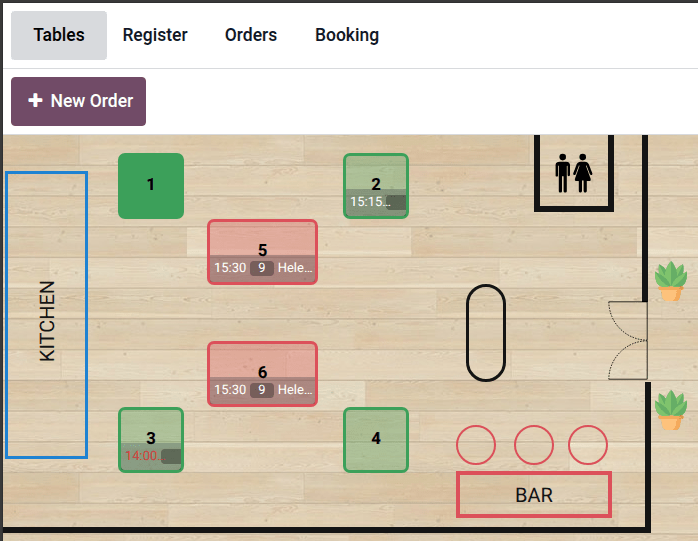
餐桌 1:该餐桌已被占用。
餐桌 2:该餐桌可用,但已在 15:15 被预订。
餐桌 3:14:00 的餐桌已超时。
餐桌 4:该餐桌可用。
餐桌 5:为容纳更大的团体,该餐桌已与 餐桌 6 合并。
装饰:使用墙壁、图像和形状 编辑楼层平面图。
楼层平面图配置
To edit a floor plan from the frontend, open the POS register, access the Tables view, click the (Edit Floor Plan) icon in the top-right corner to open the Floor plan editor, then customize the plan using the relevant buttons:
下拉菜单 (例如 主楼层 ):选择要编辑的楼层平面图。此外,点击 添加楼层 以新建一个。
添加桌台:在 方形、长方形、圆形 和 椭圆形 中选择桌台形状。
Add Decor: Customize the floor plan with Walls, Images, and Shapes.
(Edit Floor): Change the floor’s Name, select a Background, or click Set a Background Image to upload your own. To delete the floor, click Delete Floor.
点击现有的桌台或装饰以执行其他操作:
(属性):使用侧边面板中的工具编辑桌台或装饰。
(复制):复制桌台或装饰的属性。
(删除):删除桌台或装饰。
点击青绿色边框可手动缩小或放大桌台或装饰的形状。按住 (旋转) 图标可旋转桌台。
可以使用以下桌台和装饰编辑工具。要放弃所有更改,请点击 放弃。要保存所有更改,请点击 保存:
工具 |
使用 |
|---|---|
对齐 |
设置文本对齐方式。 |
颜色 |
点击首选颜色。 |
圆角 / 大小 / 粗细 |
使用光标调整滑块。 |
图层 |
Arrange the order within the floor plan. Send backward or move forward. |
座位数 |
点击 (加) 或 (减) 图标,以增加或减少座位数。 |
形状 |
点击所需的形状。 |
样式(文本) |
选择首选的文本格式样式。 |
样式(墙壁) |
选择首选的线条样式。 |
桌台编号 |
输入数字。 |
文本 |
输入文本,并点击 应用。 |
警告
Removing a Table, Decor, or the whole floor plan is permanent.
注解
要撤销上一次更改或重新应用上一次撤销的更改,请点击 (撤销) 或 (重做) 图标。
小技巧
To get a simpler Tables view, click the (hamburger) menu, then Switch Floor View. Repeat this action to get back to the customizable view.
预订
预订 设置允许直接从 POS 界面为指定销售点创建和管理预订。
注解
启用 预订 设置会自动安装 预约 应用。
更多内容
预订配置
要启用并配置预订,请按以下步骤操作:
重要
To ensure that only existing resources can be booked for a specific point of sale, set the Book field to Resources in the Appointment type form and select tables. Then, enable Group Bookings to ensure the maximum capacity does not exceed the combined capacity of the selected resources.
小技巧
To accommodate a booking that exceeds the capacity of a single table, click the (Resources) icon in the Appointment Type form, select a table, and add additional tables in the Linked Resource field to merge them when necessary.
更多内容
预订管理
要从 POS 界面管理桌台预订,请点击 预订,然后:
Click New to create a booking. Fill in the booking details (booking name, date and time, party size, resources), customer details (customer, phone number), add the booking to the user’s calendar, and any extra notes, then click Save.
Click an existing booking to Edit or Delete it, or to update its stage (e.g., Booked, Check In, or No Show).
Alternatively, update a booking stage from the kanban view by clicking the icon () and dragging the booking card to the relevant stage.
小技巧
To quickly reassign a booking from the Tables view, click and hold the booking notification on the booked table, then select the new table. If a party exceeds a single table’s capacity, multiple tables can be selected to seat the entire group.
订单管理
订单处理
要在 POS 收银机中处理订单,请按照以下步骤:
点击产品以将其添加到购物车。
定义订单的处理方式:
Click Set Table to link the order to a table. Enter a table number and click Assign, or click Plan to return to the Tables view and manually select a table.
点击 设置挂账 以输入未结订单的名称,并点击 应用。
點擊傳送以驗證訂單。
准备好后,处理订单支付 。
小技巧
To cancel an ongoing order, click the (Actions) icon, then Cancel Order. If an order printer is configured, a cancellation ticket is automatically printed for an order sent to the kitchen.
After selecting a table in the Tables view, click Release table in the cart to cancel the table’s occupancy. This action is available when the cart is empty.
Configure an order printer or a preparation display to send an order to the kitchen when clicking Send.
在提供不同服務類型時使用預設,例如內用、外帶或外送。
如果訂單是未連結至任何桌位的直接銷售,可以點擊 (動作)選單並選擇 編輯訂單名稱來修改其名稱。
订单转移
To transfer an order to another table from the POS register, click the (Actions) icon, then Transfer/Merge, and choose the target table in the Tables view:
选择空闲桌台以转移客户及其订单。
选择已占用桌台以合并客户及其订单。
课程
上菜顺序 功能允许餐厅将订单划分为不同的上菜阶段(例如前菜、主菜和甜点),并管理它们何时送入厨房。
手动分配上菜顺序
要直接从 收银机 将订单拆分为多个上菜顺序:
点击 上菜顺序 按钮,然后添加该上菜顺序的产品。按需重复此过程。
或者,先在购物车中多次点击 上菜顺序 按钮,生成所需数量的上菜顺序。然后逐一点击每个上菜顺序将其选中,并添加各自对应的产品。
自动分配上菜顺序
自动分配上菜顺序功能会根据产品的 POS 产品类别,自动按上菜顺序对产品进行归类。
要启用该功能,请转到 ,向下滚动到 备餐 部分,启用 自动分配上菜顺序,然后点击 保存。
要配置上菜顺序并将其分配给 POS 产品类别,请按以下步骤操作:
转到 ,然后选择一个产品类别(例如 Burgers)。
在 上菜顺序 字段中,选择一个现有的上菜顺序,或输入一个新名称(例如 Main)并点击 创建。
配置完成后,将 Burgers 类别中的产品添加到订单时,系统会自动将其分配到 Main 上菜顺序。
注解
一个上菜顺序可以分配给多个 POS 产品类别。例如,Main 上菜顺序可用于 Burgers、Pizzas 和 Meat 类别。
您可以根据需要创建任意数量的上菜顺序。
小技巧
默认情况下,上菜顺序按创建顺序显示在购物车中。要重新排列上菜顺序以符合您的服务流程,请激活 开发者模式,转到 ,然后使用 (可拖动) 图标将上菜顺序移到所需位置。
传菜
订单完成后,点击收银机左下角的 发送,将其传送到厨房。第一个上菜顺序会显示在 备餐显示屏 上,不带标签,表示它正在等待备餐。后续上菜顺序会标记为 待传菜,直到准备好可以传菜为止。
注解
发送 按钮上的文字会动态包含要送往厨房的项目所属的 POS 类别。如果类别过多,发送 一词将被隐藏,按钮上只显示 POS 类别本身。
要传菜某个待传的上菜顺序,请从 楼层平面图 或 订单 概览中打开订单(选择订单并点击 加载订单),然后点击 传菜 [上菜顺序] 按钮以处理下一道。每当某个上菜顺序准备好备餐时,请重复此操作。
转移上菜顺序
要将项目移到其他上菜顺序,请在购物车中选择单个产品或整个上菜顺序标题。点击 (操作) 图标,选择 转移上菜顺序,然后选择目标上菜顺序。
更多内容
订单打印
如需启用将订单发送到厨房或吧台打印机,请先连接打印机到 Odoo,然后前往POS 设置,并按照以下步骤操作:
滚动到 准备 部分并启用 准备打印机 设置。
在 打印机 字段中输入打印机的名称,然后单击 创建并编辑 。
将 类型 字段设置为 备餐。
输入 打印机 IP 地址。
在 打印的产品类别 字段中选择相关类别。
点击 保存 。
在POS 设置中,点击保存。
随后打印机便连接到销售点,并可打印备餐小票。
注解
要在 创建备餐打印机 表单上创建 打印的产品类别,请点击 打印的产品类别 字段内部,然后点击 搜索更多。在 搜索:打印的产品类别 弹出窗口中,点击 新建。输入名称,选择 上级类别,选择 颜色,指明其所属的 上菜顺序 类型,点击 (编辑) 图标以添加图片,确定产品可用性,然后点击 保存。
小技巧
账单与支付
账单拆分
要从 POS 收银台 拆分账单,请按以下步骤操作:
Click the (Actions) icon, then Split.
至少选择一个产品,并执行以下操作之一:
支付 :对所选产品直接进行支付。
拆分订单 :创建子订单。
转移 :将一个或全部产品转移到另一个桌台。
处理 支付 。
点击 继续,并对每位客人重复此过程。
注解
拆分账单需要至少订购两个产品,并会创建一个子订单,该子订单必须先支付,然后才能返回主订单。
更多内容
订单支付
要从 POS 收银台 进行订单支付,请按以下步骤操作:
点击 付款。
选择 支付方式 。
可选择客户并向其发送发票:
点击 客户 以选择或创建客户账户。
启用 发票 ,以便向客户发送发票。
点击 验证。
收据打印
To allow receipt printing for ongoing orders, go to , and enable Early Receipt Printing under the Point of Sale section. Then, from the POS register, click the (Actions) icon and select Bill to print the pro forma receipt.
成功完成 订单支付 后,点击 打印 以生成并打印账单。
重要
如果打印机已配置并链接到销售点,收据将在付款确认后自动打印。
更多内容
小费管理
配置
要在 POS 中启用小费功能,请转到POS 设置,向下滚动至付款部分,启用小费,然后点击保存。
注解
保存 小费 设置后,系统会自动使用预配置的 [TIPS] Tips 产品填充 小费产品 字段,该产品仅用于小费。当在 小费产品 字段中选择其他产品时,被选中的产品将无法再在 POS 收银台 中使用。
小费与支付
要在 支付 过程中处理小费,请按以下步骤操作:
点击 小费,然后点击 (欧元) 添加金额,或点击 (百分比) 添加百分比,最后点击 确认。
选择 支付方式 。
点击 验证。
小技巧
The currency symbol reflects your company’s configured currency.
如果订单和小费使用不同的支付方式支付,请先为订单选择一种 支付方式。然后为小费选择支付方式,点击 小费,输入小费金额,并点击 确认。最后,验证 该付款。
支付后小费(仅限美国)
要在美国的 POS 中启用付款后添加小费功能,请确保在POS 设置中启用了付款后添加小费设置。要处理付款后的小费,请按照以下步骤操作:
点击 关闭标签页 ,然后在 添加小费 界面中选择相应的选项:
15%、20% 或 25%:基于订单总额计算的小费费率。
无小费。
小费金额:在字段中输入相应的金额。
点击 Settle 来验证。