自动化任务
自动化规则允许针对特定触发执行一个或多个预定义操作,例如,当某个字段设置为特定值时创建活动,或在最后一次更新 7 天后归档记录。
创建自动化规则时,可以 添加自动化规则运行必须满足的 条件,例如,机会必须分配给特定的销售人员,或记录的状态必须不是 草稿 。
使用 Odoo 定制 创建自动化规则:
开启 Studio 并点击 自动化 ,然后点击 新建 。
给自动化规则起一个清晰、有意义的名字,以明确其目的。
选择 触发器 并根据所选触发器填写屏幕上出现的字段。
To define the actions to be executed:
add actions manually via the Add an action button in the Actions To Do tab; or
select an AI Agent, then provide Instructions that explain the desired action(s) to execute or outcome(s) to achieve. To insert fields from the model in the instructions, type
/to access the Field Selector.
示例
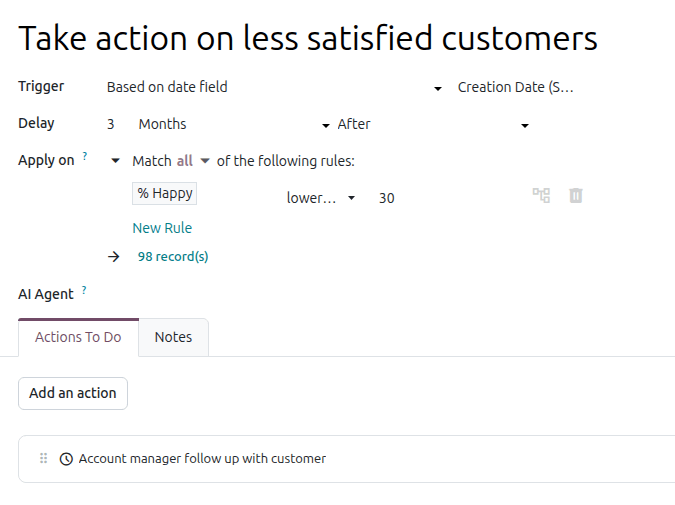
为确保跟进满意度较低的客户,该自动化规则会在销售订单创建 3 个月后为满意度低于 30% 的客户创建活动。
小技巧
Use the Notes tab to document the overall purpose and functioning of an automation rule. This makes rules easier to maintain and facilitates collaboration between users. Information about individual actions can also be added to an action’s Explanation tab.
要修改自动化规则所针对的 model ,请在定制中点击 自动化 前切换模型,或 激活开发者模式 ,创建或编辑自动化规则,并在 自动化规则 表单中选择 模型 。
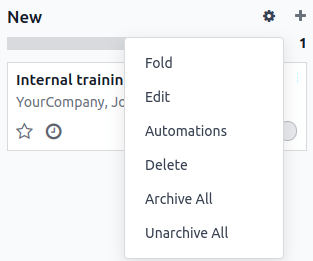
通过点击悬停在看板阶段名称上时出现的 (设置) 图标,然后选择 自动化 ,可以从任何看板阶段创建自动化规则。在这种情况下, 触发器 默认设置为 阶段设置为 ,但必要时可以更改。
触发器
触发器 用于定义自动化规则运行所需的事件类型。可用的触发器取决于 模型 。共有五个触发器类别:
添加条件
域名筛选器允许您确定自动化规则应针对或排除的记录。高效筛选可避免对不受规则影响的记录进行不必要的处理,从而提高整体性能。
小技巧
在创建自动化规则前 激活开发者模式 ,以便最灵活地添加域筛选器。
根据所选触发器的不同,可以定义一个或多个记录在触发 前 和/或触发 后 必须满足的条件。
域名更新前 定义了记录在触发事件发生 之前 必须满足的条件,例如,记录必须具有
类型 = 客户发票和状态 = 已发布。激活开发者模式后,点击 编辑域 (如果可用),然后点击 新规则 。
应用于 域定义了触发事件发生 后 记录必须满足的条件,例如,客户发票必须具有
付款状态 = 部分支付。激活开发者模式后,点击 编辑域 然后点击 新规则 。
小技巧
如果未激活开发者模式,要定义 应用于 域,请点击 添加条件 。完成或删除建议的条件。要添加条件,请点击 新规则 。
当 触发 时,例如,已入账客户发票的付款状态被更新,自动化规则会检查所定义的条件,并仅在记录符合这些条件时执行 操作 。
示例
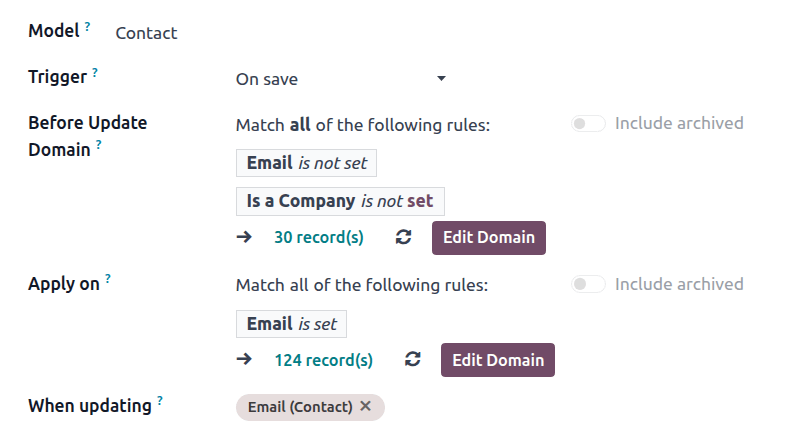
如果是个人而非公司的现有联系人首次设置电子邮件地址(与修改电子邮件地址相反)时应执行自动操作,则使用 电子邮件未设置 和 公司未设置 作为 更新前域 ,并使用 电子邮件已设置 作为 应用 域。
注解
更新前域 在记录创建时不会执行检查。
值更新
当数据库中发生特定变化时触发自动操作。这类触发器取决于模型,并基于常见的更改,如添加特定标记(如添加到任务中)或设置字段值(如设置 用户 字段)。
选择触发器,然后根据需要选择数值。
电子邮件活动
接收或发送电子邮件时触发自动操作。
时间条件
在与日期字段或记录的创建或更新相关的时间点触发自动操作。可使用以下触发器:
基于日期字段 :该操作在所选日期字段日期 之前或之后 的既定时间段触发,例如合同到期日前 30 天。
创建后 :在创建并保存记录后的一段时间内触发该操作。
上次更新后 :在编辑并保存现有记录一段时间后触发该操作。
要配置 时间条件 触发器,请在 启用开发者模式 后:
从 时间条件 类别中选择适当的 触发器 。如果选择了 基于日期字段 触发器,请再选择相关的日期字段。
配置 延迟 以确定操作的 执行日期时间。为此,输入操作应在多少 分钟 、小时 、天 或 月 之后触发。如果选择了 基于日期字段 触发器,操作可以在所选日期字段的 之后 或 之前 触发。
可选择性地 添加条件 ,规定记录在规则触发之前和/或之后必须满足的条件。
点击 手动保存 。
点击 计划操作 ,打开 自动化规则:检查并执行 计划操作。
注解
该计划操作会检查自上次运行以来已到期的执行日期时间,并在相关时执行相应操作。默认情况下,计划操作设置为 每 4 小时执行一次 ,对于订单日期后 3 个月或最后更新后 7 天这类延迟,通常已经足够。
如果任何自动化规则带有基于时间的触发器且延迟不足 40 小时,例如事件开始日期时间前 3 小时,计划操作的执行频率会自动提高,例如调整为 每 18 分钟执行一次 。这样操作可以更接近其预定的执行日期时间被执行。
点击左上角的 手动运行 。
警告
这一步至关重要,可防止规则追溯作用于历史记录。手动运行计划操作会初始化自动化规则中 上次运行 的时间戳,这是规则 执行逻辑 的关键要素。
点击面包屑中的自动化规则名称,返回自动化规则设置界面。
添加 要执行的操作 ,待所有操作定义完成后,点击 手动保存 。
该操作会在达到执行日期时间且满足条件后,自动化规则:检查并执行 计划操作的首次运行时被执行。
执行逻辑
使用基于时间的触发器时,只有当执行日期时间落在计划操作的上次运行与本次运行(无论是按计划还是手动运行) 之间 时,操作才会被执行,即:
上次运行 –> 执行日期时间 –> 本次运行
注解
手动运行 自动化规则:检查并执行 计划操作并不一定会导致规则的操作被执行。测试带时间触发器的自动化规则时,请确保上述顺序成立,然后检查操作是否已被执行。
示例
10 月 15 日上午,您创建了一条自动化规则,在 合同结束日期 前 30 天触发发送邮件;合同于结束日期当天 11:59 pm 到期。在创建规则期间,自动化规则:检查并执行 计划操作已于 11:00 am 手动运行,并设置为此后每四小时运行一次。
这条新自动化规则将适用于结束日期在规则创建 之后 至少 30 天的合同,即结束日期为 11 月 14 日或更晚。
对于结束日期为 11 月 14 日的合同,操作的执行日期时间为 10 月 15 日 11:59 pm。因此,该操作将在该日期时间过后 自动化规则:检查并执行 计划操作首次运行时被执行,即:
计划操作上次运行:10 月 15 日 11:00 pm
执行日期时间:10 月 15 日 11:59 pm
计划操作本次运行:10 月 16 日 3:00 am
自定义
触发自动化操作:
创建时 :首次保存记录时。
创建和编辑时 :首次保存记录时和以后任何时候。
删除时 :删除记录时。
用户界面更改时 :当字段值在 表格视图 上更改时,甚至在保存记录之前。
对于 创建或编辑记录时 和 界面变更时 这两种触发器,您必须随后在 更新字段时 选项中选定用于触发自动化规则的对应字段。
警告
如果 更新时 字段中未选择任何字段,自动化操作可能对同一条记录执行多次。
此外,也可以选择性地定义触发自动化规则所需满足的附加条件。
注解
UI 更改 触发器只能与 执行代码 动作一起使用,并且只在手动修改时起作用。如果字段是通过其他自动化规则更改的,则不会执行该操作。
外部
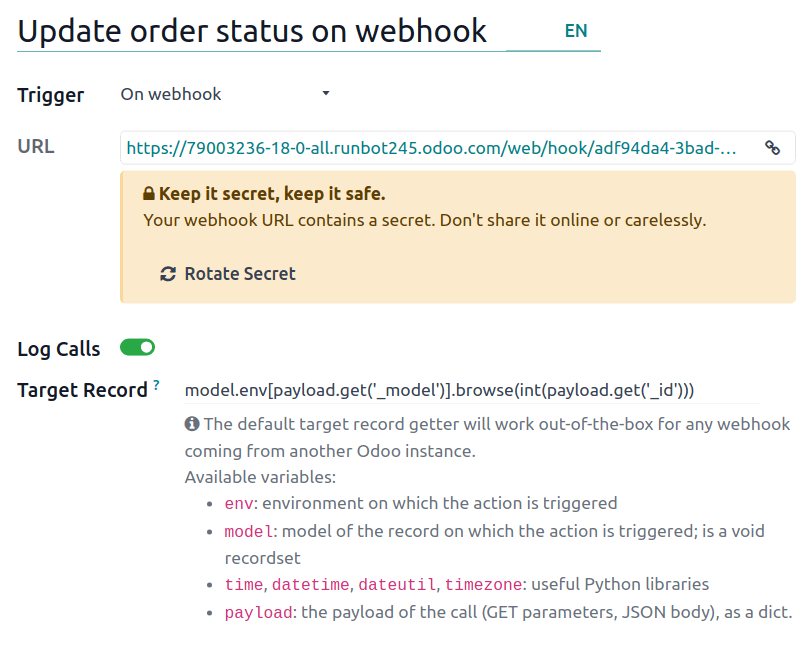
使用 网络钩子 ,根据外部系统或应用程序中的特定事件触发自动操作。
在 Odoo 中配置网络钩子(生成网络钩子 URL 并定义目标记录)后,需要在外部系统中实施。
警告
在决定使用网络钩子以及整个实施过程中,强烈建议 咨询开发人员、解决方案架构师或其他技术人员。如果配置不当,网络钩子可能会扰乱 Odoo 数据库,且回退可能需要较长时间。
注解
还可以设置一个自动操作,当 Odoo 数据库中发生事件时,该操作 向外部系统的网络钩子 发送数据。
更多内容
操作
Once you have defined the automation rule’s trigger, add one or more actions to be executed as follows:
在 应采取的操作 选项卡中点击 添加操作 。
选择操作的 类型 ,并根据所选操作填写相关字段。
点击 保存并关闭 或 保存并新建 ,定义其他操作。
小技巧
Multiple actions can be defined for the same automation rule. By default, actions are executed in the order in which they were defined.
示例
If you define an Update Record action and then a Send Message action where the message references a field that was updated, the message uses the updated values. However, if the Send Message action is defined before the Update Record action, the message uses the values set before the record is updated.
要更改已定义操作的顺序,请点击操作旁边的 (拖动手柄) 图标,并将其拖动到所需位置。
更新记录
此操作用于更新记录的一个(相关)字段。有以下选项:
更新 :使用指定值更新所选字段。
AI 更新 :根据所提供的人工智能提示动态更新所选字段。此选项需要安装 Odoo AI 应用程序。
序列 :使用定义的序列更新所选字段。
计算 :使用 Python 代码动态更新所选字段。
定义操作:
With the Update, Update with AI, Sequence or Compute option selected, as relevant, select or search for the field to be updated or computed. If needed, click the (right arrow) next to the field name to access the list of related fields.
根据所选选项提供相应信息。
更新
选择或输入字段的更新值。
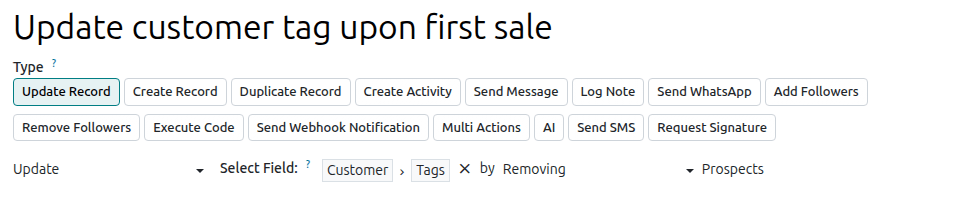
如果要更新的是 多对多字段 ,请选择该字段的更新方式:是通过 添加 、 移除 或 设置为 所选值,还是通过 清空 来操作。
示例
若需通过自动化动作从客户记录中移除某个标签,请将 更新 字段设置为 客户 > 标签 ,选择 移除 方式,然后选择要移除的标签。
AI 更新
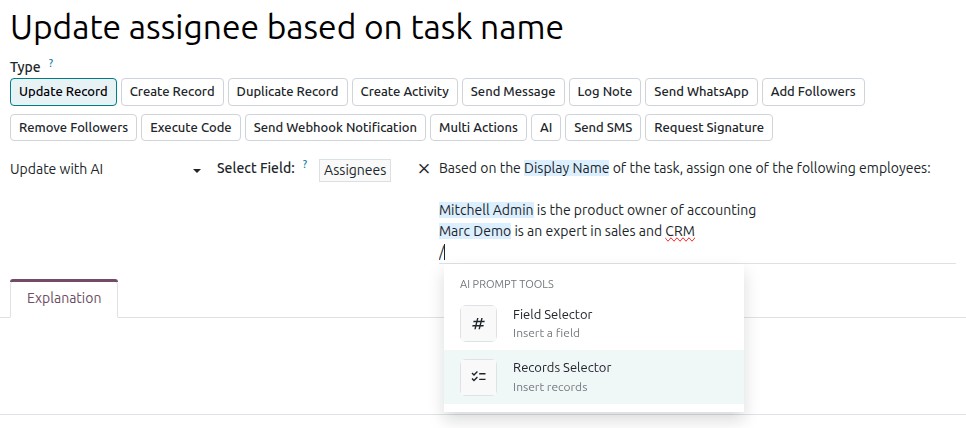
输入提示,指示 Odoo AI 如何更新字段。键入 / 打开 AI 提示工具 ;使用 字段选择器 告诉 Odoo AI 要检查哪些相关字段,以及 记录选择器 为更新字段提供可能的值。
Optionally, explain the rationale and/or functioning of the automation rule in the Explanation tab.
示例
如果您希望自动化规则根据员工的专长更新新创建任务的 负责人 字段,您可以编写一个提示,指示 Odoo AI 检查任务的 显示名称 字段的上下文,然后分配最合适的员工。
序列
选择现有序列,或按以下步骤新建序列:
Click Search more, then click Create New.
在弹出的窗口中,输入序列的 名称 。
在 序列 选项卡中,配置序列:
前缀 :在序列中的下一个数字 之前 添加的字符。
后缀 :在序列中下一个数字 后 添加的字符。
序列大小 :决定序列中每个数字的位数。如有必要,会在数字前加上前导零,以达到指定的序列大小,例如,序列大小为
5时,序列中的第一个数字为00001。步骤 :确定序列中数字之间的增量。
下一个编号 :序列中将使用的下一个数字,不包含前导零。
小技巧
使用如
%(year)s或%(month)s之类的动态占位符作为 前缀 和/或 后缀 ,以创建包含当前年份、月份等元素的序列。可能的占位符显示在窗口底部。要使用子序列(例如,使序列每年或每月重新开始),请启用 按日期范围使用子序列 ,然后为每个日期范围 添加一行 并指明该范围的 下一个编号 。
点击 保存 。
示例
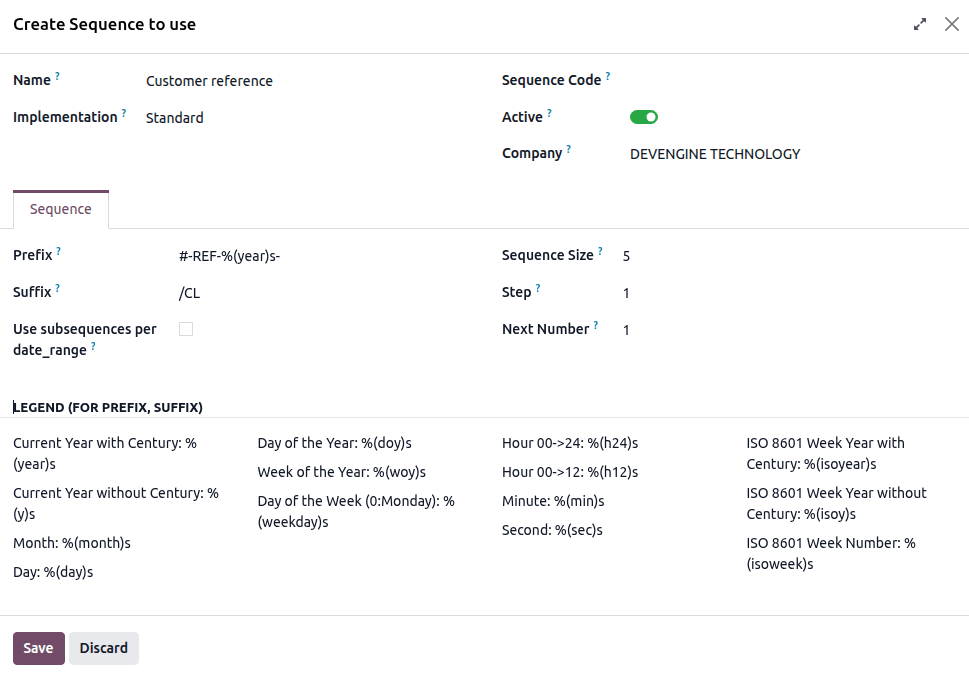
To configure an automated action that creates a sequential customer reference each time a new customer is created, set the Sequence field to Reference, then, in the dropdown, click Search more. Click New to create a new sequence.
在此示例中,每位新客户会收到一个带有前缀 #-REF-%(year)s- 的顺序参考号,其中 %(year)s 是包含世纪的当前年份,后缀为 /CL 。例如:#-REF-2025-00001/CL 、#-REF-2025-00002/CL 等。
计算
Enter the Python expression to be used to compute the field’s value.
示例
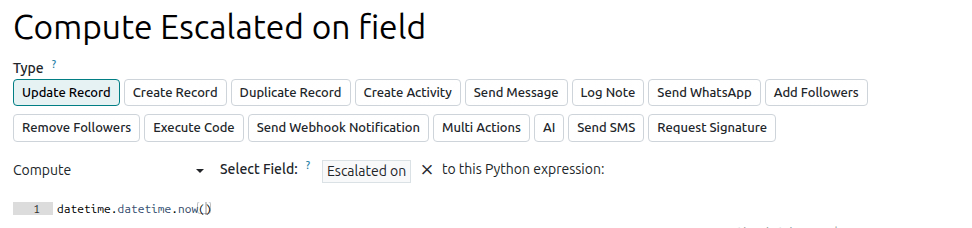
To configure an automation rule to compute a custom datetime field, Escalated on, when a task’s priority is set
to Very high (three stars), define the rule’s trigger to Priority is set to to Very
High and define the Update Record action as follows:
创建记录与复制记录
此类动作用于在任何模型上创建新记录或复制现有记录。
定义操作:
选择 创建记录 或 复制记录 作为相关的 类型 操作,在 待创建记录 字段中选择所需的模型;该字段默认包含当前模型。
指定记录的 名称 ;若为复制记录操作,请在 复制来源 字段中指明被复制的原记录。
若需在其他模型上创建新记录或复制记录,请在 链接字段 中选择相应字段,以关联触发此操作的原始记录。
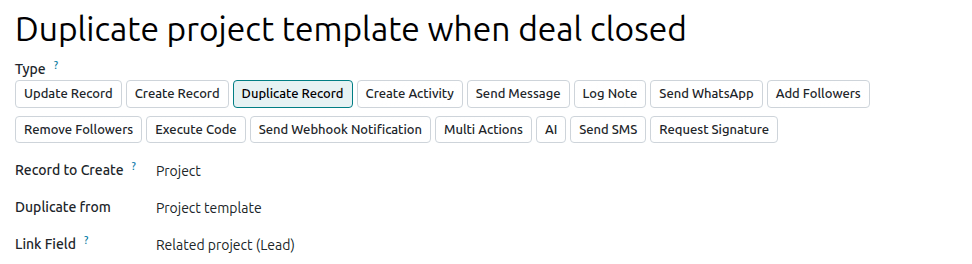
示例
To configure an automation rule to duplicate a project, e.g. a project template with predefined
tasks, when an opportunity is set to Won, add a custom Related opportunity many2one
field field on the Project model and a custom
Related project one2many field field on the
Lead model, then provide the following details about the record being duplicated:
小技巧
Another automation rule with 更新记录 actions can be created to update the fields of the new or duplicated record if necessary. For example, you can use a Create Record action to create a new project task and then assign it to a specific user using an Update Record action.
创建活动
This action is used to schedule a new activity or, where relevant, an activity plan, linked to the record.
定义操作:
With Create Activity selected as the Type of action, select the appropriate Activity Plan or Activity Type.
Indicate by when the activity should be completed by specifying a number of Days, Weeks, or Months in the Due In field.
For an Activity Type:
In the Summary field, edit the title if desired.
Assign the activity to a user:
To always assign the activity to the same user, select Specific User, then select the user from the dropdown.
To assign the activity to a role, select Specific Role, then select the role from the dropdown or, to create a new role, click Search more, then click Create New.
To target a user linked to the record dynamically, select Dynamic User. If needed, change the default field by clicking on it, then selecting or searching for the field in the field selector. Click the (right arrow) icon next to the field name to access related fields, if needed.
Optionally, Log a note to provide more information about the activity.
示例
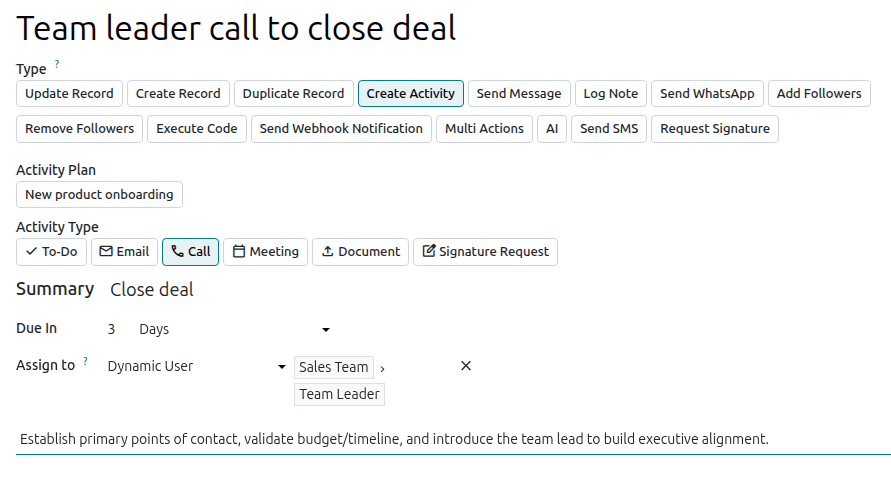
在向高预期收入的商机发送方案后,您可为销售团队负责人创建一项致电潜在客户的活动,以提高成交机会。
To do so, set the Activity Type to Call and the User Type to Dynamic User. Click on the placeholder field and select Sales Team, then click the (right arrow) icon and select Team Leader.
Send Message
This action is used to send a message or email to a contact linked to a specific record.
With Send Message selected as the Type of action, select or create a Template. When the automation is triggered, the message is posted in the chatter of the record and sent to all the followers of the record as well as to dynamically calculated recipients of the template, as follows:
Internal users receive an email or a direct message in the Discuss app, depending on their notification preferences.
External users receive an email.
更多内容
Log Note
This action is used to post a note visible to internal users in the chatter of the record.
With Log Note selected as the Type of action, enter the text in the Internal Note field.
发送 WhatsApp
重要
要自动发送 WhatsApp 消息,必须先创建一个或多个 WhatsApp 模板 。
此操作用于向链接到特定记录的联系人发送 WhatsApp 消息。
将 发送 WhatsApp 选为操作的 类型 后,从下拉菜单中选择适当的 WhatsApp 模板 。
添加关注者和移除关注者
此操作用于订阅/退订现有联系人为记录的关注者。
选择 添加关注者 或 删除关注者 作为相关的 类型 操作,然后选择 关注者类型 :
要始终添加/删除相同的联系人,请选择 特定关注者 ,然后从下拉菜单中选择联系人。可以添加/删除多个联系人。
要动态添加/删除与记录链接的联系人,请选择 动态关注者 。如有需要,请更改 关注者字段 ,方法是点击占位符字段名,然后在出现的列表中选择或搜索伙伴字段。点击字段名旁的 (右箭头) ,可根据需要访问相关字段。
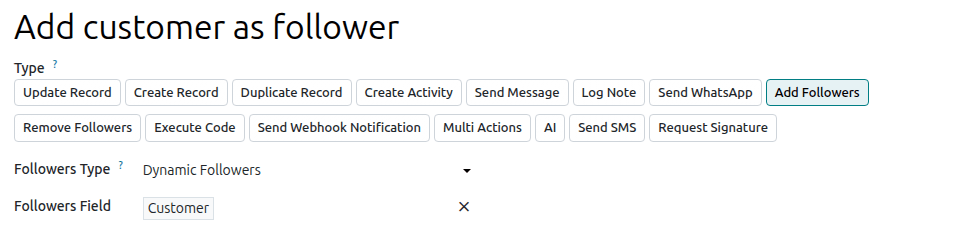
示例
为了让客户了解项目的进展情况,当项目任务设置为 进行中 时,该自动操作会将相关客户添加为关注者。
执行代码
该操作用于执行 Python 代码。您可以在 代码 选项卡中使用以下变量编写代码:
env:操作触发所在的环境model:操作触发记录所属的模型;是一个空记录集record:操作触发的记录;可能为空records:多模式下操作触发的所有记录的记录集;可以留空time、datetime、dateutil、timezone:常用的 Python 库float_compare:根据特定精度比较浮点数的实用函数log(message, level='info'):将调试信息记录到 ir.logging 表的日志函数_logger.info(message):在服务器日志中输出消息的记录器UserError:抛出面向用户警告消息的异常类Command:x2many 命令命名空间action = {...}:返回一个操作
小技巧
可用变量的说明同时见于 代码 和 帮助 选项卡。
更多内容
发送 Webhook 通知
此操作用于向 URL 字段中指定的 webhook URL 发送包含所选 字段 值的 POST API 请求。
示例负载 提供请求中所含数据的预览,使用随机记录的数据;若没有可用记录,则使用虚拟数据。
注解
您还可以设置自动化动作,以便在外部系统发生预定义事件时,通过网络钩子接收来自该外部系统的数据 。
多重操作
此动作用于同时触发多个(与当前模型关联的)动作。
配置操作步骤:
选择 多重操作 作为操作的 类型 ,然后点击 添加操作 。
在 添加:子操作 弹出窗口中:
选择一个或多个现有操作,然后点击 选择 ;或
点击 新建 ,定义要执行的动作,随后点击 保存并关闭 ;如需继续创建其他动作,可点击 保存并新建 。
按需重复上述步骤。
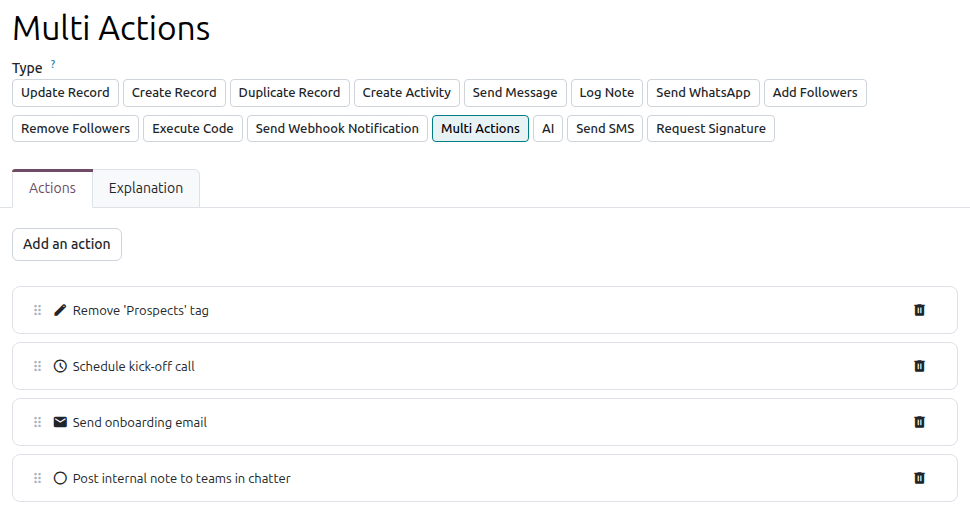
示例
When an opportunity with a value above $10,000 is set to Won, the following four actions are scheduled to transition the customer smoothly from sales to onboarding: remove the Prospect tag, schedule a kick-off call, send an onboarding email to the customer, and post an internal note informing teams.
AI
This action allows you to provide instructions to the AI about the desired action(s) to execute or outcome(s) to achieve.
With AI selected as the Type of action, click the Prompt tab,
then enter the Instructions to the AI. To insert fields from the model in the
instructions, type / to access the Field Selector. Optionally, select Tools to provide the AI with standard server actions it can call to execute
tasks or update records.
Send SMS
This action is used to send an SMS to a contact linked to a specific record.
With Send SMS selected as the Type of action, select or create a Template. When the automation is triggered, the SMS is sent to the recipients of the SMS template.
小技巧
SMS templates can also be accessed by enabling developer mode, then, in the Settings app, going to .
Request Signature
This action is used to request the signature of a templated document.
With Request Signature selected as the Type of action, select the appropriate Sign Template.
For each identified signer of the document, assign a user:
To request the signature of the same user every time, select Fixed Signer, then select or search for the user from the dropdown or create a new user.
To request the signature of the user associated with a linked field on the model in question, select Linked Field then select the relevant field.