视图
视图是用于显示 模型 中数据的界面。一个模型可以有多个视图,它们只是以不同方式显示相同的数据。在 Studio 中,视图分为四大类:一般 、多记录 、时间线 和 报表 。
小技巧
To change the default view of a model, access Studio, go to Views, click the (ellipsis) icon next to the desired view, and click Set As Default.
Views can also be modified using Studio’s built-in XML editor. To do so, activate developer mode, navigate to the relevant view, select the View tab, then click </> XML.
重要
When editing a view using the XML editor, avoid making changes directly to standard and inherited views, as these would be reset and lost during updates or module upgrades. Always make sure to select the correct Studio inherited views: when a view is modified in Studio by dragging and dropping a new field, for example, a specific Studio inherited view and its corresponding XPath, which defines the modified part of the view, are automatically generated.
一般视图
注解
除非另有说明,下述设置都在视图的 视图 选项卡下找到。
窗体
表单 视图用于创建和编辑记录,如联系人、销售订单、产品等。
To structure a form, drag and drop the Tabs and/or Columns elements from the + Add tab.
To add a field, drag and drop a New Field or Existing Field from the + Add tab.
To prevent users from creating, editing, deleting, or duplicating records, untick Can Create, Can Edit, Can Delete, or Can Duplicate.
To add a button, click Add button directly above the form. In the Properties tab, enter a Label, and select the button’s action from the What should the button do field:
Run a Server Action: Select the server action to be executed from the dropdown list.
Call a method: Specify an existing Python method already defined in Odoo.
To change a button’s label or style, in the Properties tab, click the button and edit its Label or Class (either
btn-primaryfor a primary button orbtn-secondaryfor a secondary button).小技巧
主要 按钮代表用户在特定视图中可执行的主要动作(例如 发送 报价单),在视觉上更突出。次要 按钮提供替代或不常用的动作(例如 打印 或 预览 报价单),视觉上较不突出。默认情况下,新按钮为次要按钮样式。
To add a smart button, click Add button to the right of the standard smart buttons, if any, at the top of the form view. Select a Related field, enter a Label, choose an Icon, then click Add.
To reorder buttons, smart buttons, or tabs, click the button or tab, then drag it to the desired position within its section; a blue rectangle indicates the area within which the button or tab can be moved.

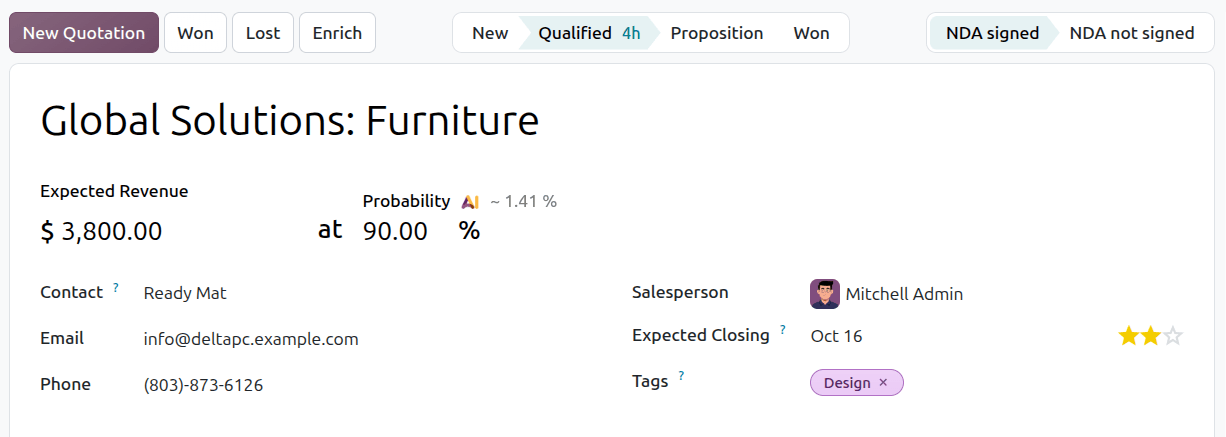
To add a (second) status bar above the form in a form view, in a model that allows such customization, drag and drop a Many2One or Selection field into the placeholder status bar above the form to the right.
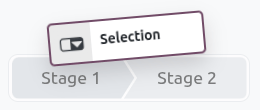
Select the related model and click Confirm or enter the selection values and click Add.
示例
活动
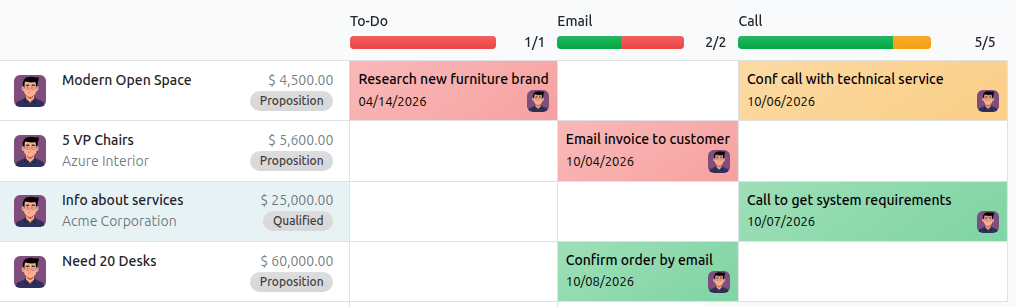
活动 视图用于安排活动(邮件、电话等)并总览与记录关联的活动。
注解
在Studio中,仅能通过编辑XML代码更改此视图。
示例
搜索
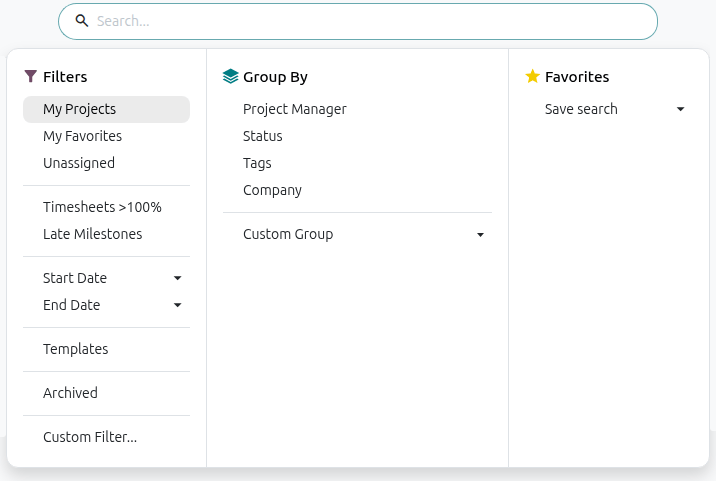
搜索 视图添加在其他视图顶部,用于筛选、分组和搜索记录。
要添加自定义 筛选器 并使用 分割符 进行构建,转到 +添加 选项卡,并将其拖放至 筛选器 下。
要在搜索下拉菜单中添加现有字段,请前往 + 添加 选项卡,将其拖放到 自动补全字段 下方。
示例
多项记录视图
注解
除非另有说明,下述设置都在视图的 视图 选项卡下找到。
看板
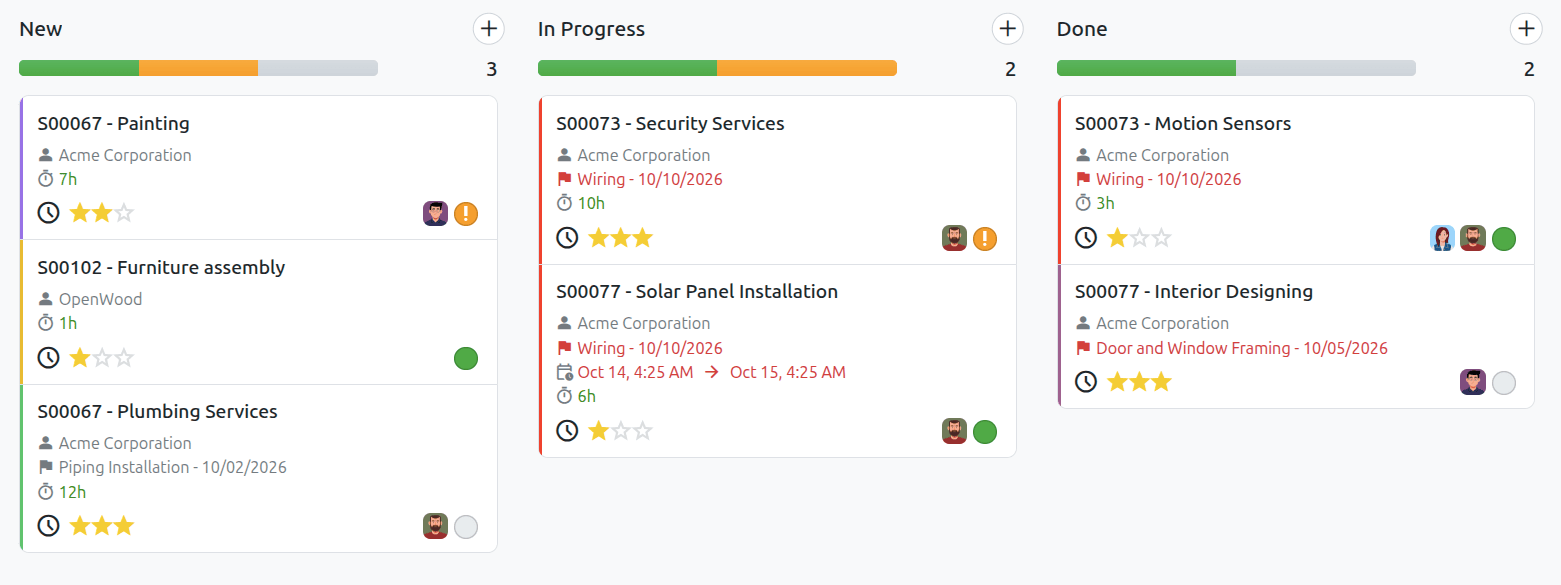
看板 视图常用于支持业务流程——通过在阶段之间移动记录,或作为以 卡片 形式显示记录的替代方式。
注解
如果存在 看板 视图,默认情况下它将用于在移动设备上显示数据,而不是使用 列表视图 。
要防止用户创建新记录,取消勾选 可创建 。
要直接在视图中创建记录,在极简表单中,启用 快速创建 。
要为记录设置默认分组,请在 默认分组依据 下选择一个字段。
示例
列表
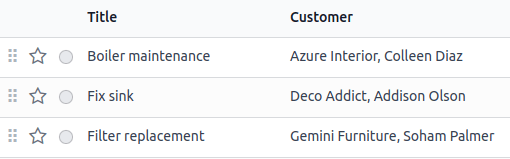
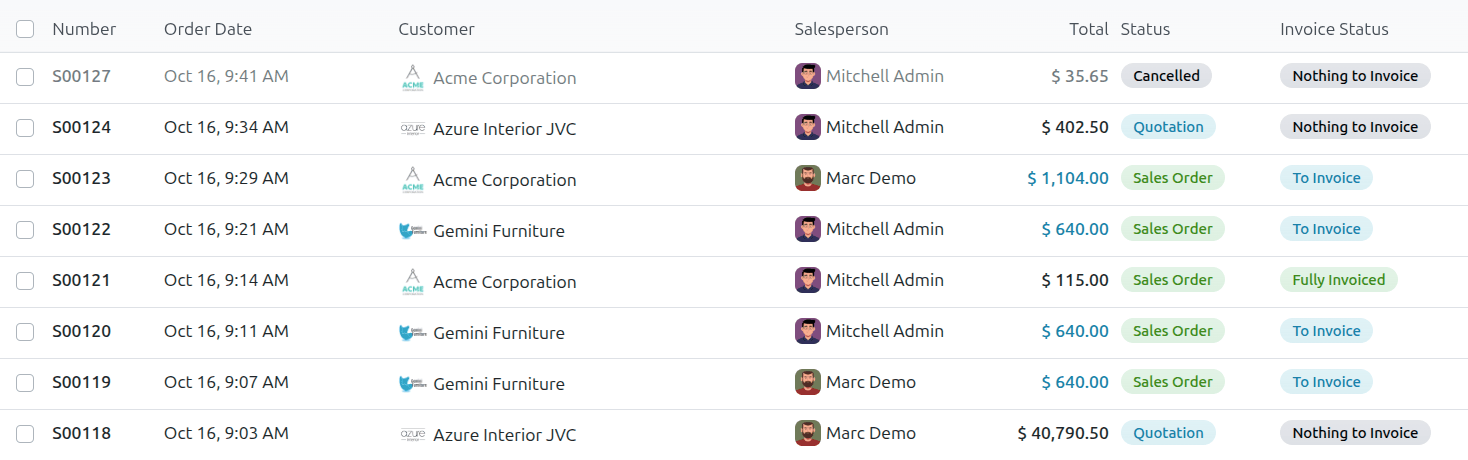
列表 视图用于一次总览多条记录、查找记录并编辑简单记录。
To add a field, drag and drop a New Field or Existing Field from the + Add tab.
To prevent users from creating, editing, deleting, or duplicating records, untick Can Create, Can Edit, Can Delete, or Can Duplicate.
To create and edit records directly within the view, select either Add record at the bottom, Add record on top, or Open form view under When Creating Record.
注解
这将防止用户从 列表 视图打开 Form view 中的记录。
To allow several records to be edited at once, tick Enable Mass Editing.
要更改记录的默认排序方式,在 排序方式 下选择一个字段。
要为记录设置默认分组,请在 默认分组依据 下选择一个字段。
To add a button, click Add a button at the top left of the list view, enter a Label, and select the button’s action from the field What should the button do field in the Properties tab:
运行服务器动作 :从下拉列表中选择要执行的 服务器动作 ;
调用方法 :指定 Odoo 中已定义存在的 Python 方法。
The widths of columns in a List view are computed automatically to provide the optimal user experience. However, it is also possible to set a fixed or minimum column width per field in pixels, or to define a range. To do so, click on the relevant column to open the field’s Properties tab, then complete the Column Width (px) field as relevant:
for a fixed width, enter the number of pixels, e.g.,
250for a minimum width, enter the number of pixels within square brackets (
[]), e.g.,[200]for a range, enter the minimum and maximum number of pixels within square brackets, e.g.,
[200,250]
示例
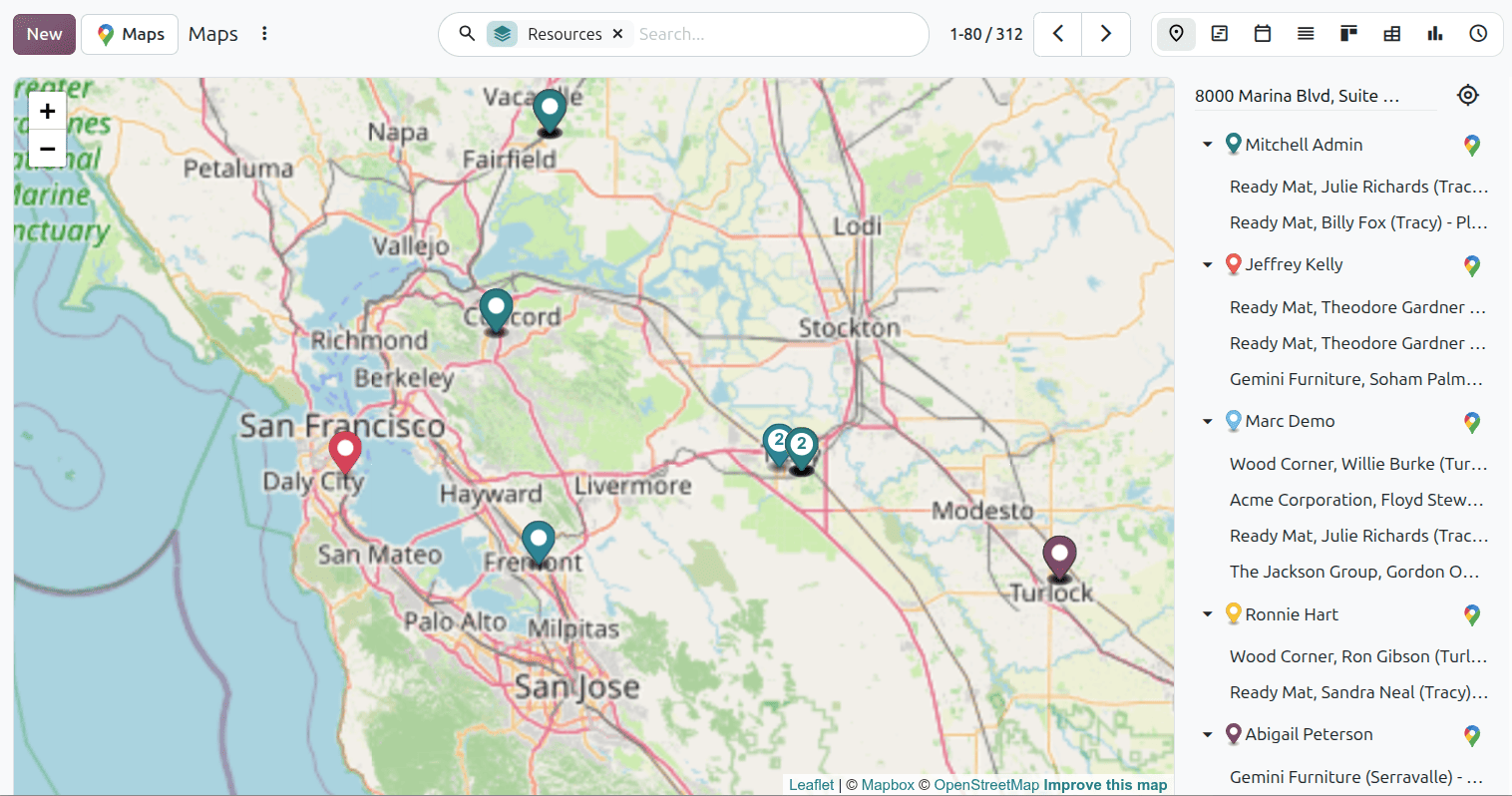
地图
The Map view is used to display records on a map. For example, it is used in the Project app to plan an itinerary between different tasks.
注解
激活该视图需要有一个关联到 联系人 模型的 Many2One 字段 ,因为地图上记录的位置依据联系人地址确定。
在 联系人字段 下选择在地图上使用的联系人类型。
要隐藏记录的名称或地址,请勾选 隐藏名称 或 隐藏地址 。
在 其他字段 下选择要从其他字段添加的信息。
To have a route suggested between the different records, select a Routing mode (Optimized or Ordered). The view requires a valid Mapbox token and at least two located records, or one located record and the user’s current position.
Optimized: Computes the route for minimal travel time between records.
Ordered: Routes strictly follow the default order (Sort by) set on the view. This selection field is dynamically hidden unless the routing mode is set to Ordered.
注解
A Mapbox token must be configured to use the routing.
示例
时间线视图
日历
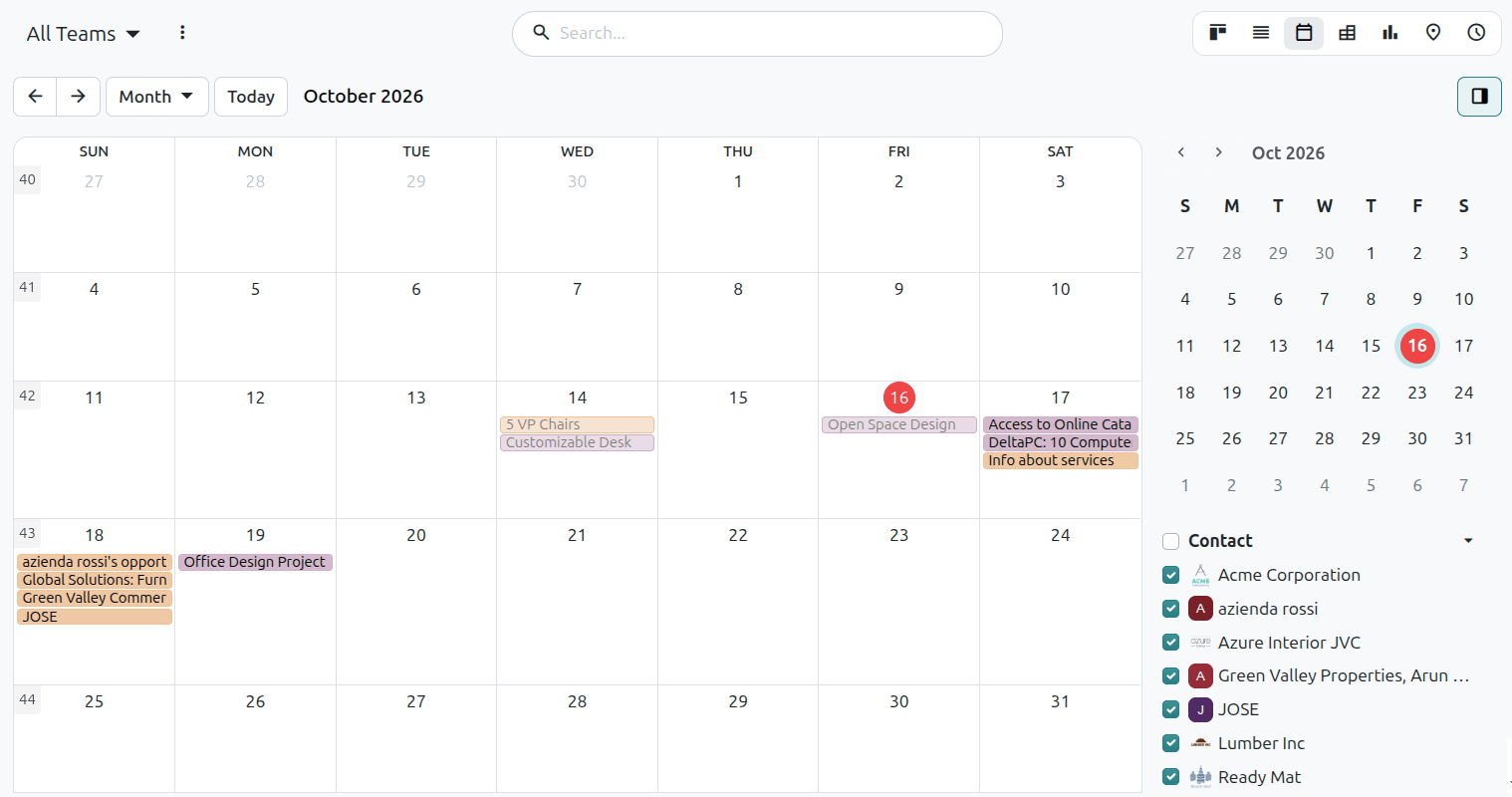
日历 视图用于在日历中总览和管理记录。
要直接在视图中创建记录,而不打开 Form view ,启用guilabel:
快速创建。注解
此操作只适用于仅使用 名称 即可 快速创建 的特定模型。多数模型不支持快速创建和 表单 视图填写所需的字段。
要为日历中的记录设置颜色,在 颜色 下选择一个字段,与该字段值相同的所有记录将显示为设置颜色。
注解
由于颜色数量有限,同一颜色可能分配给不同的值。
要在日历顶部显示全天活动事件,请选择一个 复选框字段 ,用于指明事件是否持续一整天。
要选择显示事件的默认时间刻度,在 默认显示模式 下选择 日 、 周 、 月 或 年 。
示例
群组
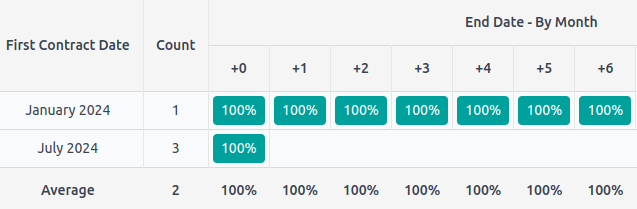
群组 (Cohort) 视图用于考察记录在一段时间内的生命周期。例如,订阅应用用它查看订阅的留存率。
要在视图上默认显示测量值(即给定字段的聚合值),选择 测量字段 。
要选择默认情况下对结果进行分组的时间间隔,在 间隔 下选择 日 、 周 、 月 或 年 。
要更改群组 模式 ,选择 Retention the percentage of records staying over a period of time, it starts at 100% and decreases with time 或 Churn the percentage of records moving out over a period of time - it starts at 0% and increases with time 。
要更改 时间线 (即列)前进的方式,选择 Forward (0~+15)或 Backward (-15~0)。对于多数目的,使用时间线 向前 。
示例
甘特图
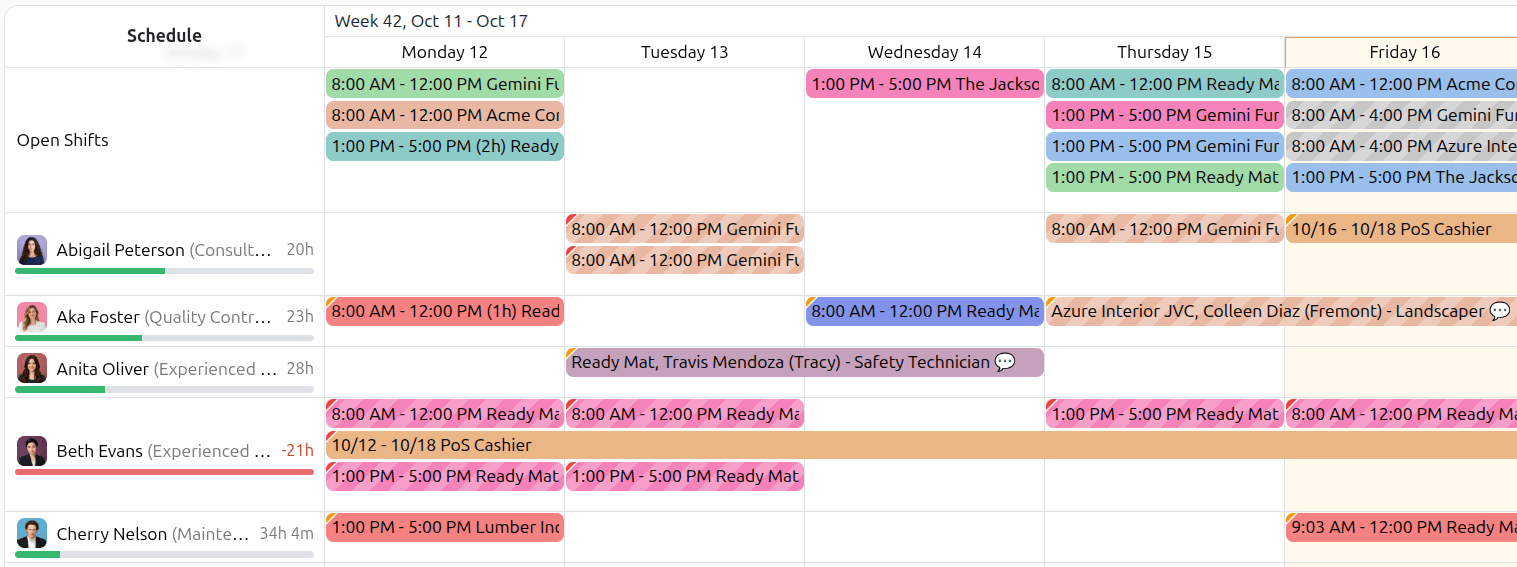
甘特 视图用于预测和考察记录的整体进度。记录以时间尺度下方的条形表示。
要防止用户创建或编辑记录,取消勾选 可创建 或 可编辑 。
要填写不应创建记录的(例如,周末)灰色单元格,勾选 显示不可用 。
注解
基础模型须支持该功能,且不能使用Studio添加支持。支持项目、休息、计划和生产应用程序。
要在底部显示总计行,勾选 显示总计行 。
To allow users to schedule or unschedule records by dragging and dropping them between the Gantt view and the side panel, enable Scheduling.
要选择记录的默认分组方式(例如,按员工或项目),在 默认分组方式 下选择一个字段。
要定义查看记录的默认时间刻度,在 默认刻度 下选择 日 、 周 、 月 或 年 。
要为视图中的记录设置颜色,在 颜色 下选择一个字段,与该字段值相同的所有记录将显示为设置颜色。
注解
由于颜色数量有限,同一颜色可能分配给不同的值。
要规定各时间刻度除以的精度,选择 日精度 下的 一刻钟 、 半小时 或 小时 , 周精度 下的 半天 或 全天 ,以及 月精度 。
示例
报表视图
注解
除非另有说明,下述设置都在视图的 视图 选项卡下找到。
透视表
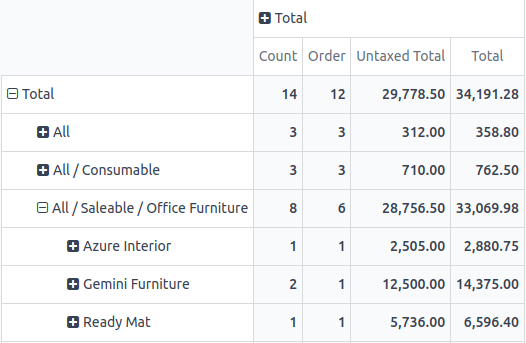
透视表 视图用于以交互方式探索和分析记录中的数据。它在聚合数值数据、创建类别,以及通过展开和折叠不同数据层级进行下钻分析时特别有用。
要查看在单元格内聚合数据的所有记录,勾选 Access records from cell 。
要将数据划分为不同类别,选择 Column grouping 、 Row grouping - First level 或 Row grouping - Second level 下的字段。
要使用视图添加要测量的、不同类型的数据,在 测量 下选择一个字段。
要显示构成单元格内聚合数据的记录计数,勾选 显示计数 。
示例
图形
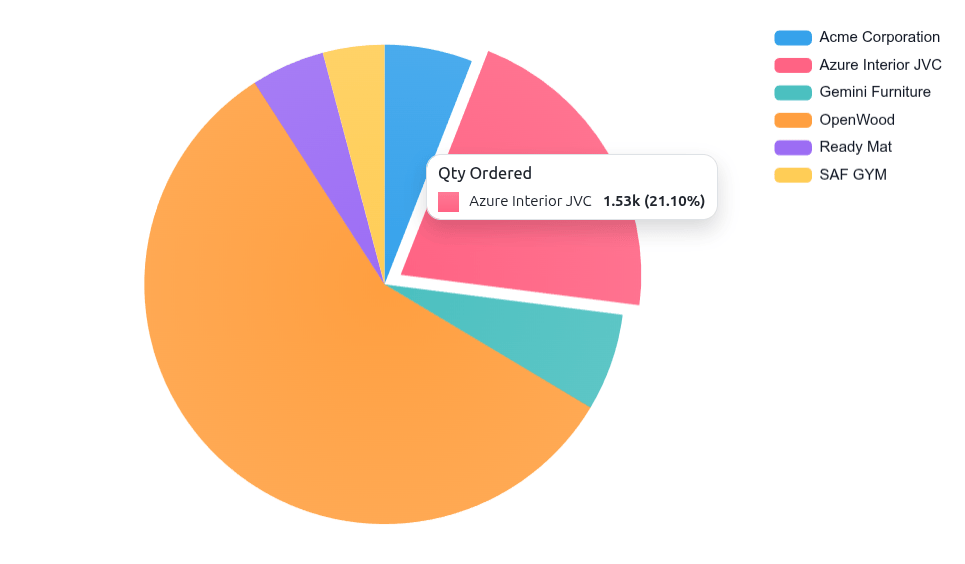
图形 视图用于以条形图、折线图或饼图展示记录中的数据。
要更改默认图表,在 类型 下选择 条形图 、 拆线图 或 饼图 。
要选择默认数据维度(类别),在 First dimension 下选择一个字段,如果需要,在 Second dimension 下选择另一个字段。
要选择使用视图测量的默认数据类型,在 测量 下选择一个字段。
仅适用于条形图:要按值对不同数据类别进行排序,在 排序 下选择 升序 (从最低值到最高值) (from lowest to highest value) or 降序 从最高值到最低值)。
仅适用于条形图和饼图:要查看在图表数据类别下聚合数据的所有记录,勾选 Access records from graph 。
仅适用于条形图:如果使用两个数据维度(类别),勾选 Stacked graph ,默认将两列显示在彼此顶部。
示例