创建租借订单
在 Odoo 租赁 中,报价单的创建和发送方式与 销售 报价单类似。报价单确认后即成为 租赁订单 ,可开具发票并付款。只有在租赁订单确认后,才能取走租赁产品。
重要
To configure quotation settings, the Sales app must be installed. Refer to 配置 section on the Create quotations page for detailed instructions.
Create a rental quotation
重要
Users can convert a sales quotation to a rental quotation by adding a rental product. Doing so automatically adds the Rental period field. To convert a rental quotation to a sales quote, remove the rental start and return dates.
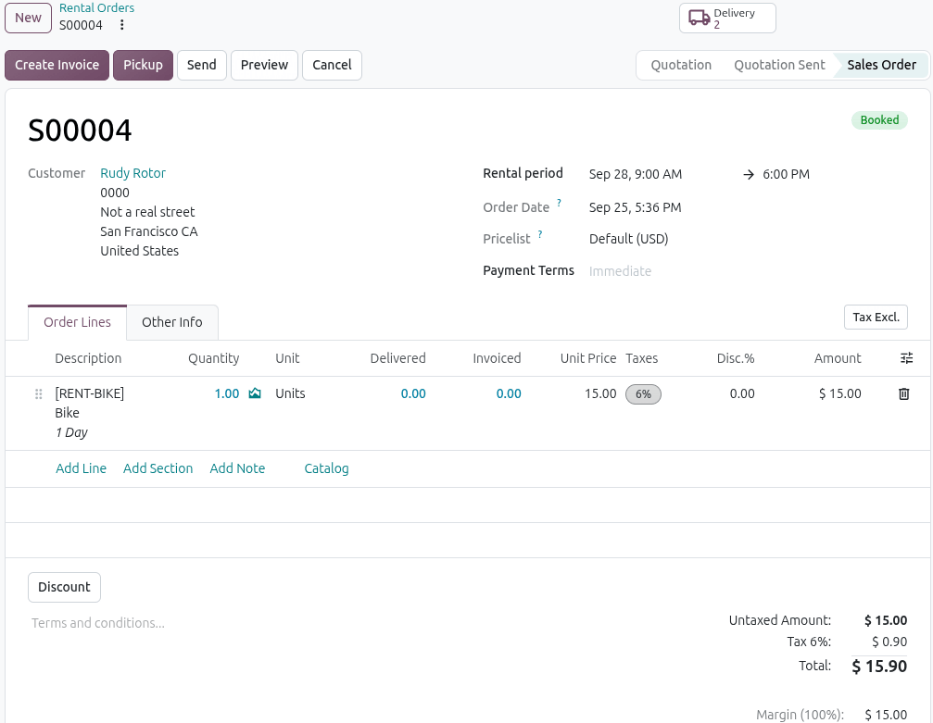
To create a rental quotation, open the Rental app and create one from the Rental Orders dashboard or navigate to , click New and select New Quotation. Then complete the following steps:
Add a customer: Enter or select a customer from the Customer drop-down menu.
Add a rental product: In the Order Lines tab, click Add Line or Catalog, and select the desired rental product.
Set the rental duration: Select the desired dates and times via the pop-up calendar for the Rental period.
Apply a pricelist (optional): Select an option from the Pricelist drop-down menu.
Send and confirm rental quotation: Click Send to send the quotation to the customer. When the customer confirms the quotation, click Confirm to finalize the order. A Booked badge displays on the rental order.
重要
每个出租订单只能有一个出租期限。具有不同出租期限的多个出租产品订单需要为每个出租期限创建一个出租订单。
小技巧
If quotation templates are enabled, users can select and modify a template from the New button drop-down menu.
As long as the rental quotation isn’t confirmed, the user can change the Rental period or Pricelist on the rental quotation. The Rental app automatically updates the rental product’s Hours, Unit Price, and Amount on the product line and the quotation Total after the change.
租赁订单确认后,表单顶部可能会出现智能按钮,具体取决于 应用集成 :
Tasks: Linked to the Projects app and shows any projects or tasks related to the rental order.
已记录:链接到工时单应用,显示与出租订单相关的小时数。
已计划:链接到计划应用,显示与出租订单相关的班次数量。
送货 :与 库存 应用关联,显示与租赁订单相关的所有送货单和收货单。
请求客户签名
Odoo can request that the customer sign a rental agreement outlining the arrangement between the company and the customer before they pick up the rental products. This document ensures everything is returned on time and in its original condition.
注解
可以在订单的任何阶段请求签名。此功能还需要电子签名应用程序。
If signatures are required, go to the app, and from the default Rental Orders dashboard, select the desired rental order:
In the chatter section, click Activity.
In the Schedule Activity pop-up window, click Signature Request.
After sending the request, a link to the signature request appears in the record’s chatter. The document is accessible to the customer via the customer portal or email.
更多内容
Manage shifts for rental services
Confirmed rental orders containing service products with Planned Services enabled trigger the automatic creation of shifts. When the availability matches the designated rental period, shifts are generated for the assigned employee role or material. This automation is made possible by the integration with the Planning app and by configuring the service product.
To edit a shift for a rental service, complete the following steps:
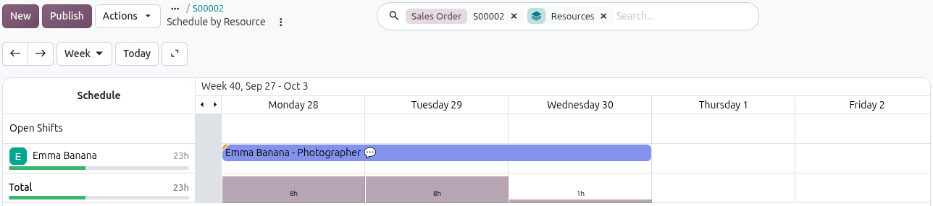
Click the Planned smart button to open the Schedule by Resource page. The page defaults to a Gantt view of all the open shifts and shifts for the associated role that are available for the rental period of the rental order.
Edit or delete the shift as needed.
Track time for an employee shift
重要
The rental pickup process should be completed before entering time for an employee shift. Otherwise, the rental order status remains Reserved on the Rental Orders dashboard, which can make filtering confusing.
Open the rental order for the rental service by going to and selecting the desired rental order.
Click the Planned smart button to open the Schedule by Resource page.
Click the employee shift, and in the pop-up window, click Start to begin tracking time for the shift.
Click Complete when the employee has completed their shift.
管理从出租订单创建的项目
Click the Tasks smart button at the top of the rental order to display a Kanban view of all the tasks automatically created when confirming the rental order. Customize the project’s tasks as needed.
To enter time for a rental service associated with a project task, refer to the Track time for an employee shift section.
小技巧
Configuring the use of 项目模板 on the product form creates new projects with predefined tasks, priority levels, and assigned employees. When integrated with the Planning app, the system automatically schedules and publishes an employee’s shift if their availability matches the rental period. Priority is given to employees with the relevant roles if applicable.
创建发票
Open the Rental app to display the Rental Orders dashboard. Click the To Invoice smart button to view all rental orders that have no invoices created for them.
点击所需的租赁订单,然后点击 创建发票 。在 创建发票 窗口中选择 普通发票 ,然后点击 创建草稿 。
更多内容
Finalize the quantity for physical service products
For physical service products, such as hotel rooms, workstations, and conference rooms, a final adjustment to the quantity may be needed on the invoice.
If there is a change in the number of units rented, enter the amount in the Quantity column. If new charges were accrued during the rental period, click Add a line to include them in the invoice draft.
确认和付款
如果发票草稿上的所有详细信息都正确,可以点击确认并点击发送将发票通过电子邮件发送给客户,或者如果客户在现场,点击打印然后点击付款。在付款弹出窗口中,选择一个日记账并点击创建付款。
点击出租订单顶部显示的付款智能按钮。在付款页面上点击验证。