形状
如果你想为网站增添个性,形状会很有用。本章将介绍如何添加标准形状与自定义的背景形状、图片形状。
它们是 SVG 文件,可以作为装饰性背景添加到你的各个区块中,或直接添加到图片上。每个形状都有一个或多个可自定义的颜色,其中一些还带有动画。
警告
Odoo 的默认形状以 Odoo 默认颜色调色板 映射为参考。这样,每当 调色板 发生变化时,颜色都会自动适配:
default_palette = {
   '1': '#3AADAA',
   '2': '#7C6576',
   '3': '#F6F6F6',
   '4': '#FFFFFF',
   '5': '#383E45',
}
背景形状
标准
系统提供了大量默认背景形状。
使用
<section data-oe-shape-data="{'shape':'html_builder/Zigs/06'}">
   <div class="o_we_shape o_html_builder_Zigs_06" />
   <div class="container">
      <!-- Content -->
   </div>
</section>
data-oe-shape-data 是一个 JSON 对象,包含形状的相关信息,例如 SVG 文件的位置、重复与翻转选项等。
例如,你可以像下面这样使用 X 轴或 Y 轴 水平或垂直翻转形状:
<section data-oe-shape-data="{'shape':'html_builder/Zigs/06','flip':['x','y']}">
   <div class="o_we_shape o_html_builder_Zigs_06" />
   <div class="container">
       <!-- Content -->
   </div>
</section>
颜色映射
你还可以更改形状的默认颜色映射:既可以在当前映射中切换颜色,也可以在不修改初始映射的情况下创建一个替代映射。
切换颜色映射
首先,我们可以使用如下形状:
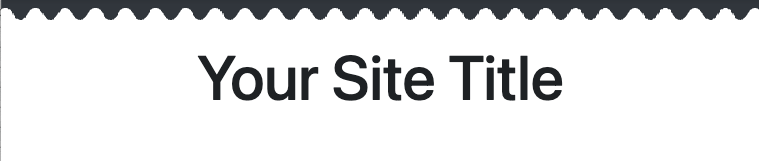
<svg xmlns="http://www.w3.org/2000/svg" xmlns:xlink="http://www.w3.org/1999/xlink" preserveAspectRatio="none" width="100%" height="100%">
   <defs>
      <svg id="zigs06_top" viewBox="0 0 30 30" preserveAspectRatio="xMinYMin meet" fill="#383E45" width="100%">
         <path d="M30,7.9C22.5,7.9,22.5,20,15,20S7.5,7.9,0,7.9V0h30V7.9z" />
      </svg>
      <svg id="zigs06_bottom" viewBox="0 0 30 30" preserveAspectRatio="xMinYMax meet" fill="#FFFFFF" width="100%">
         <path d="M0,22.1C7.5,22.1,7.5,10,15,10s7.5,12.1,15,12.1V30H0V22.1z" />
      </svg>
   </defs>
   <svg>
      <use xlink:href="#zigs06_top" />
      <use xlink:href="#zigs06_bottom" />
   </svg>
</svg>
这里我们使用 #383E45 和 #FFFFFF,它们对应 Odoo 默认颜色调色板中的第 5 种和第 4 种颜色。
该形状在 SCSS 中的声明如下:
/website_airproof/static/src/scss/primary_variables.scss¶'Zigs/06': ('position': bottom, 'size': 30px 100%, 'colors': (4, 5), 'repeat-x': true),
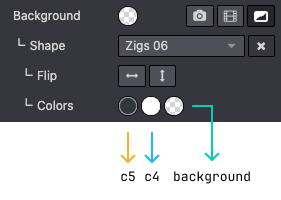
顶部使用偏黑的颜色(c5),底部使用偏浅的颜色(c4),而中间部分是透明的。
我们将用一些 key: value 键值对重写 colors 映射:
使用调色板引用和自定义颜色
/website_airproof/static/src/scss/primary_variables.scss¶ $o-bg-shapes: change-shape-colors-mapping('html_builder', 'Zigs/06', (4: 3, 5: rgb(187, 27, 152)))
或者仅使用引用
/website_airproof/static/src/scss/primary_variables.scss¶ $o-bg-shapes: change-shape-colors-mapping('html_builder', 'Zigs/06', (4: 3, 5: 1));
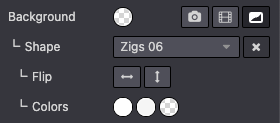
c4 为白色,将被替换为偏白的 c3;c5 为黑色,将被替换为白色的 c1。
结果

添加额外的颜色映射
添加额外的颜色映射可以为形状模板增加一种颜色变体,同时保留原始版本。
/website_airproof/static/src/scss/boostrap_overridden.scss¶$o-bg-shapes: add-extra-shape-colors-mapping('html_builder', 'Zigs/06', 'second', (4: 3, 5: 1));
<section data-oe-shape-data="{'shape':'html_builder/Zigs/06'}">
   <div class="o_we_shape o_html_builder_Zigs_06 o_second_extra_shape_mapping" />
   <div class="container">
      <!-- Content -->
   </div>
</section>
自定义
有时,你的设计可能需要创建一个或多个自定义形状。
首先,需要为你的形状创建一个 SVG 文件。
/website_airproof/static/shapes/waves/01.svg¶<svg xmlns="http://www.w3.org/2000/svg" xmlns:xlink="http://www.w3.org/1999/xlink" viewBox="0 0 1309 581">
<path style="fill: #3AADAA;" d="..." />
</svg>
重要
请确保为形状使用 Odoo 默认调色板中的颜色(如 上文 所述)。
附件
声明你的形状文件。
/website_airproof/data/shapes.xml¶<record id="shape_waves_01" model="ir.attachment">
<field name="name">waves_01.svg</field>
<field name="datas" type="base64" file="website_airproof/static/shapes/waves/01.svg" />
<field name="url">/html_editor/shape/website_airproof/waves/01.svg</field>
<field name="public" eval="True" />
</record>
字段 |
说明 |
|---|---|
name |
形状的名称 |
raw |
形状的路径 |
|
形状在 HTML 编辑器中的位置。网站构建器会自动将该文件复制到 |
public |
使该形状可供以后编辑。 |
SCSS
定义形状的样式。
/website_airproof/static/src/scss/primary_variables.scss¶$o-bg-shapes: map-merge($o-bg-shapes,
(
'website_airproof': (
'waves/01': ('position': left bottom, 'size': 100% auto, 'colors': (1)),
),
)
);
键 |
说明 |
|---|---|
文件位置 |
|
position |
定义形状的位置。 |
size |
定义形状的大小。 |
colors |
定义你希望它具有的 c* 颜色(这会覆盖你在 SVG 中指定的颜色)。 |
repeat-x |
定义形状是否水平重复。此键是可选的,仅在设置为 |
repeat-y |
定义形状是否垂直重复。此键是可选的,仅在设置为 |
添加选项
最后,通过扩展 background_shape_groups_providers 资源,将你的形状添加到网站构建器中可用的形状列表。
/website_airproof/static/src/builder/background_shapes_option_plugin.js¶import { Plugin } from "@html_editor/plugin";
import { _t } from "@web/core/l10n/translation";
import { registry } from "@web/core/registry";
export class AirproofBackgroundShapesOptionPlugin extends Plugin {
static id = "airproofBackgroundShapesOption";
resources = {
background_shape_groups_providers: () => ({
airproof: {
label: _t("Airproof"),
subgroups: {
airproof: {
label: _t("Airproof"),
shapes: {
"website_airproof/waves/01": {
selectLabel: _t("Waves 01"),
},
},
},
},
},
}),
};
}
registry.category("website-plugins").add(
AirproofBackgroundShapesOptionPlugin.id,
AirproofBackgroundShapesOptionPlugin
);
注解
将 JavaScript 文件添加到 website.website_builder_assets 资源包中,以便编辑器加载它。
在页面中使用
在 XML 页面中,你可以像使用其他形状一样使用你的形状。
<section class="..." data-oe-shape-data="{'shape': 'website_airproof/waves/01', 'colors': {'c1': '#BBE1FA'}, 'flip': ['x']}">
   <div
      class="o_we_shape o_website_airproof_waves_01 o_we_flip_x"
      style="background-image: url('/html_editor/shape/website_airproof/waves/01.svg?c1=%23BBE1FA'); background-position: 100% 100%;" />
   <div class="container">
      <!-- Content -->
   </div>
</section>
你也可以使用 data-oe-shape-data 属性重新定义颜色,但这是可选的。
图片形状
图片形状是 SVG 文件,可以作为剪裁蒙版添加到你的图片上。有些形状的颜色可自定义,有些则带有动画。
标准
系统提供了大量默认图片形状。
使用
形状只能应用于此前已在 ir.attachment 记录中声明过的图片,因为网站构建器需要重新处理该图片。简而言之,系统会将原始图片注入到一个同时包含图片和形状的 SVG 文件中。
完全处理后,带有形状的图片如下例所示:
<img
   src="..."
   class="img img-fluid mx-auto"
   alt="..."
   data-shape="html_builder/solid/solid_blob_2"
   data-shape-colors="#0B8EE6;;;;"
   data-mimetype="image/svg+xml"
   data-mimetype-before-conversion="image/jpeg"
   data-original-src="/website/static/src/img/snippets_demo/s_picture.jpg"
   data-file-name="s_text_image.svg"
   data-original-id="590"
   data-attachment-id="590" />
img 包含多个数据属性,使网站构建器在图片再次被编辑时能够重新处理它:
属性 |
说明 |
|---|---|
data-shape |
形状的位置 |
data-shape-colors |
应用于形状的颜色(最多 5 个,每个值之间用分号分隔,即使为空也同样分隔) |
data-mimetype |
带有形状的图片的 MIME 类型 |
data-mimetype-before-conversion |
原始图片的 MIME 类型 |
data-original-src |
原始图像文件的路径 |
data-file-name |
形状修改后所创建文件的名称(请始终使用 |
data-original-id |
原始 |
data-attachment-id |
与已应用形状的图像相关的 |
调用形状
插入已应用形状的图像时,需要调用经过处理的附件并带上最低限度的必需属性,而不只是原始图像。
以下是调用带彩色元素的形状所需最低要求的一个示例:
<img
   src="..."
   class="img img-fluid mx-auto"
   alt="..."
   data-shape="html_builder/solid/solid_blob_2"
   data-shape-colors="#0B8EE6;;;;"
   data-format-mimetype="image/jpeg"
   data-file-name="s_text_image.svg"
   loading="lazy" />
在使用网站构建器手动应用形状时:
原始记录会被处理,
src属性会被更新为一张base64格式的图像。页面保存后,base64 图像会被移入最终的 SVG 文件中(该文件名由
data-file-name指定)。最后,
src属性会被更新为以下路径结构:/web/image/<attachment_id>-<attachment_checksum>/<finale_image>.svg,同时网站构建器还会生成一些数据属性(data-original-id、data-attachment-id、data-mimetype、data-mimetype-before-conversion等)。
但这会带来 2 个问题:
把最终图像转换为
base64格式并不那么容易(因为这实际上并不是 人类可读 的)。最终
ir.attachment的checksum计算要使用一种算法。
无论采用哪种方式,都需要借助外部工具,不过 html_editor 模块提供了一个控制器,其中包含一个很有用的路由,可以将图像形状与图像文件组合在一起:
@http.route([
   '/web_editor/image_shape/<string:img_key>/<module>/<path:filename>',
   '/html_editor/image_shape/<string:img_key>/<module>/<path:filename>'],
   type='http', auth="public", website=True)
请重点关注 /html_editor 路径,它是 Odoo 18 及之前使用的旧 Web 编辑器的“新名称”,并将占位符替换为真实数据:
<img
   src="/html_editor/image_shape/website_airproof.img_drone_robin/html_builder/solid/solid_blob_2.svg"
   class="img img-fluid mx-auto"
   alt="..."
   data-shape="html_builder/solid/solid_blob_2"
   data-shape-colors="#0B8EE6;;;;"
   data-mimetype="image/svg+xml"
   data-mimetype-before-conversion="image/webp"
   data-original-src="website_airproof/static/src/img/content/drone-robin.webp"
   data-file-name="drone-robin.svg"
   data-original-id="560"
   data-attachment-id="560" />
小技巧
如果在任何编辑之前,形状显示的是 Odoo 默认颜色(而非 data-shape-colors 中定义的颜色),请传入一个颜色调色板参数,其颜色与 data-shape-colors 中定义的转义颜色相同:
<img
   src="/html_editor/image_shape/website_airproof.img_drone_robin/html_builder/solid/solid_blob_2.svg?c1=%230B8EE6" />
c*对应的是它在data-shape-colors中的位置:c1与#0B8EE6;;;;相对应c2与;#0B8EE6;;;相对应等等
重要
请记住,只要图像没有通过网站构建器手动保存,它就不会作为记录存储在数据库中,而是会为每位显示该页面的访客实时生成。因此它可能会影响网站的加载性能。
颜色
图像形状最多可以包含 5 种颜色。由于 SVG 文件中包含的颜色与 Odoo 默认调色板相关,系统能够映射文件中已有的颜色,并将其与图像的 data-shape-colors 属性中指定的颜色匹配起来。
<img
   src="..."
   class="img img-fluid mx-auto"
   alt="..."
   data-shape="html_builder/solid/solid_blob_2"
   data-shape-colors="#0B8EE6;;;;"
   data-mimetype="image/svg+xml"
   data-mimetype-before-conversion="image/jpeg"
   data-original-src="/website/static/src/img/snippets_demo/s_picture.jpg"
   data-file-name="s_text_image.svg"
   data-original-id="590"
   data-attachment-id="590" />
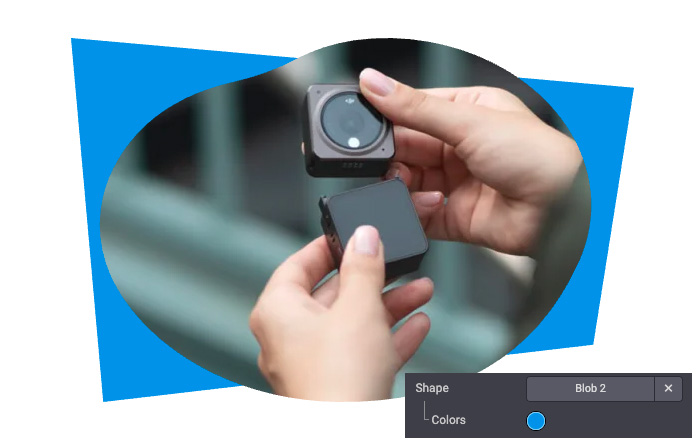
在上面的示例中,颜色 #0B8EE6 被应用为调色板的第一个颜色。考虑到默认调色板中的第一个颜色是 #3AADAA,网站构建器会用 #0B8EE6 替换 #3AADAA。
变换与拉伸
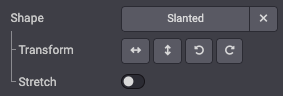
有些形状可以通过变换(翻转、旋转)进行调整:
<img
   src="..."
   class="img img-fluid mx-auto"
   alt="..."
   data-shape="html_builder/geometric/geo_slanted"
   data-shape-flip="xy"
   data-shape-rotate="90"
   data-aspect-ratio="1/1"
   data-mimetype="image/svg+xml"
   data-mimetype-before-conversion="image/jpeg"
   data-original-src="/website/static/src/img/snippets_demo/s_picture.jpg"
   data-file-name="s_text_image.svg"
   data-original-id="590"
   data-attachment-id="590" />
属性 |
说明 |
|---|---|
data-shape-flip |
沿 x 轴( |
data-shape-rotate |
将形状旋转 90 度( |
data-aspect-ratio |
将形状拉伸到图像比例: |
动画
有些形状带有动画,其速度可以调整:

<img
   src="..."
   class="img img-fluid mx-auto"
   alt="..."
   data-shape="html_builder/geometric/geo_square_1"
   data-shape-animation-speed="2"
   data-mimetype="image/svg+xml"
   data-mimetype-before-conversion="image/jpeg"
   data-original-src="/website/static/src/img/snippets_demo/s_picture.jpg"
   data-file-name="s_text_image.svg"
   data-original-id="590"
   data-attachment-id="590" />
属性 |
说明 |
|---|---|
data-shape-animation-speed |
动画速度(范围为 |
自定义
创建自定义图像形状非常简单,只需 2 个步骤:
创建一个具有特定结构的 SVG 文件
将自定义形状添加到列表中
创建 SVG
首先,为你的图像形状创建一个 SVG 文件。
/website_airproof/static/image_shapes/duo/01.svg¶<svg xmlns="http://www.w3.org/2000/svg"
xmlns:xlink="http://www.w3.org/1999/xlink"
width="800"
height="800">
<defs>
<!-- Mask -->
<clipPath id="clip-path" clipPathUnits="objectBoundingBox">
<use xlink:href="#filterPath" fill="none" />
</clipPath>
<!-- Vector used in the mask definition (Clip-path) -->
<path id="filterPath" d="M0.325,0.75H0.125c-0.069,0-0.125-0.056-0.125-0.125V0.125C0,0.056,
0.056,0,0.125,0h0.2c0.069,0,0.125,0.056,0.125,0.125v0.5c0,0.069-0.056,0.125-0.125,0.125ZM1,
0.875v-0.5c0-0.069-0.056-0.125-0.125-0.125h-0.2c-0.069,0-0.125,0.056-0.125,0.125v0.5c0,
0.069,0.056,0.125,0.125,0.125h0.2c0.069,0,0.125-0.056,0.125-0.125Z" />
</defs>
<!-- Other decorative element around (not used as a mask) -->
<svg viewBox="0 0 1 1" preserveAspectRatio="none">
<rect x="0.494"
y="0.325"
width="0.0125"
height="0.35"
rx="0.00625"
ry="0.00625"
fill="#7C6576" />
</svg>
<!-- Preview of the Path declared in the <defs> -->
<svg viewBox="0 0 1 1" id="preview" preserveAspectRatio="none">
<use xlink:href="#filterPath" fill="darkgrey" />
</svg>
<!-- Future image that on wich the mask is applied -->
<image xlink:href="" clip-path="url(#clip-path)">
<!-- Compatibility hack (Safari, Firefox) for non-animated shapes -->
<animateMotion dur="1ms" repeatCount="indefinite" />
</image>
</svg>
SVG 文件可以在任何矢量编辑软件中创建,但需要做一些适配才能在网站构建器中正常工作。下面我们来拆解上面的示例。
主 SVG
图像形状被包裹在一个单独的主 SVG 对象中,该对象显式指定了以像素为单位的 width 和 height 属性:
<svg
   xmlns="http://www.w3.org/2000/svg"
   xmlns:xlink="http://www.w3.org/1999/xlink"
   width="800"
   height="800">
   ...
</svg>
蒙版
蒙版被定义在 <defs> 标签中,以便可以复用(即便实际上并未复用)。它由 2 个元素组成:一个 clip-path 和一个矢量(在我们的形状中是一个 path)。在这一步,定义在 defs 中的内容不会显示出来。
<defs>
   <!-- Mask -->
   <clipPath id="clip-path" clipPathUnits="objectBoundingBox">
      <use xlink:href="#filterPath" fill="none" />
   </clipPath>
   <!-- Vector used in the mask definition (Clip-path) -->
   <path id="filterPath" d="M0.325,0.75H0.125c-0.069,0-0.125-0.056-0.125-0.125V0.125C0,0.056,
   0.056,0,0.125,0h0.2c0.069,0,0.125,0.056,0.125,0.125v0.5c0,0.069-0.056,0.125-0.125,0.125ZM1,
   0.875v-0.5c0-0.069-0.056-0.125-0.125-0.125h-0.2c-0.069,0-0.125,0.056-0.125,0.125v0.5c0,
   0.069,0.056,0.125,0.125,0.125h0.2c0.069,0,0.125-0.056,0.125-0.125Z" />
</defs>
附加装饰
如果形状还包含其他装饰元素,它们会被放在主 SVG 中,但位于 defs 之外
<svg viewBox="0 0 1 1" preserveAspectRatio="none">
   <rect
      x="0.494"
      y="0.325"
      width="0.0125"
      height="0.35"
      rx="0.00625"
      ry="0.00625"
      fill="#7C6576" />
</svg>
小技巧
主 SVG 的 width 和 height 属性以像素表示(本示例中为 800),但 viewBox 始终被归一化为 0 到 1 之间的值。由于 SVG 是一种可缩放格式,因此无论图像渲染成多大,都能保证其清晰。
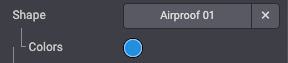
这个装饰的 fill 颜色可以在网站构建器中编辑:
重要
不要忘记使用来自 Odoo 默认调色板的颜色,以便网站构建器可以编辑它(如 上文 所述)。
预览
然后通过引用前面设置的 ìd 值(即 filterPath)以“预览”方式渲染蒙版:
<svg viewBox="0 0 1 1" id="preview" preserveAspectRatio="none">
   <use xlink:href="#filterPath" fill="darkgrey" />
</svg>
图像
最后,添加一个带 clip-path 引用的 image 标签。它将接收你未来的图像(base64 格式)。
<image xlink:href="" clip-path="url(#clip-path)">
   <!-- Compatibility hack (Safari, Firefox) for non-animated shapes -->
   <animateMotion dur="1ms" repeatCount="indefinite" />
</image>
小技巧
你可以随意在浏览器中 运行这个工具 将源 SVG 文件转换为兼容图像形状的文件。
将其添加到列表
最后,将自定义形状添加到列表中:
/website_airproof/static/src/website_builder/image_shapes_option_plugin.js¶import { Plugin } from "@html_editor/plugin";
import { _t } from "@web/core/l10n/translation";
import { registry } from "@web/core/registry";
export class AirproofImageShapesOptionPlugin extends Plugin {
static id = "airproofImageShapesOption";
resources = {
image_shape_groups_providers: () => ({
airproof: {
label: _t("Airproof"),
subgroups: {
airproof_duo: {
label: _t("Duo"),
shapes: {
"website_airproof/duo/01": {
selectLabel: _t("Duo 01"),
transform: true,
togglableRatio: true,
},
},
},
},
},
}),
};
}
registry.category("website-plugins").add(
AirproofImageShapesOptionPlugin.id,
AirproofImageShapesOptionPlugin
);
属性 |
说明 |
|---|---|
selectLabel |
在列表中显示的形状名称 |
transform |
显示/隐藏变换选项(垂直和水平镜像、左右旋转)。 |
togglableRatio |
显示/隐藏拉伸选项。 |
animated |
指示形状是否包含动画 |
imgSize |
设置用于 设备 的图像比例(示例: |
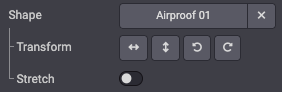
变换与拉伸选项
在页面中使用
现在可以将自定义图像形状应用到图像上,例如在你的静态页面中:
<img
   src="/html_editor/image_shape/website_airproof.img_drone_robin/website_airproof/duo/01.svg?c2=%230B8EE6"
   class="img img-fluid mx-auto"
   alt="..."
   data-shape="website_airproof/duo/01"
   data-shape-colors=";#0B8EE6;;;"
   data-format-mimetype="image/webp"
   data-file-name="drone-robin.svg"
   loading="lazy" />