字段和小组件
Fields structure the models of a database. If you think of a model as a table or spreadsheet, fields are the columns and records are the individual rows. Fields also define the type of data that is stored within them. The way in which a field’s data is presented and formatted on the UI is controlled by its widget.
With Studio, it is possible to:
add new fields to your database. From a technical point of view, there are 15 field types in Odoo. However, you can choose from 21 field types in Studio, as some field types are available more than once with a different default widget;
add existing fields, i.e., fields that already exists on a model, to any view of that model;
Studio fields vs. property fields
Fields created using Studio are saved as columns in your Odoo database. Property fields, on the other hand, act as pseudo-fields; they are shared by all records that are linked to the same parent record (e.g., for tasks, the project, or for a product, the product category), but they are not saved as columns in your database.
示例
Adding a Deadline field to the form view of a task using Studio makes that field visible in every task in your database. Adding a Special instructions property field to a task makes the field visible in all tasks within the same project (i.e., its parent) while other projects’ tasks remain unaffected.
Field types
Fields can be broadly divided into two categories:
Simple fields, which contain basic values, such as text, numbers, files, etc.
Relational fields, which are used to link and display the data from records on another model.
AI fields
AI fields are essentially standard Odoo fields with added AI capabilities that allow their values to be generated automatically through prompts.
简单字段
注解
Non-default widgets, when available, are presented as bullet points or sub-headings.
文件 (char)
文本 字段用于包含任何字符的短文本。填写该字段时显示一行文本。
标记:显示圈内值,类似于标记。该值不能在用户界面上编辑,但可以设置默认值。
复制到剪贴板 : 用户可以点击按钮复制值。
电子邮件 : 该值变为可点击的 电子邮件 链接。
图片 : 使用URL显示图片。该值不能手动编辑,但可以设置默认值。
注解
This works differently from selecting the Image field directly, as the image is not stored in Odoo when using a Text field with the Image widget. For example, it can be useful if you want to save disk space.
电话: 该值变为可点击的 电话 链接。
小技巧
勾选 启用短信 ,可直接从该号码字段旁的图标用Odoo发送短信。
URL: 该值变为可点击的URL。
示例
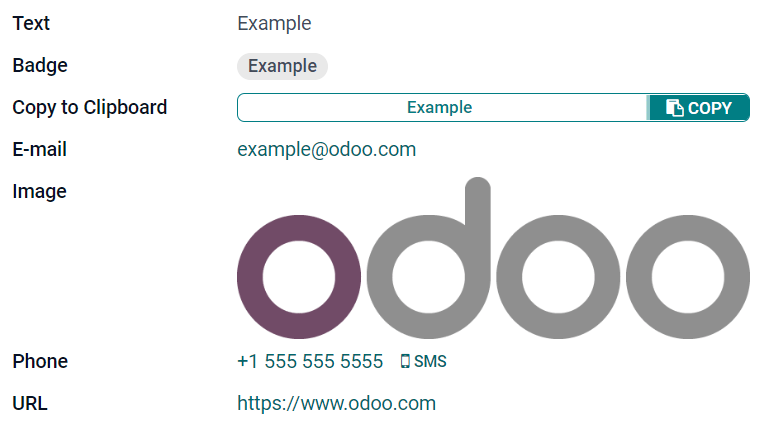
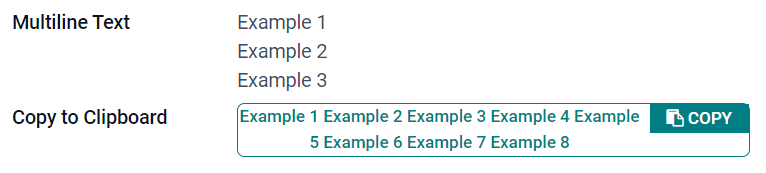
多行文本 (text)
多行文本 字段用于包含任何类型字符的较长文本。填写该字段时,用户界面上显示两行文本。
复制到剪贴板 : 用户可以点击按钮复制值。
示例
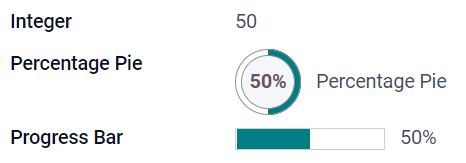
整数 (integer)
整数 字段用于所有整数(正数、负数或零,不含小数)。
百分比饼图 : 显示百分比饼图值,通常为计算得出的值。该值无法在用户界面上编辑,但可以设置默认值。
进度条: 显示百分比条旁的值,通常为计算得出的值。该字段无法手动编辑,但可以设置默认值。
Handle排序: 显示拖动手柄图标,用于在 List view 中手动排序记录。
示例
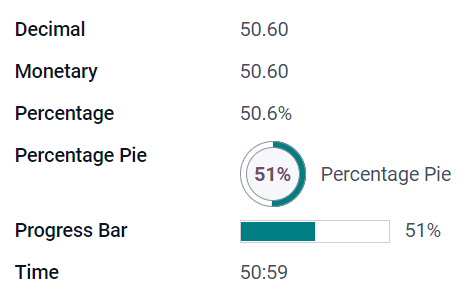
小数 (float)
小数 字段用于所有小数 (正小数,负小数, 零, 需要小数点的数字)。
注解
小数在用户界面上显示为两位小数,保存在数据库中时精度更高。
货币 :与使用 货币字段 类似。建议使用后者,因其功能更丰富。
百分比 : 在数值后显示百分比符号。
百分比饼图:显示百分比饼图值,通常为计算得出的值。该字段无法手动编辑,但可以设置默认值。
进度条: 显示百分比条旁的值,通常为计算得出的值。该字段无法手动编辑,但可以设置默认值。
时间: 数值须为 小时:分钟 格式,最大分钟值为59。
示例
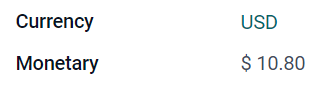
货币 (monetary)
货币 字段用于所有货币值。
注解
首次添加 币种 字段时,如果模型上不存在 币种 字段,则会提示添加 币种 字段。Odoo为您添加 币种 字段。添加完成后,应再次添加 币种 字段。
示例
超文本标记语言 (html)
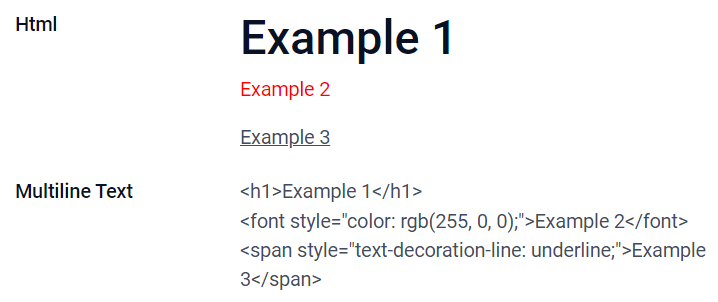
超文本标记语言 字段用于添加可使用Odoo HTML编辑器编辑的文本。
多行文本: 禁用Odoo HTML编辑器,以便允许编辑原超文本标记语言。
示例
日期 (date)
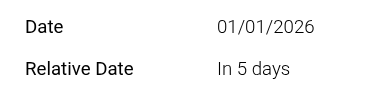
日期 字段用于从日历选择日期。
Relative Date: expresses the field value in relation to the current date using relative terms such as Yesterday, Today, In 3 days, 2 months ago, etc. This field should be set to Read only.
示例
日期和时间 (datetime)
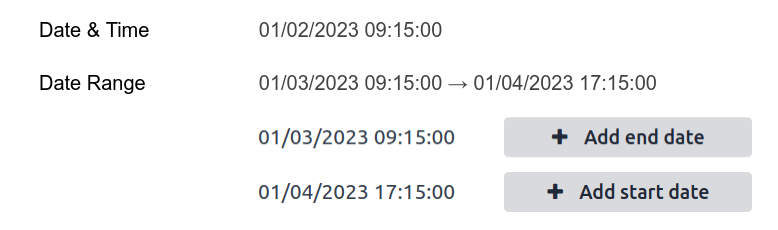
日期和时间 字段用于从日历选择日期,从钟表选择时间。如果未设置时间,则自动采用用户的当前时间。
日期范围 (daterange)
日期范围 组件以单行形式显示由开始日期和结束日期界定的时间段。日期范围可以要求必填的开始和结束日期(例如多日事件),也可以允许开始或结束日期选填(例如现场服务干预或项目任务)。
添加日期范围需要两个字段:一个设置了 日期范围 组件的 日期与时间 字段,以及另一个被选为开始日期 或 结束日期的字段。后者可以是现有的 日期 或 日期与时间 字段,也可以专门为此创建。
要添加日期范围:
确定一个可用作底层开始/结束日期字段的现有 日期 或 日期与时间 字段,或添加一个新字段。如果日期范围:
要求必填的开始和结束日期,则该字段用作开始日期或结束日期均可,结果相同。
允许开始或结束日期选填,则该字段分别作为开始日期或结束日期。
小技巧
为避免重复显示相同信息,可以通过启用 不可见 隐藏底层开始/结束日期字段,或点击 从视图移除 将其从视图中删除。
添加一个 日期与时间 字段,并将 组件 字段设置为 日期范围 。
输入合适的 标签 。
从 开始日期字段 或 结束日期字段 下拉菜单中选择底层开始/结束日期字段。
如果日期范围需要必填的开始和结束日期,请启用 始终显示范围 。
按需更新其他 通用属性 或 日期与时间字段的特定属性 ,然后点击屏幕右上角的 关闭 。
示例
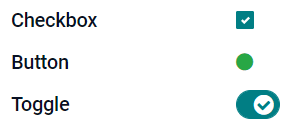
复选框 (boolean)
复选框 字段用于值只能为是或否时,选中或取消选中复选框,以进行指示。
按钮: 显示为单选按钮。该小组件可在不切换至编辑模式的情况下工作。
切换: 显示为切换按钮。该小组件可在不切换至编辑模式的情况下工作。
示例
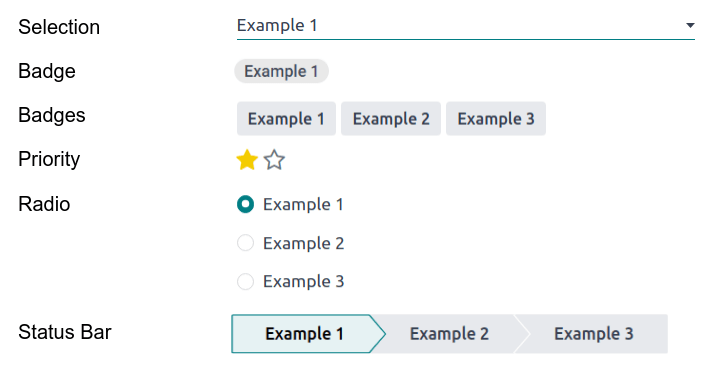
选择 (selection)
选择 字段用于用户从一组预定义值中选择一个值。
标记:显示圈内值,类似于标记。该值不能在用户界面上编辑,但可以设置默认值。
多个标记: 在水平排列的矩形内同时显示所有可选值。
优先级 :以星形符号代替值显示,可用于表示重要性或满意度等级等。这与选择 优先级字段 效果相同,但后者已预定义了四个优先级值。
单选: 同时显示所有可选值的单选按钮。
小技巧
默认情况下,单选按钮纵向排列。启用 横向显示 可切换显示方式。
状态栏 :将所有可选值同时显示为带箭头的进度条。
小技巧
默认情况下,状态栏上的值可以选择。禁用 可点击 后,该值将无法在界面上编辑。
示例
优先级 (selection)
优先级 字段用于显示三星评级系统,可用来表示重要性或满意度等级。此字段类型是 选择字段 ,默认选中 优先级 组件并预定义了四个优先级值。因此,标记 、多标记 、单选 和 选择 组件与 选择 一节所述效果相同。
小技巧
要通过添加或删除值来更改可用星的数量,请点击 编辑值 。请注意,第一个值等于 0 星(即未作任何选择时),例如,设置四个值将得到三星评级系统。
示例

文件 (binary)
文件 字段用于上传任何类型的文件,或 签署表单 (电子签名 小组件)。
示例
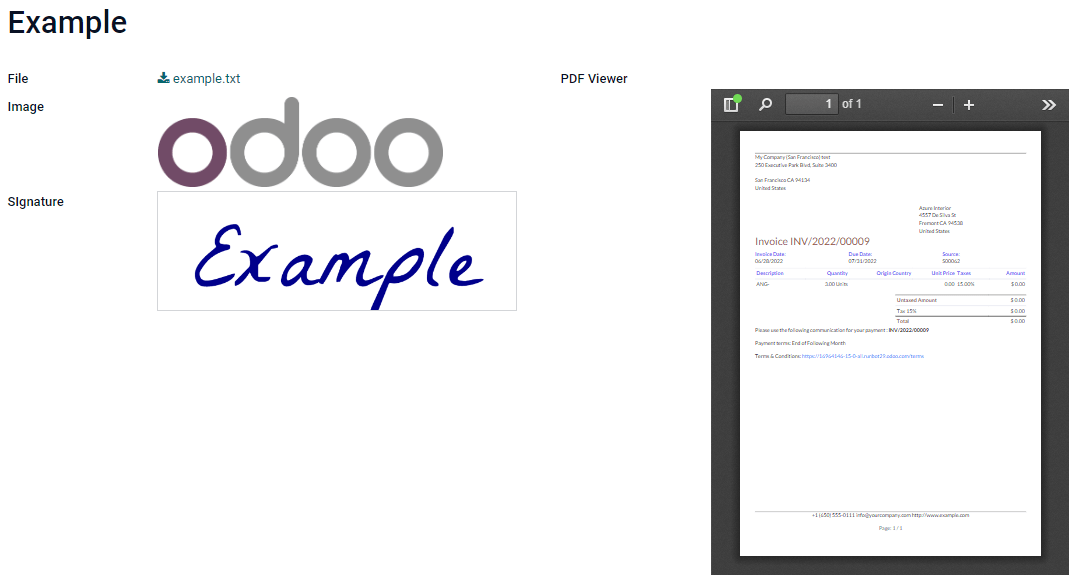
图片 (binary)
图像 字段用于上传图像并在 表单视图 中显示。此字段类型是默认选中 图像 组件的 文件字段 。因此,文件 、PDF 查看器 和 签名 组件与 文件 一节所述效果相同。
小技巧
要更改上传图片的显示大小,在 尺寸 选项下选择 小 、 中 或 大 。
签署 (binary)
签名 字段用于对表单进行电子签名。此字段类型是默认选中 签名 组件的 文件字段 。因此,文件 、图像 和 PDF 查看器 组件与 文件 一节所述效果相同。
关系字段
注解
Non-default widgets, when available, are presented as bullet points or sub-headings.
多对一 (many2one)
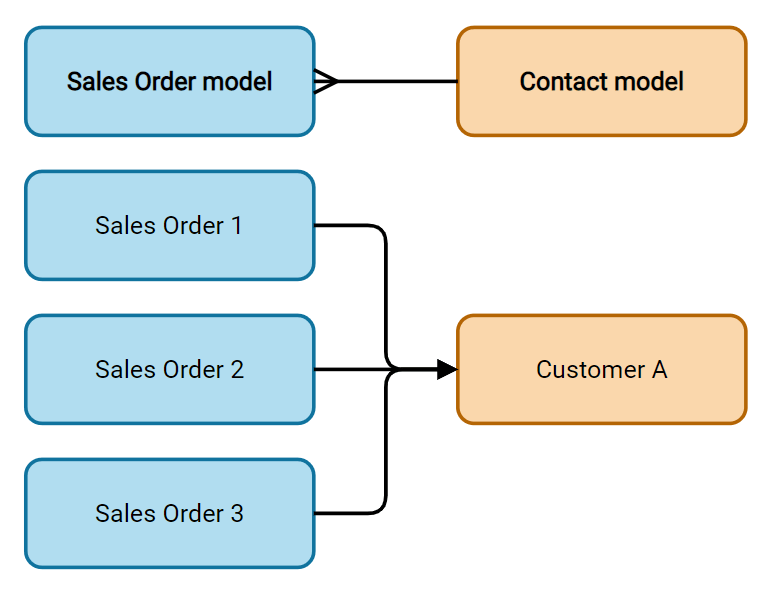
Many2One 字段用于将另一记录(来自另一模型)链接至正在编辑的记录。来自另一模型的记录名称将显示在正在编辑的记录中。
示例
在 销售订单 模型中, 客户 字段为指向 联系人 模型的 Many2One 字段,允许 多个 销售订单链接至 一个 联系人(客户)。
小技巧
要防止用户在链接的模型中创建新记录,勾选 禁用创建 。
要防止用户在弹窗中打开记录,勾选 禁用打开 。
要帮助用户只选择正确的记录,点击 域 ,创建筛选器。
要在输入最少字符数后才触发对链接记录的搜索,请在 预先键入搜索 字段中输入所需的字符数。在数据集较大的情况下,这可以提高搜索相关性和性能。
标记 : 显示圈内值,类似于标记。该值不能在用户界面上编辑。
单选: 同时显示所有可选值的单选按钮。
一对多 (one2many)
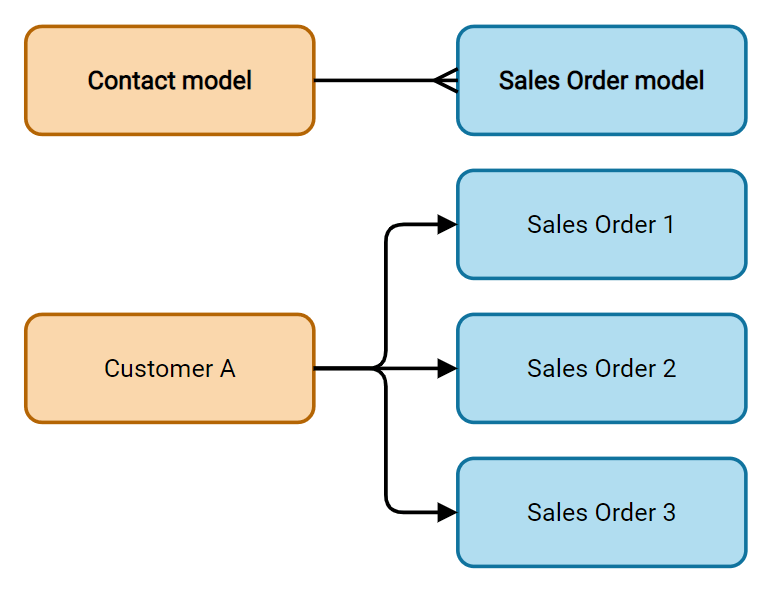
One2Many 字段用于显示当前模型中的记录和另一模型中的多个记录间的现有关系。
示例
您可以在 联系人 模型中添加 One2Many 字段,以查看 一个 客户的 多个 销售订单。
注解
要使用 One2Many 字段,两个模型必须已经通过 Many2One 字段 关联。One2Many 关系不能独立存在:系统会对既有 Many2One 关系进行反向搜索。
多行 (one2many)
多行 字段用于创建有多行和多列的表格(例如,销售订单中的多个产品行)。
小技巧
要修改列,点击 多行 字段,然后点击 编辑列表视图 。要编辑用户点击 添加明细 时弹出的表单,改为点击 编辑表单视图 。
示例
多对多Many2Many (many2many)
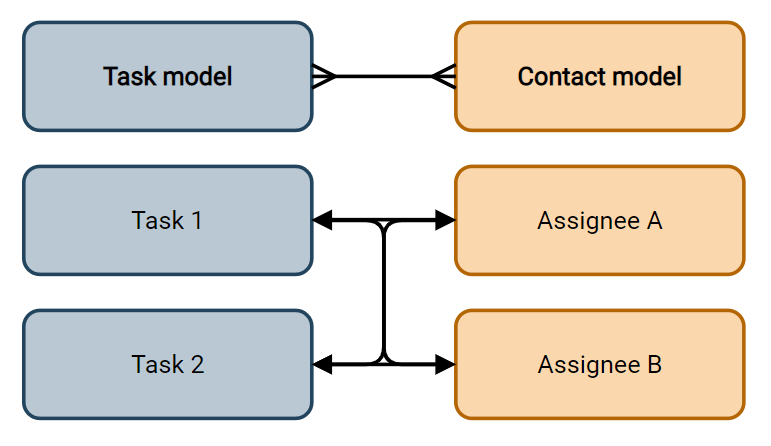
Many2Many 字段用于将另一模型的多个记录与当前模型的多个记录关联。Many2Many 字段与 Many2One 字段 一样,可使用 禁用创建 、禁用打开 和 域 。
示例
在 任务 模型中, 受托人 字段为指向 联系人 模型的 Many2Many 字段,允许向单个用户分配 多个 任务,以及将 多个 用户分配给同一任务。
小技巧
要在输入最少字符数后才触发对链接记录的搜索,请在 预先键入搜索 字段中输入所需的字符数。在数据集较大的情况下,这可以提高搜索相关性和性能。
多个复选框 : 用户可以通过多个复选框选择多个值。
标记 :用户可以选择多个以圆角形状显示的值(即 标记)。这与选择 标记字段 效果相同。
标签 (many2many)
标记 字段用于显示来自另一模型的多个值,以圆角形状(即 标记)呈现。此字段类型是默认选中 标记 组件的 Many2Many 字段 。因此,复选框 和 Many2Many 组件与 Many2Many 一节所述效果相同。
小技巧
要显示具有不同背景颜色的标记,勾选 使用颜色 。
示例

Add a field to a view
With Studio, it is possible to add:
a new field to a form or list view of a model
an existing field, i.e., a field that already exists on the model in question, to any view of that model
小技巧
Add a new field to a form or list view to save it to the model and make it available as an existing field in other views of the same model.
Add a new field
小技巧
Activate developer mode before adding a new field to see, and be able to edit, the field’s technical name during configuration.
To add a new field, follow these steps:
Navigate to the relevant form or list view, then click the (Toggle Studio) icon in the upper-right corner. Alternatively, with any app open, click the (Toggle Studio) icon, then navigate to the relevant form or list view.
In the Add tab, drag the relevant field type from the New Fields section and drop it in the desired position. If the new field is a relational field, select the relevant reciprocal field, model, or related field in the pop-up.
In the Properties tab, configure the field’s properties:
Enter the Label to be displayed as the field name on the UI; this is also used to generate the default technical name of the field.
Click anywhere outside the Label field to see the Technical Name updated with the default technical name.
注解
The Technical Name of a new field can be edited in Studio during the configuration process. At any other time, a field’s technical name can only be modified via the technical settings of the database.
The technical name of a new field added using Studio is by default prefixed by
x_studio_.
Optionally, select a different Widget via the dropdown; the default widget for the field type is selected by default.
Optionally, configure any other field properties.
Click Close in the top-right corner to close Studio.
Add an existing field
To add a field that exists on the model but that is not present on the current view, follow these steps:
Navigate to the relevant view, then click the (Toggle Studio) icon in the upper-right corner. Alternatively, with any app open, click the (Toggle Studio) icon, then navigate to the relevant view.
In the Add tab, in the left panel, click Existing Fields to reveal a list of all the model’s fields that are not currently present in the view.
Drag the relevant field and drop it in the desired position.
In the Properties tab, configure the relevant properties for the field in the current view.
注解
Various properties can be configured independently for different views, if needed, such as the Label, the Widget, the visibility of the field for certain user groups, as well as whether or not the field is Invisible, Required, or Readonly.
Click Close in the top-right corner to close Studio.
Field properties
A series of general properties can be configured for most combinations of field type and widget. Additional properties are available depending on the specific field type and widget selected. For example, Date & Time fields using the Date & Time or Date Range widget have various specific properties that can be configured.
通用属性
Class: Use Bootstrap or other custom classes defined in Odoo to customize how the field is styled and displayed on the UI.
不可见 :当用户无需在界面上查看某字段时启用此属性。这有助于只根据特定情形显示必要字段,让界面更简洁。
必填 :如果要求用户必须先完成该字段才能继续,请启用此属性。
只读 :如果不应让用户修改某字段,请启用此属性。
小技巧
The Invisible property also applies inside Studio. To view hidden fields in Studio, click on a view’s View tab and enable Show Invisible Elements.
The Invisible, Required, and Readonly properties can be enabled for specific records only by clicking on Conditional and creating a filter.
示例
On the form view of the Contact model, the Title field only appears when Individual is selected, as that field would not be helpful for a Company contact.
Label: This is the field name on the UI; the label is used to generate the technical name of the field.
帮助提示 :为说明字段用途,可添加描述。将鼠标悬停在字段标签旁的问号上时,文本会显示在工具提示框中。
Technical Name: To view a field’s technical name in Studio (and, during the configuration of a new field, edit it if desired), activate developer mode.
小技巧
If this field needs to be updated but is no longer editable via Studio, the technical name can be modified via the technical settings of the database.
小组件 : 要更改某字段的默认外观或功能,选择可用小组件中的一个。
Placeholder: To provide an example of how a field should be completed, add a fixed placeholder text. The text appears in light gray until a value is entered.
Dynamic Placeholder: To provide the value of the selected field as an example of how a field should be completed. The text appears in light gray until a value is entered.
默认值 :要在创建记录时字段中显示默认值,可添加一个值。
允许群组可见 :要限制哪些用户可以查看该字段,请选择一个或多个用户访问 群组 。
禁止群组可见 :要阻止特定用户查看该字段,请选择一个或多个用户访问 群组 。
日期与时间字段的属性
For Date & Time fields using the Date & Time or Date Range widget, some specific properties are available:
Minimal precision: Determine the smallest date unit that must be selected in the date selector. The possible values are
Day,Month,YearorDecade. If no value is selected, the user must select a day in the date selector.Maximal precision: Determine the largest date unit that can be used to navigate the date selector. The possible values are
Day,Month,YearorDecade. If no value is selected, the user can navigate the date selector by decade.未来日期警告 :启用此属性后,若选择了未来的日期,将显示警告图标。
日期格式 :默认情况下,日期会显示为
Apr 2, 2025, 08:05 AM。启用此属性后,可将日期改为以4/2/2025 08:05:00格式显示。数字的格式会按照目前语言所设定的格式。此模式会永远显示秒数。显示日期 : 日期时间 字段默认会启用此属性。停用此属性后,只会显示时间。
显示时间 :此属性对 日期与时间 字段默认启用。在只读字段上,禁用此属性可只显示日期。例如,这可以让列表视图更简洁。
显示秒数 : 日期时间 字段默认不会启用此属性。启用此属性后,会显示秒数。
时间间隔 :输入数值以确定时间选择器中显示的分钟间隔。例如输入 15 表示允许一刻钟(15 分钟)间隔。默认值为 5 分钟。
最早可接受日期 :以 ISO 格式输入日期选择器中可选择的最早日期,即
YYYY-MM-DD。若最早可接受日期始终为当天,请输入today。日期选择器中,早于该日期的日期会显示为灰色。最晚可接受日期 :以 ISO 格式输入日期选择器中可选择的最晚日期,即
YYYY-MM-DD。若最晚可接受日期始终为当天,请输入today。日期选择器中,晚于该日期的日期会显示为灰色。
Modify a field’s properties
To modify the properties of a field, follow these steps:
Navigate to the relevant view, then click the (Toggle Studio) icon in the upper-right corner. Alternatively, with any app open, click the (Toggle Studio) icon, then navigate to the relevant view.
Click on the relevant field.
In the Properties tab, make any desired changes to the field properties.
小技巧
Various properties can be configured independently for different views, such as the Label, the Widget, the visibility of the field for certain user groups, as well as whether or not the field is Invisible, Required, or Readonly.
Click Close in the top-right corner to close Studio.
注解
The Technical Name of a field (visible in Studio with developer mode activated) cannot be modified in Studio; this can be done via the technical settings of the database.
Modify a field’s technical name
To modify the technical name of a field, activate developer mode, then follow these steps:
With the field open in Studio, copy the technical name of the field.
Remove the field from all views in Studio, then click Close to close Studio.
Navigate to .
Paste the copied technical name into the search bar, then open the relevant field.
Modify the Field Name as needed.
Once the field’s technical name has been updated, the field can then be added (back) to the relevant view(s) from the list of existing fields.
重要
When updating the technical name of a field, make sure to keep at least the x_ prefix, which is
required for any custom field; for fields created using Studio, keep the x_studio_ prefix to
allow such fields to be more easily identified.
Remove a field from a view
To remove a field from a view, follow these steps:
Navigate to the relevant view, then click the (Toggle Studio) icon in the upper-right corner. Alternatively, with any app open, click the (Toggle Studio) icon, then navigate to the relevant view.
Click on the relevant field.
Scroll to the bottom of the Properties tab, then click Remove from view.
Click Ok to confirm the action.
小技巧
A removed field can be easily added back to the view at a later stage, if needed.
If the intention is to declutter the view, it is also possible to modify a field and make it Invisible on the view in question.