AI MCP 服务器
模型上下文协议(MCP)是一项开源标准,允许大语言模型(LLM)安全地与外部应用交互并访问其数据。在 Odoo AI 中,用户可以通过 Odoo MCP 服务器将外部 AI 代理直接连接到自己的 Odoo 数据库,从而使用本地 AI 工作流读取或修改数据库。
以下文档概述了 Odoo MCP 服务器、如何将 AI 代理连接到这些服务器,以及如何通过服务器读取或写入数据。
注解
本文档对以下术语的使用较为灵活,可能与 Odoo 内部或外部的规范技术用法有所不同:
客户端:泛指用户与之交互的 AI 应用程序。例如,用户所提示的 LLM 也称为 客户端。
MCP 工作流
在 MCP 工作流中,Odoo 数据库充当远程 MCP 服务器,与 MCP 客户端*(用户的外部 |AI| 代理)通信,以执行 :doc:`工具 <server-actions>`,例如读取数据或编辑数据库中的记录。此过程在内部进行,用户不可见;用户与 |MCP| 客户端交互时,**仅* 通过向其提示特定任务来操作。
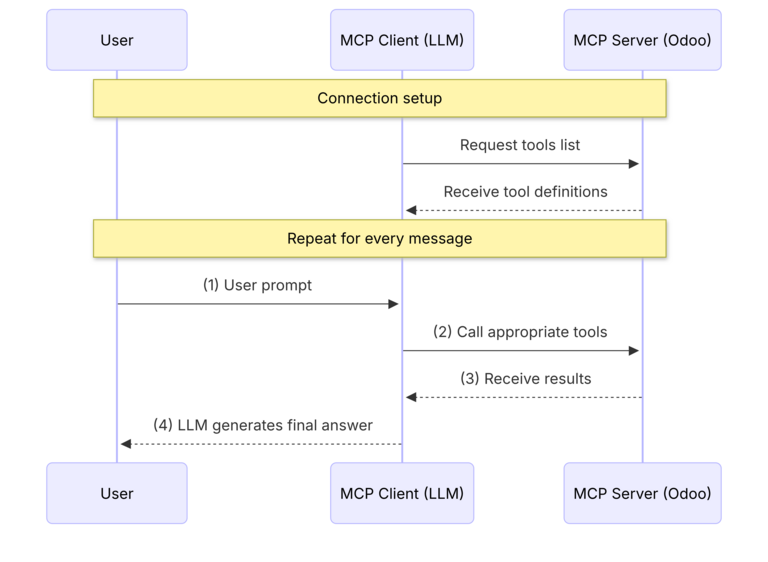
以下步骤概述了 Odoo 中的 MCP 工作流:
用户通过服务器详细信息和身份验证密钥 配置客户端。连接后,客户端会自动向服务器发送初始请求,以获取数据库中向其开放的任何可用 AI 工具 (或 服务器动作)。如果成功,客户端会在本次会话剩余时间内缓存这些工具。
用户以自然语言向客户端发出提示。本文档提供了 示例提示词 列表。
客户端请求服务器调用正确的工具。
执行工具后,服务器将结果返回给客户端。
客户端以自然语言回应用户的提示。
更多内容
配置
配置过程包括以下步骤:
配置 MCP 服务器详细信息,然后通过客户端连接。
从 Odoo 向客户端 开放服务器动作。
If necessary, revoke access for unwanted clients.
重要
在第二步中配置 AI 客户端设置之前,请确保已安装以下内容:
兼容 MCP 的 AI 代理(例如 Claude Code、Antigravity、Codex)
Node.js (if authenticating using an API key)
Connect with OAuth
OAuth is the recommended method of authentication, allowing users to securely approve access to Odoo from their client without manually copying, pasting, or exposing authentication keys.
To authenticate using OAuth, perform the following steps:
Allow the client to access the database.
Connect the client and grant access.
注解
OAuth is only available to internal users. Portal users must authenticate using an API key.
Approve AI clients
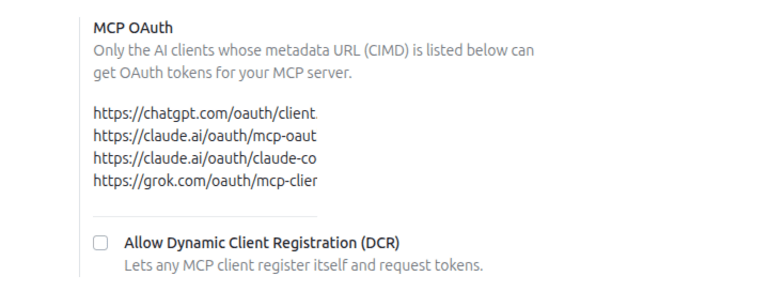
Only approved AI clients can request access to the database. To review the approved clients, navigate to .
The MCP OAuth field lists the metadata URL, or Client ID Metadata Document (CIMD), of each approved client.
To approve another client that supports CIMD, add its metadata URL on a new line, then click Save.
For clients that do not support CIMD, select the Allow Dynamic Client Registration (DCR) checkbox. This allows any MCP client to register itself and request access.
警告
Enabling DCR allows any application to register as a client. To block a registered client, turn on developer mode, navigate to , then archive the client.
Connect the client and grant access
In the MCP client, add a server using only the server endpoint URL (e.g.,
https://example.odoo.com/mcp).
重要
请务必将以下占位符替换为相应的值:
server_name:输入用于标识 MCP 服务器的自定义名称。database_url:输入 Odoo 数据库的 URL。
在终端中粘贴以下命令以添加 MCP 服务器:
claude mcp add --transport http <server_name> <database_url>/mcp
Then, run claude mcp list to check the connection status of the newly added server.
在终端中粘贴以下命令以添加 MCP 服务器:
grok mcp add --transport http <server_name> <database_url>/mcp
Then, run grok mcp list to check the connection status of the newly added server.
Open ChatGPT, navigate to .
Provide a name, the endpoint/URL (<database_url>/mcp), and the authentication method
(OAuth). Finally, save to add the server.
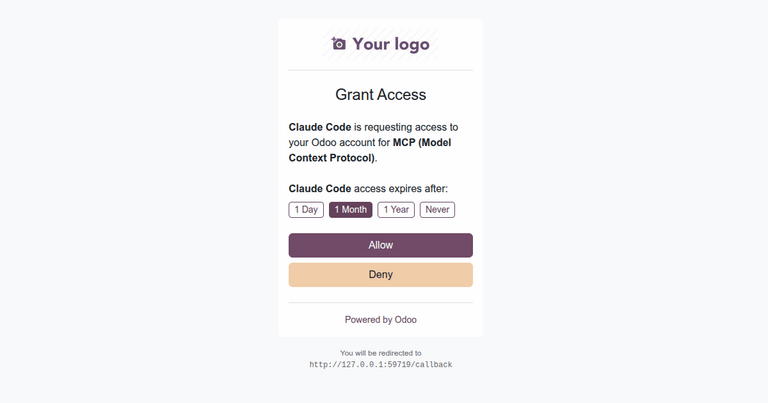
After adding the server, the client opens the Odoo login page in a browser. After signing in, the Grant Access page shows which client is requesting access. Under <client> access expires after:, select how long access remains valid, then click Allow.
After granting access, the browser redirects back to the client. When access expires, the client prompts the user to sign in again.
Connect with an API key
要将 MCP 客户端连接到服务器,用户必须首先通过静态 API 密钥设置对服务器的身份验证。每次 MCP 客户端向服务器发送请求时,都会使用该密钥验证用户在 Odoo 数据库中的身份和权限。
如需生成 API 密钥,请点击右上角的用户图标,然后选择 我的偏好设置。
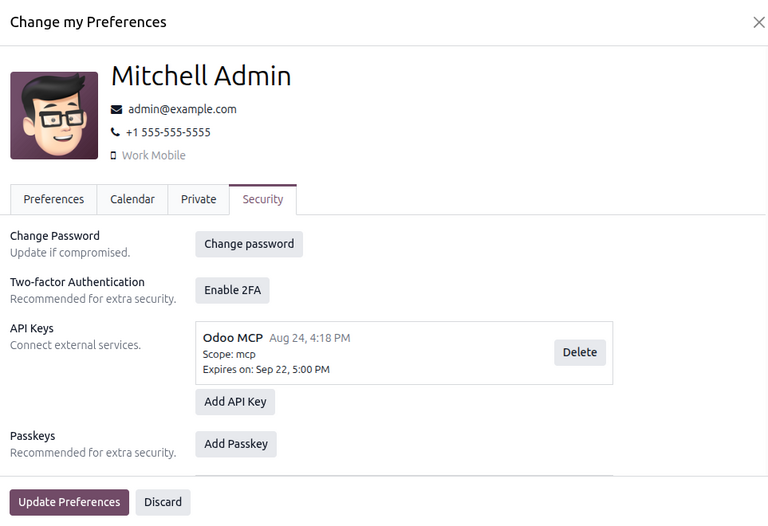
On the Change my Preferences pop-up window, open the Security tab. Then, click Create API Key. On the Access Control pop-up window, confirm the database password.
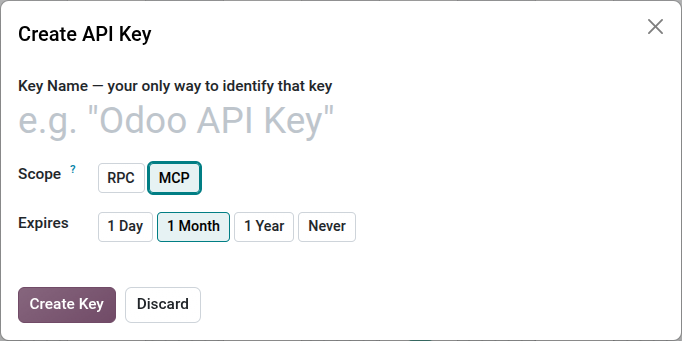
After confirming the password, configure the API key in the Create API Key pop-up window by entering the following information:
Key Name: Enter a brief and descriptive name for the key.
Scope: Select the MCP option to specify the type of key.
Expires: Select the period of time for which this key should be valid (e.g.,
1
Month
).
Finally, click Create Key to generate the key.
重要
请务必将密钥保存到其他位置。密钥生成后仅向用户显示一次,此后将保持隐藏。
配置服务器设置
在 Odoo 中生成身份验证密钥后,用户必须使用以下信息正确配置其客户端:
上一节中生成的 API 密钥
客户端连接到的服务器 URL,即 端点。该 URL 由用户的数据库 URL 拼接
/mcp构成(例如https://example.odoo.com/mcp)。
重要
请务必将以下占位符替换为相应的值:
server_name:输入用于标识 MCP 服务器的自定义名称。database_url:输入 Odoo 数据库的 URL。API_KEY:输入上一节中生成的 API 密钥。
可以通过 Claude Desktop 或 Claude Code CLI 连接 Odoo MCP。
通过 Claude Desktop
打开 Claude Desktop。导航至 。本地 MCP 服务器 部分列出了所有已配置的 MCP 服务器及其状态。
如需添加新服务器,请点击 编辑配置。在文件资源管理器中,打开 claude_desktop_config.json,并将以下 JSON 代码段粘贴到最外层的省略号之间:
{
  ...
  "mcpServers": {
    "<server_name>": {
      "command": "npx",
      "args": [
        "-y",
        "mcp-remote",
        "<database_url>/mcp",
        "--header",
        "Authorization: Bearer <API_KEY>"
      ]
    }
  },
  ...
}
保存配置文件后,新添加的服务器应会连同其连接状态一起显示在 本地 MCP 服务器 部分中。
通过 Claude Code CLI
在终端中粘贴以下命令以添加 MCP 服务器:
claude mcp add --transport stdio <server_name> -- npx -y mcp-remote <database_url>/mcp --header "Authorization: Bearer <API_KEY>"
注解
如需将服务器添加到系统的全局(用户级)配置中(即该服务器可供所有项目访问),请在上面的命令中加入 --scope user 标志。
最后,运行 claude mcp list 检查新添加服务器的连接状态。
可使用 Google Antigravity 通过 Antigravity 2.0 或 Antigravity CLI 连接 Odoo MCP。
通过 Antigravity 2.0 配置
打开 Antigravity 2.0。导航至 。已安装的 MCP 服务器 部分列出了所有已配置的 MCP 服务器及其状态。
如需添加新服务器,请点击 打开 MCP 配置。在文件资源管理器中,打开 mcp_config.json,并将以下 JSON 代码段粘贴到最外层的省略号之间:
{
  ...
  "mcpServers": {
    "<server_name>": {
      "command": "npx",
      "args": [
        "-y",
        "mcp-remote",
        "<database_url>/mcp",
        "--header",
        "Authorization: Bearer <API_KEY>"
      ]
    }
  },
  ...
}
保存配置文件后,新添加的服务器应会连同其连接状态一起显示在 已安装的 MCP 服务器 部分中。
通过 Antigravity CLI 连接
使用 Antigravity CLI 连接之前,请先在 Antigravity 2.0 中配置服务器。
如需检查连接状态,请在终端中运行 agy 以启动 Antigravity。然后运行 /mcp。新添加的服务器应会连同其连接状态一起显示。
可以通过直接编辑配置文件或使用 Codex CLI,在 Codex 中配置 Odoo MCP 服务器。
通过配置文件
打开位于根目录中的 config.toml 文件(~/.codex/config.toml)。然后,将以下内容粘贴到配置文件中:
[mcp_servers.<server_name>]
command = "npx"
args = ["-y", "mcp-remote", "<database_url>/mcp", "--header", "Authorization: Bearer <API_KEY>"]
注解
尽管 config.toml 全局位于系统的根目录中,但也可以通过在该目录中配置 .codex/config.toml 文件,为受信任的本地项目创建该文件。
通过 Codex CLI
在终端中粘贴以下命令以添加 MCP 服务器:
codex mcp add <server_name> -- npx -y mcp-remote <database_url>/mcp --header "Authorization: Bearer <API_KEY>"
如需检查连接状态,请在终端中运行 codex 以启动 Codex。然后运行 /mcp。新添加的服务器应会显示。
向客户端开放工具
连接到服务器后,MCP 客户端会根据用户的查询调用相应的工具,向 Odoo 数据库读取和写入数据。
开启开发者模式,然后导航至 ,即可访问这些工具并打开服务器动作(即工具)的仪表板。
默认情况下,Odoo 数据库向客户端开放以下工具:
AI Tool: Get FieldsAI Tool: Get ModelsAI Tool: MCP Retrieve initial contextAI Tool: SearchAI Tool: Read group
其余工具对客户端隐藏,必须手动开放后才能调用。
如需开放某个工具,请点击该工具条目。在服务器动作表单的 用途 选项卡中,勾选 在 MCP 中可用 旁边的复选框。您还可以选择性勾选 只读工具 旁边的复选框,以标记该工具不会写入或修改现有数据,并且无需用户批准即可自动调用。
注解
启用 只读工具 复选框并不会向 AI 客户端“隐藏”该工具。它只是告知客户端,该工具可以安全调用,无需用户明确批准。
更多内容
有关数据库中可用工具的完整列表,请参阅 可用工具 页面。
Revoke access
Each connection, whether made through OAuth or with an API key, appears as an API key in the user’s tab. To revoke access, delete the corresponding key.
使用实例
Odoo MCP 服务器可用于完成以下用例,包括示例用户提示词。
数据分析与报表
用例 |
示例提示词 |
|---|---|
销售管道审查 |
“显示我按阶段分组的未关闭商机,然后按销售人员绘制管道价值的图表。” |
制造/库存计划 |
“我的主生产计划中有哪些产品没有预测数据?本月我的总预测需求量是多少?” |
历史报表 |
“与本季度相比,我们上季度的开票金额是多少?” |
自定义样式
用例 |
示例提示词 |
|---|---|
网站内容编辑 |
“在我的主页添加一个横幅,用于宣传我们的夏季促销,并使用一张海滩的图库照片。” |
自定义站点样式 |
“将全站所有产品图片的边角改为圆角。” |
AI 图像生成 |
“生成一张黄昏时分的山景图,并将其放入主视觉区域。” |
更多内容