Automation rules
Automation rules allow the execution of one or more predefined actions in response to a specific trigger, e.g., create an activity when a field is set to a specific value, or archive a record 7 days after its last update.
When creating an automation rule, it is possible to add conditions that must be met for the automation rule to run, e.g., the opportunity must be assigned to a specific salesperson, or the state of the record must not be Draft.
To create an automation rule with Odoo Studio:
Open Studio and click Automations, then New.
Give the automation rule a clear, meaningful name that identifies its purpose.
Select the Trigger and, if necessary, fill in the fields that appear on the screen based on the chosen trigger.
To define the actions to be executed:
add actions manually via the Add an action button in the Actions To Do tab; or
select an AI Agent, then provide Instructions that explain the desired action(s) to execute or outcome(s) to achieve. To insert fields from the model in the instructions, type
/to access the Field Selector.
Example
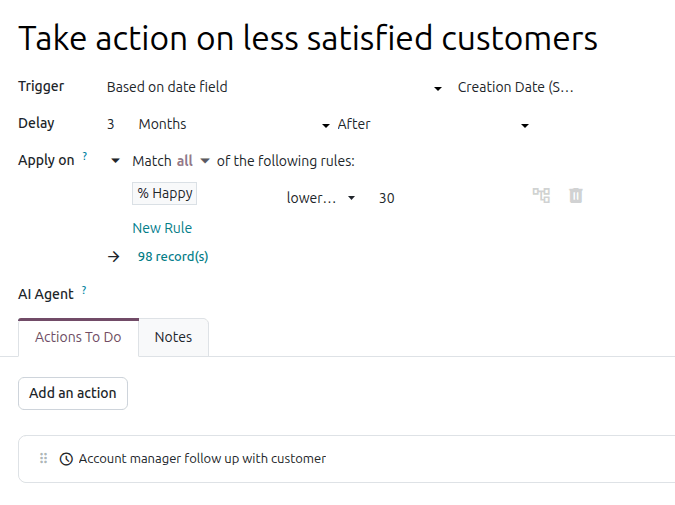
To ensure follow-up on less satisfied clients, this automation rule creates an activity 3 months after a sales order is created for clients with a satisfaction percentage lower than 30%.
Tip
Use the Notes tab to document the overall purpose and functioning of an automation rule. This makes rules easier to maintain and facilitates collaboration between users. Information about individual actions can also be added to an action’s Explanation tab.
To modify the model targeted by the automation rule, switch models before clicking Automations in Studio, or activate developer mode, create or edit an automation rule, and select the Model in the Automation Rules form.
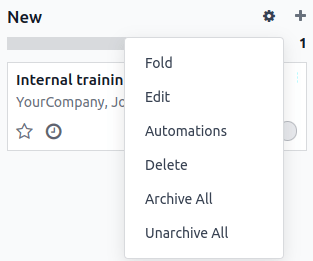
Automation rules can be created from any kanban stage by clicking the (Settings) icon that appears when hovering over the kanban stage name, then selecting Automations. In this case, the Trigger is set to Stage is set to by default, but it can be changed if necessary.
Trigger
The Trigger is used to define what kind of event needs to occur for the automation rule to run. The available triggers depend on the model. Five trigger categories are available overall:
Adding conditions
Domain filters allow you to determine the records an automation rule should target or exclude. Efficient filtering enhances overall performance as it avoids unnecessary processing on records that are not impacted by the rule.
Tip
Activate developer mode before creating an automation rule to have the most flexibility in adding domain filters.
Depending on the trigger chosen, it is possible to define one or more conditions a record must meet before and/or after a trigger occurs.
The Before Update Domain defines the conditions a record must meet before the trigger event occurs, e.g., the record must have
Type = Customer InvoiceandStatus = Posted.With developer mode activated, click Edit Domain, if available, then New Rule.
The Apply on domain defines the conditions a record must meet after the trigger event occurs, e.g., the customer invoice must have
Payment Status = Partially Paid.With developer mode activated, click Edit Domain then New Rule.
Tip
If developer mode is not activated, to define an Apply on domain, click Add condition. Complete or delete the suggested condition. To add a condition, click New Rule.
When a trigger occurs, e.g., the payment status of a posted customer invoice is updated, the automation rule checks the defined conditions and only executes the action if the record matches those conditions.
Example
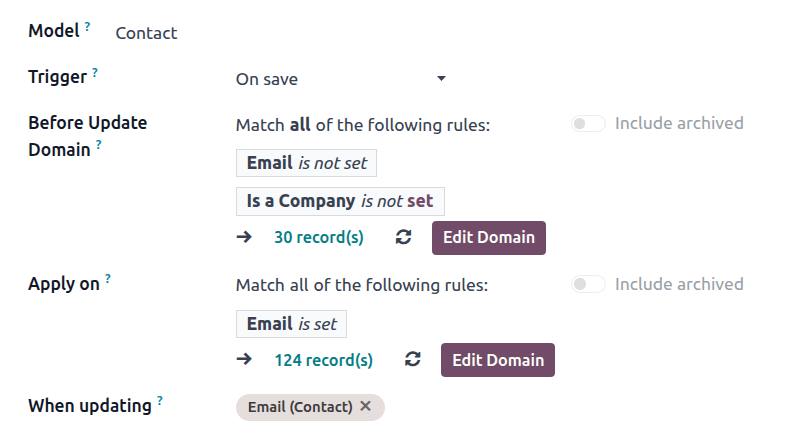
If the automated action should be executed when an email address is set for the first time (in
contrast to modifying an email address) on an existing contact that is an individual rather than
a company, use Email is not set and Is a Company is not set as the Before Update
Domain and Email is set as the Apply on domain.
Note
The Before Update Domain is not checked upon the creation of a record.
Values Updated
Trigger automated actions when specific changes happen in the database. The triggers available in this category depend on the model and are based on common changes, such as adding a specific tag (e.g., to a task) or setting a field’s value (e.g., setting the User field).
Select the trigger, then select a value if required.
Email Events
Trigger automated actions upon receiving or sending emails.
Timing Conditions
Trigger automated actions at a point in time relative to a date field or to the creation or update of a record. The following triggers are available:
Based on date field: The action is triggered a defined period of time before or after the date of the selected date field, e.g., 30 days before the contract end date.
After creation: The action is triggered a defined period of time after a record is created and saved.
After last update: The action is triggered a defined period of time after an existing record is edited and saved.
To configure a Timing Conditions trigger, with developer mode activated:
Select the appropriate Trigger from the Timing Conditions category. If you select the Based on date field trigger, select the relevant date field.
Configure the Delay to determine the execution date time of the action(s). To do so, enter the number of Minutes, Hours, Days, or Months after which the action should be triggered. If you selected the Based on date field trigger, the action can be triggered After or Before the selected date field.
Optionally, add conditions that the record must meet before and/or after the rule is triggered.
Click Save manually.
Click Scheduled action to open the Automation Rules: check and execute scheduled action.
Note
This scheduled action checks for execution date times that have been reached since its previous run, and executes the related action(s), if relevant. By default, the scheduled action is set to Execute Every 4 hours, which is generally sufficient for delays such as 3 months after the order date or 7 days after the last update.
If any automation rule has a time-based trigger with a delay of less than the equivalent of 40 hours, e.g., 3 hours before the event start date time, the frequency of the scheduled action is automatically increased, e.g., to Execute Every 18 minutes. This allows the action to be executed closer to its scheduled execution date time.
Click Run manually at the top left.
Warning
This step is critical to prevent the rule from running retroactively on historical records. Running the scheduled action manually initializes the timestamp of its last run in the automation rule, which is a key element of the rule’s execution logic.
Click the automation rule name in the breadcrumbs to return to the automation rule setup.
Add the action(s) to be executed then, when all actions have been defined, click Save manually.
The action is executed the first time the Automation Rules: check and execute scheduled action runs after the execution date time is reached, and when the conditions are met.
Execution logic
When using a time-based trigger, an action is only executed when the execution date time falls between the last run of the scheduled action and the current run (whether scheduled or run manually), i.e.:
last run –> execution date and time –> current run
Note
Running the Automation Rules: check and execute scheduled action manually does not necessarily result in a rule’s action being executed. When testing an automation rule with a time-based trigger, ensure that this sequence is true, then check if the action has been executed.
Example
On the morning of October 15, you create an automation rule that triggers the sending of an email 30 days before the Contract end date; contracts end at 11:59 pm on their contract end date. During the creating of the rule, the Automation Rules: check and execute scheduled action was run manually at 11:00 am and is set to run every four hours thereafter.
This new automation rule will apply for contracts whose end date is at least 30 days after the creation of the rule, i.e., an end date of November 14 or later.
For a contract with an end date of November 14, the execution date time of the action is 11:59 pm on October 15. The action will therefore be executed the first time the Automation Rules: check and execute scheduled action runs after that date and time has passed, i.e.,:
last run of the scheduled action: 11:00 pm on October 15
execution date time: 11:59 pm on October 15
current run of the scheduled action: 3:00 am on October 16
Custom
Trigger automated actions:
On create: when a record is saved for the first time.
On create and edit: when a record is saved for the first time and any subsequent time.
On deletion: when a record is deleted.
On UI change: when a field’s value is changed on the Form view, even before the record is saved.
For the On create and edit and On UI change triggers, you must then select the field(s) to be used to trigger the automation rule in the When updating field.
Warning
If no field is selected in the When updating field, the automated action may be executed multiple times per record.
Optionally, you can also define additional conditions to be met to trigger the automation rule in the Apply on field.
Note
The On UI change trigger can only be used with the Execute Code action and only works when a modification is made manually. The action is not executed if the field is changed through another automation rule.
External
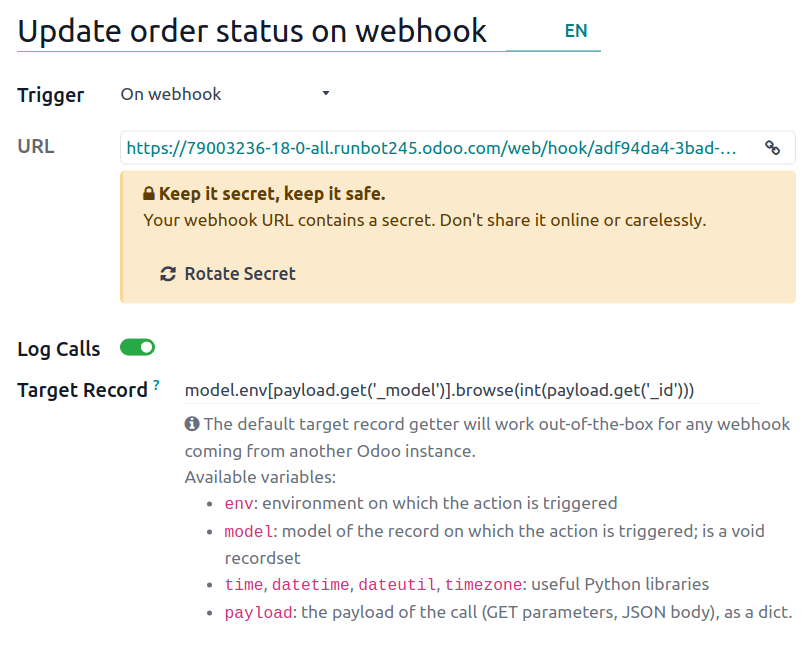
Trigger automated actions based on a specific event in an external system or application using a webhook.
After the webhook is configured in Odoo, where the webhook’s URL is generated and the target record defined, it needs to be implemented in the external system.
Warning
It is highly recommended to consult with a developer, solution architect, or another technical role when deciding to use webhooks and throughout the implementation process. If not properly configured, webhooks may disrupt the Odoo database and can take time to revert.
Note
It is also possible to set up an automated action that sends data to a external system’s webhook when an event occurs in your Odoo database.
See also
Actions
Once you have defined the automation rule’s trigger, add one or more actions to be executed as follows:
Click Add an action in the Actions To Do tab.
Select the Type of action and complete the relevant fields based on the chosen action.
Click Save & Close or, to define additional actions, Save & New.
Tip
Multiple actions can be defined for the same automation rule. By default, actions are executed in the order in which they were defined.
Example
If you define an Update Record action and then a Send Message action where the message references a field that was updated, the message uses the updated values. However, if the Send Message action is defined before the Update Record action, the message uses the values set before the record is updated.
To change the order of defined actions, click the (drag handle) icon beside an action and drag it to the desired position.
Update Record
This action is used to update one of the record’s (related) fields. The following options are available:
Update: updates the selected field with the specified value.
Update with AI: updates the selected field dynamically based on the AI prompt provided. This option requires the Odoo AI app to be installed.
Sequence: update the selected field with a defined sequence.
Compute: updates the selected field dynamically using Python code.
To define the action:
With the Update, Update with AI, Sequence or Compute option selected, as relevant, select or search for the field to be updated or computed. If needed, click the (right arrow) next to the field name to access the list of related fields.
Provide the relevant information based on the option selected.
Update
Select or enter the updated value for the field.
If a many2many field is being updated, choose whether the field must be updated by Adding, Removing, or Setting it to the selected value or by Clearing it.
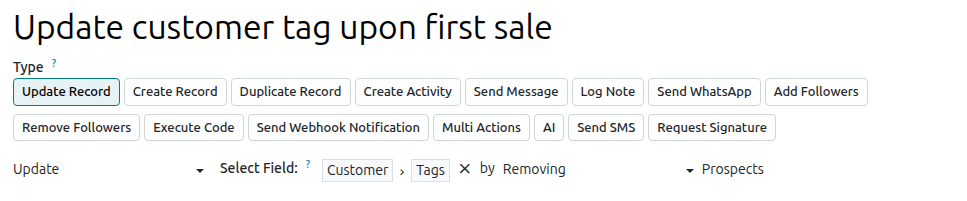
Example
If you want the automated action to remove a tag from the customer record, set the Update field to Customer > Tags, select by Removing, then select the tag to be removed.
Update with AI
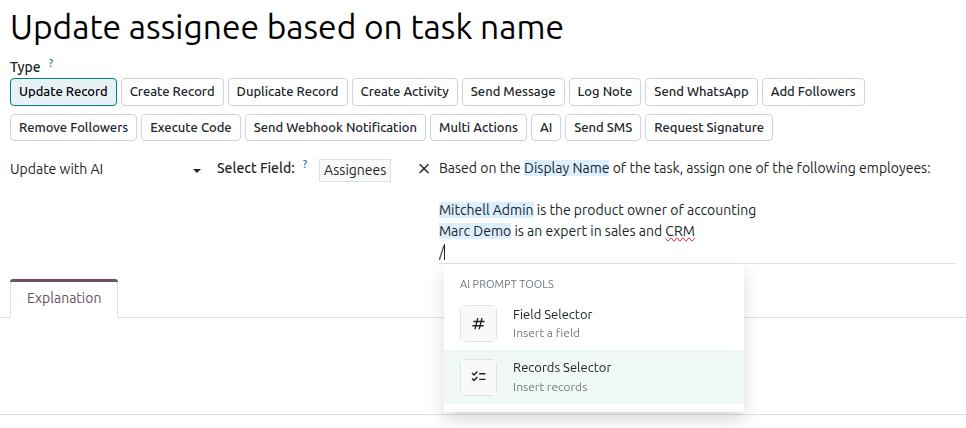
Enter a prompt to instruct Odoo AI how to update the field. Type / to open the AI
prompt tools; use Field Selector to tell Odoo AI which related fields to check for
context, and Records Selector to provide possible values for the updated field.
Optionally, explain the rationale and/or functioning of the automation rule in the Explanation tab.
Example
If you want the automation rule to update the Assignees field of a newly created task based on the employees’ expertise, you can write a prompt to instruct Odoo AI to check the Display Name field of the task for the context, then to assign the most suitable employee.
Sequence
Select an existing sequence or, to create a new sequence:
Click Search more, then click Create New.
In the window that opens, enter the Name of the sequence.
In the Sequence tab, configure the sequence:
Prefix: characters added before the next number in the sequence.
Suffix: characters added after the next number in the sequence.
Sequence Size: determines the number of digits in every number in the sequence. If needed, leading zeros are added before the number to achieve the indicated sequence size, e.g., for a sequence size of
5, the first number in the sequence is00001.Step: determines the increments between the numbers in the sequence.
Next Number: the next number that will be used in the sequence, without leading zeros.
Tip
Use dynamic placeholders like
%(year)sor%(month)sas a Prefix and/or Suffix to create sequences with elements like current year, month, etc. Possible placeholders are shown at the bottom of the window.To use sub-sequences, e.g., to have the sequence restart each year or each month, enable Use subsequences per date_range, then Add a line for each date range and indicate the Next Number for the range.
Click Save.
Example
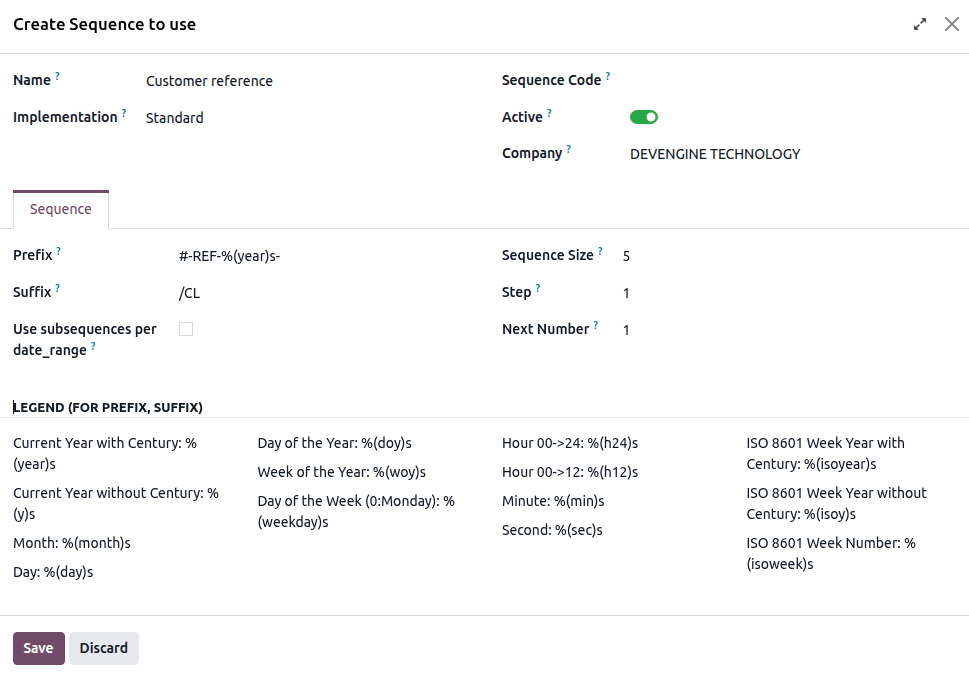
To configure an automated action that creates a sequential customer reference each time a new customer is created, set the Sequence field to Reference, then, in the dropdown, click Search more. Click New to create a new sequence.
In the example, each new customer receives a sequential reference with the prefix
#-REF-%(year)s-, where %(year)s is the current year including the century, and the suffix
/CL, e.g., #-REF-2025-00001/CL, #-REF-2025-00002/CL, etc.
Compute
Enter the Python expression to be used to compute the field’s value.
Example
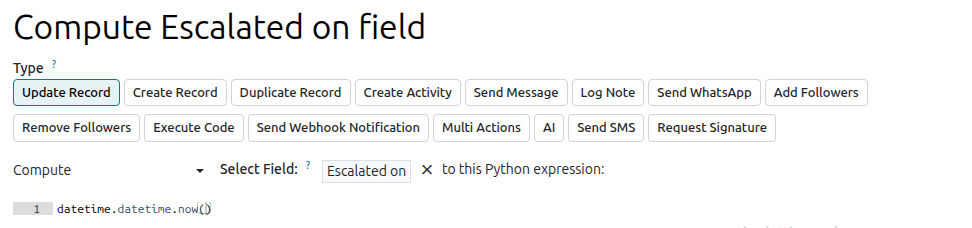
To configure an automation rule to compute a custom datetime field, Escalated on, when a task’s priority is set
to Very high (three stars), define the rule’s trigger to Priority is set to to Very
High and define the Update Record action as follows:
Create Record and Duplicate Record
These actions are used to create a new or duplicated record on any model.
To define the action:
With Create Record or Duplicate Record selected as the Type of action, as relevant, select the required model in the Record to Create field; the field contains the current model by default.
Specify a Name for the record, or, if the action duplicates a record, indicate the record being duplicated in the Duplicate from field.
If the new or duplicated record is being created on another model, select a field in the Link Field field to link the record that triggered the creation of the new or duplicated record.
Tip
The Link Field dropdown menu only contains one2many fields existing on the current model that are linked to a many2one field on the target model.
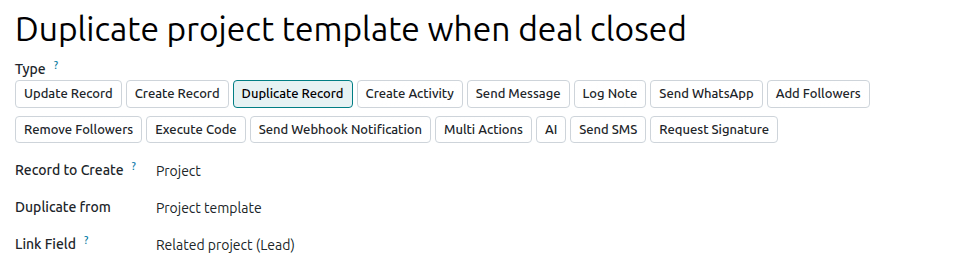
Example
To configure an automation rule to duplicate a project, e.g. a project template with predefined
tasks, when an opportunity is set to Won, add a custom Related opportunity many2one
field field on the Project model and a custom
Related project one2many field field on the
Lead model, then provide the following details about the record being duplicated:
Tip
Another automation rule with Update Record actions can be created to update the fields of the new or duplicated record if necessary. For example, you can use a Create Record action to create a new project task and then assign it to a specific user using an Update Record action.
Create Activity
This action is used to schedule a new activity or, where relevant, an activity plan, linked to the record.
To define the action:
With Create Activity selected as the Type of action, select the appropriate Activity Plan or Activity Type.
Indicate by when the activity should be completed by specifying a number of Days, Weeks, or Months in the Due In field.
For an Activity Type:
In the Summary field, edit the title if desired.
Assign the activity to a user:
To always assign the activity to the same user, select Specific User, then select the user from the dropdown.
To assign the activity to a role, select Specific Role, then select the role from the dropdown or, to create a new role, click Search more, then click Create New.
To target a user linked to the record dynamically, select Dynamic User. If needed, change the default field by clicking on it, then selecting or searching for the field in the field selector. Click the (right arrow) icon next to the field name to access related fields, if needed.
Optionally, Log a note to provide more information about the activity.
Example
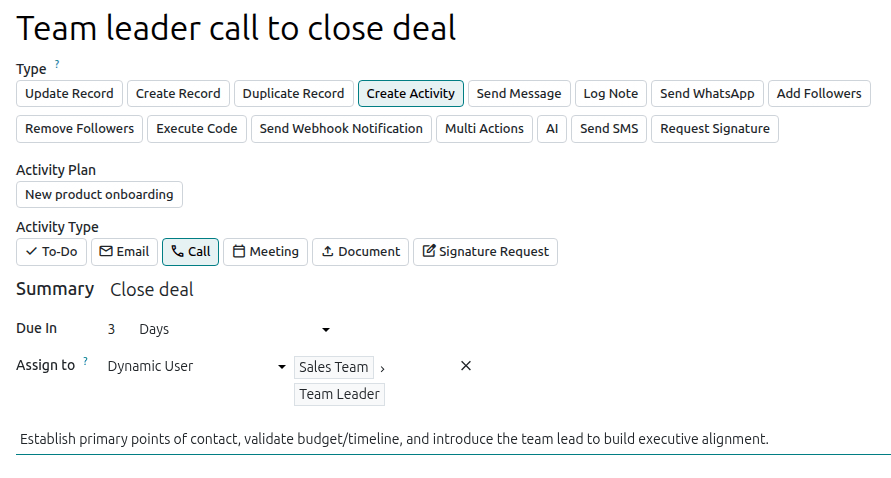
After a proposition is sent to a opportunity with a high expected revenue, you want to create an activity for the salesperson’s team leader to call the potential client to increase the chances of closing the deal.
To do so, set the Activity Type to Call and the User Type to Dynamic User. Click on the placeholder field and select Sales Team, then click the (right arrow) icon and select Team Leader.
Send Message
This action is used to send a message or email to a contact linked to a specific record.
With Send Message selected as the Type of action, select or create a Template. When the automation is triggered, the message is posted in the chatter of the record and sent to all the followers of the record as well as to dynamically calculated recipients of the template, as follows:
Internal users receive an email or a direct message in the Discuss app, depending on their notification preferences.
External users receive an email.
See also
Log Note
This action is used to post a note visible to internal users in the chatter of the record.
With Log Note selected as the Type of action, enter the text in the Internal Note field.
Send WhatsApp
Important
To automate the sending of WhatsApp messages, one or more WhatsApp templates must be created.
This action is used to send a WhatsApp message to a contact linked to a specific record.
With Send WhatsApp selected as the Type of action, select the appropriate WhatsApp Template from the dropdown menu.
Add Followers and Remove Followers
This action is used to subscribe/unsubscribe existing contacts as followers of the record.
With Add Followers or Remove Followers selected as the Type of action, as relevant, select a Followers Type:
To always add/remove the same contact(s), select Specific Followers then select the contact(s) from the dropdown menu. Multiple contacts can be added/removed.
To add/remove a contact linked to the record dynamically, select Dynamic Followers. If needed, change the Followers Field by clicking on the placeholder field name then selecting or searching for the partner field in the list that appears. Clicking the (right arrow) next to the field name allows you to access related fields if needed.
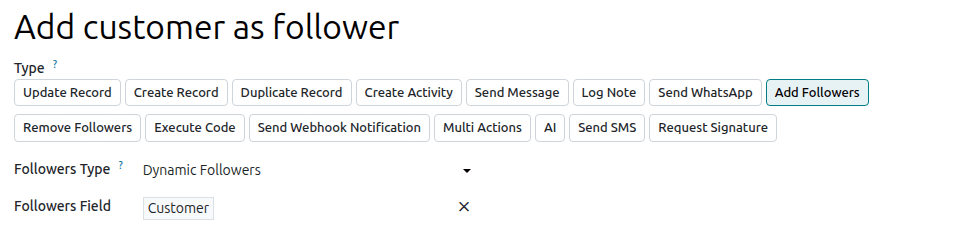
Example
To keep customers informed of progress on a project, this automated action adds the relevant
customer as a follower when a project task is set to In progress.
Execute Code
Important
For automation rules that require the execution of custom code, note that maintenance of custom code is not included in the Standard or Custom pricing plans and incurs additional fees.
This action is used to execute Python code. You can write your code into the Code tab using the following variables:
env: environment on which the action is triggeredmodel: model of the record on which the action is triggered; is a void recordsetrecord: record on which the action is triggered; may be voidrecords: recordset of all records on which the action is triggered in multi-mode; this may be left emptytime,datetime,dateutil,timezone: useful Python librariesfloat_compare: utility function to compare floats based on specific precisionlog(message, level='info'): logging function to record debug information in ir.logging table_logger.info(message): logger to emit messages in server logsUserError: exception class for raising user-facing warning messagesCommand: x2many commands namespaceaction = {...}: to return an action
Tip
The available variables are described both in the Code and Help tabs.
See also
Send Webhook Notification
This action is used to send a POST API request with the values of the selected Fields
to the webhook URL specified in the URL field.
The Sample Payload provides a preview of the data included in the request using a random record’s data or dummy data if no record is available.
Note
It is also possible to set up an automated action that uses a webhook to receive data from an external system when a predefined event occurs in that system.
Multi Actions
This action is used to trigger multiple actions (linked to the current model) at the same time.
To define the actions:
With Multi Actions selected as the Type of action, click Add an action.
In the Add: Child Actions pop-up:
select one or more existing actions and click Select; or
click New, define the action to be executed, then click Save & Close or, to create additional actions, Save & New .
Repeat as many times as needed.
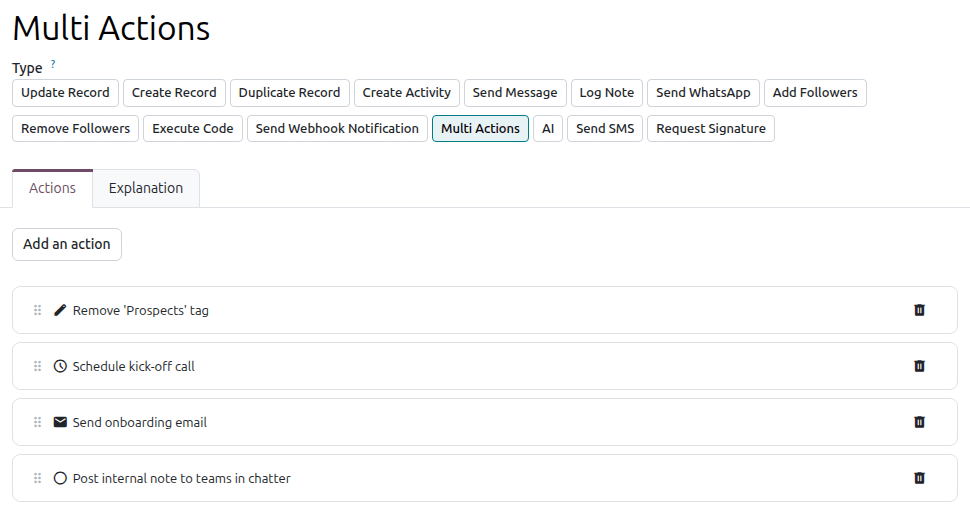
Example
When an opportunity with a value above $10,000 is set to Won, the following four actions are scheduled to transition the customer smoothly from sales to onboarding: remove the Prospect tag, schedule a kick-off call, send an onboarding email to the customer, and post an internal note informing teams.
AI
This action allows you to provide instructions to the AI about the desired action(s) to execute or outcome(s) to achieve.
With AI selected as the Type of action, click the Prompt tab,
then enter the Instructions to the AI. To insert fields from the model in the
instructions, type / to access the Field Selector. Optionally, select Tools to provide the AI with standard server actions it can call to execute
tasks or update records.
Send SMS
This action is used to send an SMS to a contact linked to a specific record.
With Send SMS selected as the Type of action, select or create a Template. When the automation is triggered, the SMS is sent to the recipients of the SMS template.
Tip
SMS templates can also be accessed by enabling developer mode, then, in the Settings app, going to .
Request Signature
This action is used to request the signature of a templated document.
With Request Signature selected as the Type of action, select the appropriate Sign Template.
For each identified signer of the document, assign a user:
To request the signature of the same user every time, select Fixed Signer, then select or search for the user from the dropdown or create a new user.
To request the signature of the user associated with a linked field on the model in question, select Linked Field then select the relevant field.
