Scale
Important
In EU member states, certification is legally required for the use of a scale as an integrated device.
The Mettler Toledo scale (Ariva S) using protocol 8217 is recommended with Odoo.
To connect the scale to Odoo, link it directly via USB or configure an IoT system.
Configuration
Scale connection
USB connection
To connect the scale with Point of Sale via USB, follow these steps:
Connect the scale to the device running the Odoo database using a USB cable.
Go to .
Scroll down to the Connected Devices section and click the Connect USB Scale button under the USB Scale setting.
Select the relevant scale in the popover, then click Connect.
Click Save.
Note
If you are running Odoo on a Linux device, clicking the Connect USB Scale button
displays the error message Your Scale is not compatible with Odoo, which prevents you from
connecting the scale to the database. To enable the connection, open the Linux terminal, type
666/dev/ followed by the scale port number, press ENTER, then enter the computer password.
IoT system connection
To connect the scale with Point of Sale using an IoT system, follow these steps:
Turn on the scale before starting the IoT system to ensure it is detected during setup.
Connect the scale to the IoT system.
Connect the IoT system to Odoo.
In the Connect to a Point of Sale popover, set the Associated PoS field to the relevant point of sale, then click Continue.
Go to .
Scroll down to the Connected Devices section, then select the scale in the Electronic Scale field.
Click Save.
Important
For optimal reliability, it is recommended to use a physical IoT system rather than a virtual one.
Tip
If the scale is not recognized by the IoT system, restart it or reconfigure it by following the setup guidelines. If the issue persists, restart the IoT system.
Alternatively, to connect the IoT system to the POS after it is connected to the database, go to the POS settings, scroll down to the Connected Devices section, and enable the IoT Box setting.
To enable and configure the IoT Box setting, click the (Dropdown menu) icon on a POS card, then click Configure.
Product configuration
Important
Ensure the Point of Sale checkbox is activated on the product form to be able to enable the To Weigh With Scale option and make the product available in Point of Sale.
To comply with European regulations, the unit of measure for weighable products must be set to
kg.
The following configuration is required to be able to weigh products and display their weight in the POS register:
Go to .
Scroll down to the Units & Packagings section, enable the Units of Measure & Packagings setting, and click Save.
Go to .
Click an exisiting product or click New to create a new one.
In the General Information tab, set the Sales Price to the relevant unit of mass.
Click the Point of Sale tab and enable To Weigh to be able to weigh the product directly on the connected scale.
See also
European regulations
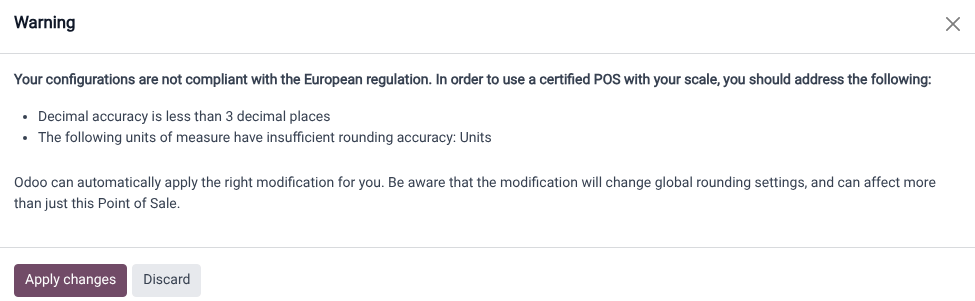
When using scales in commercial transactions, the database to which the scale is connected must be
configured to comply with European requirements. This includes supporting at least three decimal
places for accuracy and using proper rounding for units of measure, such as kg rather than generic
units.
If the database is not compliant, a red (scale) icon displays as a warning. Click this icon to view the reasons for non-compliance and then select Apply changes to automatically apply the necessary changes to the settings. Once the database meets all regulatory requirements, the (scale) icon turns green.
Additional guidelines
Both the customer and POS displays must have a minimum diagonal size of 6 inches. For optimal readability, larger screens are recommended.
Product weighing
To weigh a product in the POS register using the connected scale, follow these steps:
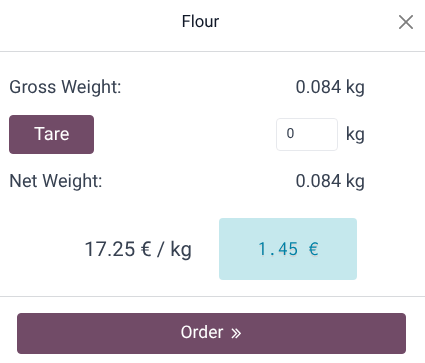
Select the relevant product in the grid. A popover displays the product’s name.
Place the physical product on the scale. Once the weight is determined, the price is automatically computed in the popover.
Click Order to add the product to the cart.
Remove the product from the scale and continue with the order.
Important
Make sure the scale returns to zero before weighing a new product. If it does not, the Order button remains unclickable until it is reset.
Tip
Click Tare in the popover to reset the scale to zero and subtract the container’s weight.
