构建块
构建块(也称为片段)是用户设计和布局页面的方式。它们是您设计中重要的 XML 元素。
构建区块分为四类:
结构块:为网站提供基础结构
功能块:用于描述产品或服务的特性
动态内容块:带动画或与后端交互的区块
内部内容块:用于其他构建区块内部的区块
在本章结束时,您将能够 创建自定义片段,并将它们添加到专用类别中。
文件结构
布局的文件结构如下。
views
├── snippets
│   └── options.xml
│   └── s_snippet_name.xml
样式的文件结构如下。
static
├── src
│   └── snippets
│       └── s_snippet_name
│           └── 000.js
│           └── 000.scss
│           └── 000.xml
│           └── options.js
更多内容
演示页面
需要安装演示数据才能访问此页面:
https://your-database.com/website/demo/snippets
布局
用户可以使用网站构建器编辑片段。某些 Bootstrap 类很重要,因为 它们会触发某些网站构建器选项。
包装器
任何片段的标准主容器都是 section。任何 section 元素都可以像内容块一样编辑,您可以移动或复制它。
<section class="s_snippet_name" data-name="..." data-snippet="...">
    <!-- Content -->
</section>
对于内部内容片段,可以使用任何其他 HTML 标签。
<div class="s_snippet_name" data-name="..." data-snippet="...">
    <!-- Content -->
</div>
属性 |
说明 |
|---|---|
class |
此片段的唯一类名 |
data-name |
在右侧面板中显示为片段的名称。如果未找到,将回退为 区块。 |
data-snippet |
系统用于识别片段 |
系统会在拖放过程中根据模板名称自动添加 data-name 和 data-snippet 属性。
Warning
在主题页面上声明片段时,应显式添加这些属性。
Warning
避免在一个 section 标签内再添加 section 标签:这会重复触发网站构建器的选项。您可以改用内部内容片段。
Tip
使用标准片段编写静态页面的内容,有两种可选方法:
- 使用网站构建器预先构建自定义静态页面: 拖放片段,然后
将代码复制/粘贴到您的文件中并进行清理。
- 直接编写全部代码: 但要注意与网站构建器的兼容性。它
需要特定的类、名称、id、data 等才能正常工作。一种良好的做法是在 Odoo 源文件中查找以标准代码创建的片段代码。请注意,网站构建器有时会在片段被拖放到页面后为其添加类。
元素
通过特定的 CSS 类,可以启用/禁用一系列“功能”。
尺寸
任何直接位于 .row 元素下的 Bootstrap 大列(遵循 Bootstrap 结构)都会被网站构建器触发,使其可调整大小。
.row > .col-lg-*
为列和 <section> 添加内边距。
class="pt80 pb80"
Note
pb* 和 pt* 是用于控制手柄的 Odoo 类。它们的数值以 8 的倍数 递增,直到 最大 256 (0, 8, 16, 24, 32, 40, 48, …)。
启用列选择器。
<div class="container s_allow_columns">
禁用列数量选项。
<div class="row s_nb_column_fixed">
禁用所有子列的尺寸选项。
<div class="row s_col_no_resize">
禁用某个特定列的尺寸选项。
<div class="col-lg-* s_col_no_resize">
颜色
为列和 <section> 添加基于调色板的背景。
class="o_cc o_cc*"
禁用所有列的背景颜色选项。
<div class="row s_col_no_bgcolor">
禁用某个特定列的背景颜色选项。
<div class="col-lg-* s_col_no_bgcolor">
添加不透明度为 50% 的黑色滤镜。
<section>
    <div class="o_we_bg_filter bg-black-50"/>
    <div class="container">
        <!-- Content -->
    </div>
</section>
添加不透明度为 85% 的白色滤镜。
<section>
    <div class="o_we_bg_filter bg-white-85"/>
    <div class="container">
        <!-- Content -->
    </div>
</section>
添加自定义颜色滤镜。
<section>
    <div class="o_we_bg_filter" style="background-color: rgba(39, 110, 114, 0.54) !important;"/>
    <div class="container">
        <!-- Content -->
    </div>
</section>
添加自定义渐变滤镜。
<section>
    <div class="o_we_bg_filter" style="background-image: linear-gradient(135deg, rgba(255, 204, 51, 0.5) 0%, rgba(226, 51, 255, 0.5) 100%) !important;"/>
    <div class="container">
        <!-- Content -->
    </div>
</section>
功能
使元素不可编辑。
<div class="o_not_editable">
使元素不可移除。
<div class="oe_unremovable">
添加背景图片并使其居中。
<div class="oe_img_bg o_bg_img_center" style="background-image: url('...')">
添加视差效果。
<section class="parallax s_parallax_is_fixed s_parallax_no_overflow_hidden" data-scroll-background-ratio="1">
    <span class="s_parallax_bg oe_img_bg o_bg_img_center" style="background-image: url('...'); background-position: 50% 75%;"/>
    <div class="container">
        <!-- Content -->
    </div>
</section>
Note
可以在 section 元素上设置视频背景。请参阅本文档的“媒体”章节。
网格布局
网格布局是 CSS 中一种强大而灵活的布局系统,使用户能够轻松设计复杂的构建块布局。
通过在 row 上添加 o_grid_mode 类来启用网格布局。网格的行数由 data-row-count 属性定义。网格始终包含 12 列。
用法
<div class="row o_grid_mode" data-row-count="13">
   <!-- Content -->
</div>
使用 o_grid_item 类向网格中添加项目。如果网格项包含图片,请使用 o_grid_item_image 类。
<div class="row o_grid_mode" data-row-count="13">
   <div class="o_grid_item g-height-* g-col-lg-*" style="grid-area: 2 / 1 / 7 / 8; z-index: 3;">
      <!-- Content -->
   </div>
   <div class="o_grid_item o_grid_item_image g-height-* g-col-lg-*" style="grid-area: 1 / 6 / 9 / 13; z-index: 2;">
      <img src="..." alt="..." >
   </div>
</div>
网格项的尺寸和位置由 grid-area 定义,可以在 style 属性中连同 z-index 一起显式设置。
g-height-* 和 g-col-lg-* 类由网站构建器生成,用于编辑目的。
兼容性系统
- 当片段具有
data-vcss、data-vjs和/或data-vxml属性时,说明它是更新后的 版本,而不是原始版本。
<section class="s_snippet_name" data-vcss="001" data-vxml="001" data-js="001">
    <!-- Content -->
</section>
这些数据属性告知系统为该片段加载哪个文件版本(例如 001.js、002.scss)。
自定义片段
要创建自定义片段,请先创建片段模板,然后将其添加到列表中,使其可通过网站构建器使用。
模板
声明
/website_airproof/views/snippets/s_airproof_snippet.xml¶<?xml version="1.0" encoding="utf-8"?>
<odoo>
<template id="s_airproof_snippet" name="...">
<section class="s_airproof_snippet">
<!-- Content -->
</section>
</template>
</odoo>
Warning
在主题页面上声明片段时,必须指定 data-name 和 data-snippet 属性。否则,网站构建器将无法识别该片段,并且在每次数据库升级时都可能出现问题。此外,请记住 name 属性会在选项面板的 区块 部分中显示为自定义片段的名称。
Tip
尽可能使用 Bootstrap 原生类。
为所有自定义类添加前缀。
使用下划线小写命名法为类命名,例如
.x_nav、.x_nav_item。避免在
section中使用 ID 属性,因为片段的多个实例可能会出现在整个页面中(ID 属性在页面上必须唯一)。
将您的自定义片段添加到标准片段列表中,用户即可直接从编辑面板将其拖放到页面上。
/website_airproof/views/snippets/options.xml¶<template id="snippets" inherit_id="website.snippets" name="Airproof - Custom Snippets">
<xpath expr="//*[@id='default_snippets']" position="before">
<t id="x_theme_snippets">
<div id="x_theme_snippets_category" class="o_panel">
<div class="o_panel_header">Theme</div>
<div class="o_panel_body">
<t t-snippet="website_airproof.s_airproof_snippet" t-thumbnail="/website_airproof/static/src/img/wbuilder/s_airproof_snippet.svg">
<keywords>Snippet</keywords>
</t>
</div>
</div>
</t>
</xpath>
</template>
属性 |
说明 |
|---|---|
t-snippet |
要使用的模板 |
t-thumbnail |
片段缩略图的路径 |
<keywords> |
用户在片段面板的搜索字段中输入的关键词 |
选项
选项允许用户使用网站构建器编辑片段的外观/行为。您可以轻松创建片段选项,并自动将其添加到网站构建器中。
更多内容
模板
有大量命令可用于设置自定义片段的选项。这些选项可在 /website_airproof/views/snippets/s_airproof_snippet.xml 中创建。
/website_airproof/views/snippets/s_airproof_snippet.xml¶<template id="s_airproof_snippet_options" inherit_id="website.snippet_options" name="Airproof - Snippets Options">
<xpath expr="." position="inside">
<!-- Options -->
</xpath>
</template>
然后插入各种可用的选项:
/website_airproof/views/snippets/s_airproof_snippet.xml¶<template id="s_airproof_snippet_options" inherit_id="website.snippet_options" name="Airproof - Snippets Options">
<xpath expr="." position="inside">
<div data-selector=".s_airproof_snippet">
<we-select string="Layout">
<we-button data-select-class="">Default</we-button>
<we-button data-select-class="s_airproof_snippet_portrait">Portrait</we-button>
<we-button data-select-class="s_airproof_snippet_square">Square</we-button>
<we-button data-select-class="s_airproof_snippet_landscape">Landscape</we-button>
</we-select>
<we-title>Space</we-title>
<we-button-group string="Before">
<we-button data-select-class="mt-0">1</we-button>
<we-button data-select-class="mt-3">2</we-button>
<we-button data-select-class="mt-5">3</we-button>
</we-button-group>
</div>
</xpath>
</template>
绑定
这些选项使用 CSS 选择器(类、XML 标签、id 等)。
data-selector
选项以分组形式包裹。分组可以具有属性,用于定义所包含的选项如何与用户界面交互。
data-selector 会把分组中包含的所有选项绑定到与选择器值(CSS 类、ID 等)匹配的特定元素。当选择匹配的选择器时,该选项才会显示。
<div data-selector="section, h1, .custom_class, #custom_id">
它可以与 data-target、data-exclude 或 data-apply-to 等属性结合使用。
data-target
data-target="" 允许将选项应用于 data-selector="" 的子元素。
<div
   data-selector=".s_airproof_snippet"
   data-target=".row">
data-exclude
data-exclude="" 允许从规则中排除某些特定的选择器。
<ul> 标签(不含 .navbar-nav 类)时,该选项会出现¶<div
data-selector="ul"
data-exclude=".navbar-nav">
data-drop-in
data-drop-in 定义了片段可以拖放到其中的元素列表。
<div data-selector=".s_airproof_snippet" data-drop-in=".x_custom_location">
data-drop-near
data-drop-near 定义了片段可以拖放到其旁边的元素列表。
<div data-selector=".s_airproof_snippet_card" data-drop-near=".card">
data-js
data-js 绑定一个自定义的 JavaScript 方法。
<div data-selector=".s_airproof_snippet" data-js="CustomMethodName">
布局与字段
<we-title>
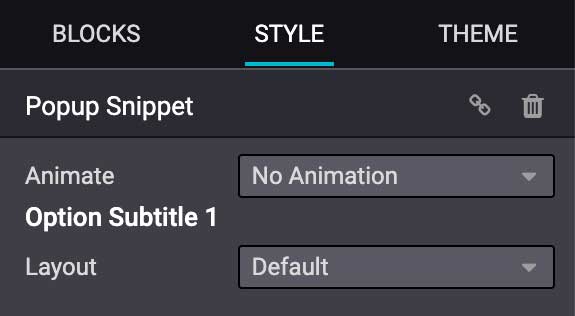
在选项之间添加标题,以便对它们进行分类。
<we-title>Option subtitle 1</we-title>
<we-row>
创建一行,使其中的元素并排显示。
<we-row string="My option">
   <we-select>...</we-select>
   <we-button-group>...</we-button-group>
</we-row>
这种情况的完美示例是 Animation 行:

<we-button>
此标签用于 <we-select> 和 <we-button-group> 内部。
<we-button-group string="Before">
   <we-button data-select-class="mt-0">1</we-button>
   <we-button data-select-class="mt-3">2</we-button>
   <we-button data-select-class="mt-5">3</we-button>
</we-button-group>
添加 data-select-class="" 以指明选择此选项时要添加到目标元素的类。与任何 XML 节点一样,添加其他属性可以改善样式和/或用户体验。
<we-button
   class="fa fa-fw fa-angle-double-right"
   title="Move to last"
   data-position="last" />

<we-select>
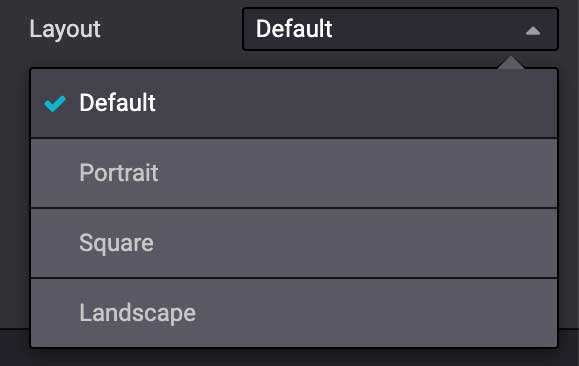
将选项格式化为下拉列表。添加 string="" 以指明字段名称。
<we-select string="Layout">...</we-select>
<we-button-group>
将选项格式化为并排的按钮。
<we-button-group string="Before">...</we-button-group>

<we-checkbox>
将选项格式化为切换开关。
<we-checkbox
   string="Tooltip"
   data-select-class="s_airproof_snippet_tooltip" />

<we-range>
将选项格式化为滑块。
<we-range
   string="Images Spacing"
   data-select-class="o_spc-none|o_spc-small|o_spc-medium|o_spc-big" />
范围的每个步骤由 | 分隔。此处,每个类名对应一个步骤。

<we-input>
将选项格式化为文本字段。
data-unit、data-save-unit 和 data-step 是可选的¶<we-input
string="Speed"
data-unit="s"
data-save-unit="ms"
data-step="0.1" />

<we-input> 附带若干在特定情况下特别有用的可选属性:
属性 |
说明 |
|---|---|
|
显示预期的计量单位。 |
|
设置用户输入的值在转换并保存时所采用的计量单位。 |
|
设置该字段可递增的数值步长。 |
<we-colorpicker>
将选项格式化为可供选择的颜色/渐变。
<we-colorpicker
   string="Color filter"
   data-select-style="true"
   data-css-property="background-color"
   data-color-prefix="bg-"
   data-apply-to=".s_map_color_filter" />

属性 |
说明 |
|---|---|
|
引用 |
|
定义颜色选择器所针对的 CSS 属性。 |
|
定义应用于返回的 CSS 类的前缀。 |
|
设置应用颜色的元素。 |
方法
除了用于选择、定位或排除元素的 绑定选项 之外,选项字段还有若干引用标准 JavaScript 方法的有用数据属性。
例如,data-select-class 引用名为 selectClass 的 JavaScript 方法。
内置方法
选择
有多个可用的内置方法。可以直接在 XML 模板中使用相关的数据属性来调用它们。
数据属性 |
说明 |
|---|---|
|
允许在选项类集合中选中一个且仅一个类,并将其设置到关联的片段上。 |
|
允许选择一个值,并将其作为属性设置到关联的片段上。属性名称由 |
|
允许选择一个值,并将其作为特性设置到关联的片段上。特性名称由 |
|
允许选择一个值,并将其作为 CSS 样式设置到关联的片段上。属性名称由 |
|
启用调色板的选择。仅适用于 |
事件
还有一些内置方法直接与网站生成器监听的事件相关联:
名称 |
说明 |
|---|---|
start |
当发布者在编辑会话中首次选择该片段时,或者将该片段拖放到页面上时发生。 |
destroy |
在发布者保存页面后发生。 |
onFocus |
每当用户选择该片段,或者将该片段拖放到页面上时发生。 |
onBlur |
当片段失去焦点时发生。 |
onClone |
在片段被复制后立即发生。 |
onRemove |
在片段被移除之前立即发生。 |
onBuilt |
在片段被拖放到拖放区后立即发生。触发此事件时,内容已插入页面中。 |
cleanForSave |
在发布者保存页面之前发生。 |
自定义方法
要创建自定义 JavaScript 方法,必须建立选项组与自定义方法之间的关联。为此,需要创建一个 JavaScript 类,并在 XML 模板中通过 data-js 调用它。
将 data-js 属性添加到您的选项组:
<template id="s_airproof_snippet_options" inherit_id="website.snippet_options" name="Airproof - Snippets Options">
   <xpath expr="." position="inside">
      <div data-selector=".s_airproof_snippet" data-js="airproofSnippet">
         // Options
      </div>
   </xpath>
</template>
然后,可以在 JavaScript 文件中创建该类:
/website_airproof/static/src/s_airproof_snippet/options.js¶/** @odoo-module */
import options from 'web_editor.snippets.options';
const AirproofSnippet = options.Class.extend({
// Built-in method example
start: function() {
//...
}
// Custom method example
customMethodName: function() {
//...
}
});
options.registry.AirproofSnippet = AirproofSnippet;
export default AirproofSnippet;
最后,可以通过 XML 模板在自定义选项上调用该自定义方法:
<template id="s_airproof_snippet_options" inherit_id="website.snippet_options" name="Airproof - Snippets Options">
   <xpath expr="." position="inside">
      <div data-selector=".s_airproof_snippet" data-js="airproofSnippet">
         <we-checkbox data-custom-method-name="" />
      </div>
   </xpath>
</template>
动态内容模板
默认情况下,动态内容块在网站生成器中有一组可用的模板。对模板 id 属性使用相同的命名约定,也可以将自定义模板自动添加到该列表中。
调用模板
选定的动态片段会根据 data-template-key 和自定义 CSS 类,用正确的模板替换 <div class="dynamic_snippet_template"/> 占位符:
<section
   data-snippet="s_blog_posts"
   data-name="Blog Posts"
   class="s_blog_post_airproof s_dynamic_snippet_blog_posts s_blog_posts_effect_marley s_dynamic pb32 o_cc o_cc2 o_dynamic_empty"
   data-template-key="website_airproof.dynamic_filter_template_blog_post_airproof"
   data-filter-by-blog-id="-1"
   data-number-of-records="3"
   data-number-of-elements="3"
>
   <div class="container o_not_editable">
      <div class="css_non_editable_mode_hidden">
            <div class="missing_option_warning alert alert-info rounded-0 fade show d-none d-print-none">
               Your Dynamic Snippet will be displayed here... This message is displayed because you did not provided both a filter and a template to use.<br/>
            </div>
      </div>
      <div class="dynamic_snippet_template"/>
   </div>
</section>
示例
/website_airproof/views/snippets/options.xml¶<template id="dynamic_filter_template_blog_post_airproof" name="...">
<div t-foreach="records" t-as="data" class="s_blog_posts_post">
<t t-set="record" t-value="data['_record']"/>
<!-- Content -->
</div>
</template>
属性 |
说明 |
|---|---|
id |
模板的 ID。必须以 |
name |
模板的易读名称 |
/website_airproof/views/snippets/options.xml¶<template id="dynamic_filter_template_product_product_airproof" name="...">
<t t-foreach="records" t-as="data" data-number-of-elements="4" data-number-of-elements-sm="1" data-number-of-elements-fetch="8">
<t t-set="record" t-value="data['_record']"/>
<!-- Content -->
</t>
</template>
属性 |
说明 |
|---|---|
id |
模板的 ID。必须以 |
name |
模板的易读名称 |
data-number-of-elements |
桌面端每张幻灯片的产品数量 |
data-number-of-elements-sm |
移动端每张幻灯片的产品数量 |
data-number-of-elements-fetch |
获取的产品总数 |
/website_airproof/views/snippets/options.xml¶<template id="dynamic_filter_template_event_event_airproof" name="...">
<div t-foreach="records" t-as="data" class="s_events_event">
<t t-set="record" t-value="data['_record']._set_tz_context()"/>
<!-- Content -->
</div>
</template>
属性 |
说明 |
|---|---|
id |
模板的 ID。必须以 |
name |
模板的易读名称 |