手册文档
This introductory guide will help you acquire the tools and knowledge needed to contribute to the documentation.
Read the introduction to the reStructuredText language if you are not familiar with it. Then, there are two courses of action to start contributing to the documentation:
For minor changes, such as adding a paragraph or fixing a typo, we recommend using the GitHub interface. This is the easiest and fastest way to submit changes, and it is suitable for non-technical people. Jump directly to the Contributing to the documentation section to get started.
For more complex changes, such as adding a new page, it is necessary to use Git and work from a local copy of the documentation. Follow the instructions in the 环境设置 section first to prepare your environment.
更多内容
reStructuredText (.rst)文件格式
The documentation is written in reStructuredText (RST), a lightweight markup language consisting of regular text augmented with markup, which allows including headings, images, notes, and so on. RST is easy to use, even if you are not familiar with it.
环境设置
以下说明帮助您准备好环境,以便在本地修改文档并将其推送到 GitHub。如果您已完成此步骤,或希望从 GitHub 界面进行更改,请跳过本节并前往 Contributing to the documentation。
First, create a GitHub account. Odoo uses GitHub to manage the source code of its products, and this is where you will submit your changes.
访问 github.com/odoo/documentation,点击右上角的 Fork 按钮,在您的账户中创建该仓库的分支(您自己的副本)。这样会创建一个代码库副本,您可以在其中进行更改而不影响主代码库。如果您在 Odoo 工作,请跳过此步骤。
安装 Git。它是一款命令行(文本界面)工具,可以跟踪对文件所做更改的历史记录,更重要的是,可以同时处理该文件的不同版本。这意味着您在进行更改时,不必担心覆盖其他人尚未完成的工作。
验证 Git 的安装目录是否已包含在系统的
PATH变量中。参照 在 Linux 和 macOS 上更新 PATH 变量的指南,使用 Git 的安装路径(默认为
/usr/bin/git)。参照 在 Windows 上更新 PATH 变量的指南,使用 Git 的安装路径(默认为
C:\Program Files\Git)。配置 Git,以便在您未来的贡献中将您标识为作者。请输入您注册 GitHub 时使用的同一个电子邮件地址。
$ git config --global user.name "Your Name"
$ git config --global user.email "youremail@example.com"
使用 Git 克隆源代码,并进入本地仓库目录。
$ git clone git@github.com:odoo/documentation.git
$ cd documentation
配置 Git,将更改推送到您的分支而不是主代码库。在下面的命令中,请将
<your_github_account>替换为您创建分支所用的 GitHub 账户名。如果您在 Odoo 工作,请跳过此步骤。$ git remote add dev git@github.com:<your_github_account>/documentation.git配置 Git,以便来自不同系统的撰写者之间更轻松地协作。
$ git config --global core.autocrlf input
$ git config commit.template `pwd`/commit_template.txt
$ git config --global core.autocrlf true
$ git config commit.template %CD%\commit_template.txt
使用 pip 安装文档所需的 Python 依赖项。
$ pip install -r requirements.txt请确认系统的
PATH环境变量中已包含 Python 依赖项的安装目录。按照 在 Linux 和 macOS 上更新 PATH 变量的指南 操作,使用 Python 依赖项的安装路径(默认为
~/.local/bin)。按照 在 Windows 上更新 PATH 变量的指南 操作,使用 Python 依赖项的安装路径。
安装 Make。
You are now ready to make your first contribution with Git.
Contributing to the documentation
First, create a GitHub account. Odoo uses GitHub to manage the source code of its products, and this is where you will submit your changes.
请确认您正在浏览的文档版本是您想要更改的版本。可在顶部菜单的下拉列表中选择版本。
前往您想要更改的页面,点击页面右上角的 在 GitHub 上编辑 按钮。
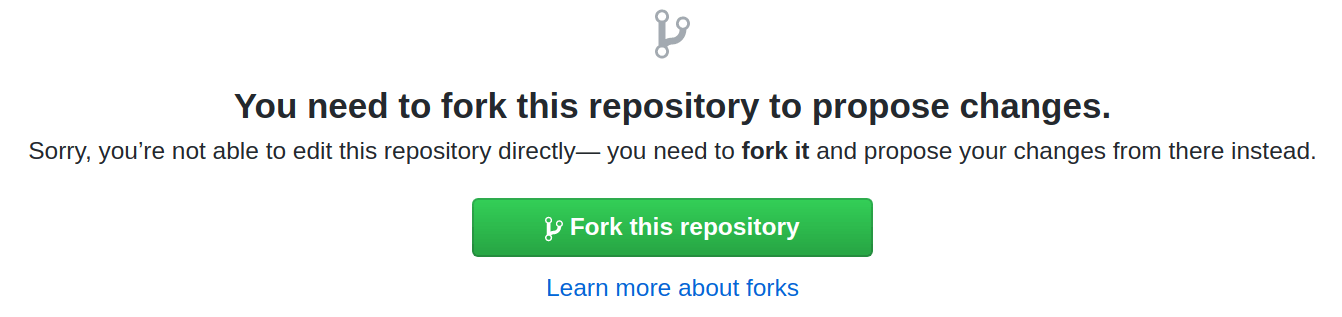
点击 Fork this repository 按钮,在您的账户中创建该仓库的派生副本(您自己的副本)。这样会创建代码库的一个副本,您可以在其中进行更改,而不会影响主代码库。如果您就职于 Odoo,请跳过此步骤。
-
Tip
点击 Preview changes 按钮,以更易读的格式查看您的贡献内容。请注意,预览无法正确处理所有标记。例如,注释和提示会显示为纯文本。
滚动到页面底部,填写小型表单以提交您的更改建议。在第一个文本框中,简要概括您的更改内容。例如,“修正拼写错误”或“添加销售订单开票的文档”。在第二个文本框中,说明您 为什么 提出这些更改。然后,点击 Propose changes 按钮。
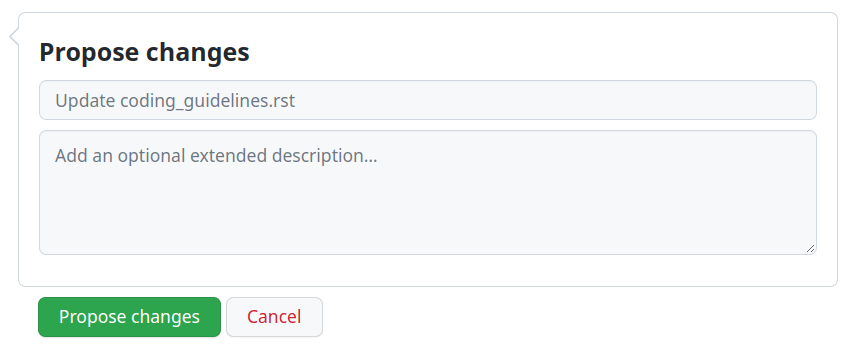
检查您的更改,然后点击 Create pull request 按钮。
勾选 Allow edits from maintainer 复选框。如果您在 Odoo 工作,请跳过此步骤。
检查您撰写的更改摘要,然后再次点击 Create pull request 按钮。
在页面底部,检查可合并状态并解决任何问题。
As soon as your PR is ready for merging, a member of the Odoo team is automatically assigned for review. If the reviewer has questions or remarks, they will post them as comments and you will be notified by email. Those comments must be resolved for the contribution to go forward.
Once your changes are approved, the reviewer merges them and they appear online the next day.
环境设置完成后,您就可以开始为文档做贡献了。在终端中,进入您克隆源代码所在的目录,并按照以下指南操作。
Choose the version of the documentation to which you want to make changes. Keep in mind that contributions targeting an unsupported version of Odoo are not accepted. This guide assumes that the changes target the documentation of Odoo 18, which corresponds to branch
18.0.Create a new branch starting from branch 18.0. Prefix the branch name with the base branch:
18.0-.... If you work at Odoo, suffix the branch name with your Odoo handle:18.0-...-xyz.Example
$ git switch -c 18.0-explain-pricelists
$ git switch -c 18.0-explain-pricelists-xyz
Compress all PNG images that were added or modified.
$ pngquant path/to/image.png
$ mv path/to/image-fs8.png path/to/image.png
Write a redirect rule for every RST file that were renamed.
Build the documentation with make. Then, open
_build/index.htmlin a web browser to browse the documentation with your changes.Tip
使用 make help 了解其他有用的命令。
提交您的更改。按照 Git 规范 中的说明编写清晰的提交信息。
$ git add .
$ git commit
Push your changes to your fork, for which we added the remote alias
dev.Example
$ git push -u dev 18.0-explain-pricelists
如果您就职于 Odoo,请将更改直接推送到主代码库,其远程别名为
origin。Example
$ git push -u origin 18.0-explain-pricelists-xyz
在 GitHub 上发起 PR(拉取请求),提交您的更改以供审核。
Select 18.0 for the base.
点击 compare across forks。
选择 <your_github_account>/odoo 作为源仓库(head repository)。将
<your_github_account>替换为您创建派生副本时使用的 GitHub 账户名称。如果您就职于 Odoo,请跳过此步骤。检查您的更改,然后点击 Create pull request 按钮。
勾选 Allow edits from maintainer 复选框。如果您在 Odoo 工作,请跳过此步骤。
填写描述,然后再次点击 Create pull request 按钮。
在页面底部,检查可合并状态并解决任何问题。
As soon as your PR is ready for merging, a member of the Odoo team is automatically assigned for review. If the reviewer has questions or remarks, they will post them as comments and you will be notified by email. Those comments must be resolved for the contribution to go forward.
Once your changes are approved, the reviewer merges them and they appear online the next day.
