聊天机器人
聊天机器人 是一种用于模仿真人对话的程序。聊天机器人有一个预先编写好的步骤脚本。这些脚本旨在预测访客的潜在反应,并以与真人团队成员相同的方式,引导访客完成一系列问答。
可以对聊天机器人进行定制,使其承担各种角色,从客户支持,到创建潜在客户,再到收集联系信息。每个聊天机器人的目标会因多种因素而异,包括其所在的网页以及它收集的信息。
创建聊天机器人
Before creating a new chatbot, the Live Chat application must first be installed.
After the Live Chat application has been installed on the database, go to .
Note
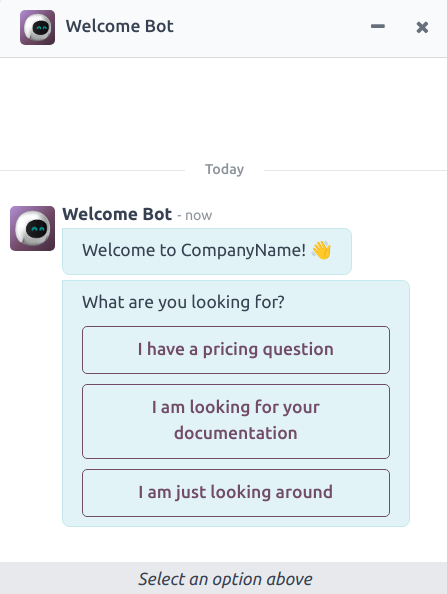
When the Live Chat app is installed, a sample chatbot is created, named Welcome Bot. This chatbot has a preconfigured script that walks through a few basic steps, including asking for a visitor’s email address, and forwarding the conversation to an operator.
欢迎机器人 可用作起点。可根据需要编辑或删除现有步骤,并添加新步骤来定制脚本。
如有必要,可以删除或归档 欢迎机器人 。
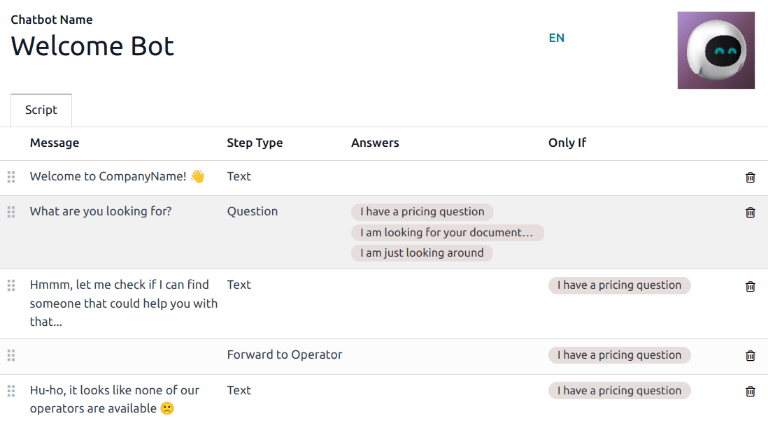
To create a new chatbot, navigate to the Chatbot page () and click New to open a blank chatbot details page.
Enter a name in the Chatbot Name field and hover over the image on the right. Click on the (pencil) icon that appears to add a photo.
聊天机器人脚本
After the new chatbot has been created and named, the next step is to create a script. Chatbot conversations follow an accompanying script, comprised of lines of dialog. Each line is designed to either deliver or capture information.
To create a chatbot script, click Add a Line in the Script tab of the chatbot detail page, and a Create Script Steps pop-up window appears. This form must be filled out for each line of text (dialog) that the chatbot could potentially deliver during the conversation.
First, enter the content of the message in the Message field. Then, select an option from the Step Type and Only If drop-down menus.
步骤类型
The Step Type selected depends on the intended purpose of the message. The available options in the Step Type drop-down menu are detailed below.
文本
此步骤用于不期望或不需要访客回答的消息。文本步骤可用于问候、提供资源(如文档),或提供指向特定网页的链接。
Important
Text step types are only intended to deliver information, and do not allow for any visitor input. As such, they must be followed by additional steps to continue the conversation.
疑问
该步骤提出一个问题,并提供一组答案。访客点击一个答案,即可进入对话的新步骤,也可以选择链接到一个新网页。
在 消息 字段中输入问题。然后,在 答案 标题下,点击 添加一行 创建空白的答案行。
接着输入应向访客显示的答案。要将答案变为访客选中后即重定向的链接,请在 可选链接 标题下为该答案行添加 URL。
Repeat these steps for every answer to be included for the question. Click Save & Close or Save & New when finished.
Tip
It is helpful to add a catchall answer to question steps (e.g: Something else). This helps
visitors continue the conversation, even if their needs do not fit with any of the other answers.
EMail
这一步会提示访客提供电子邮件地址,电子邮件地址会被保存起来,团队成员以后可以用它来跟进更多信息。
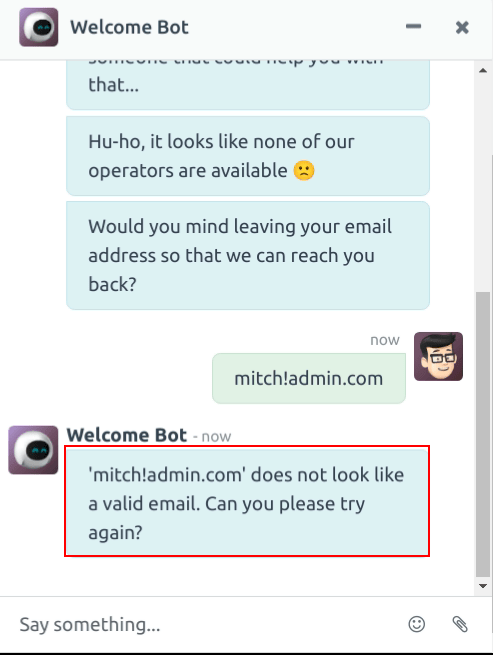
The only accepted inputs for this step type are email addresses that are in a valid format. If a visitor attempts to enter anything other than a valid email address, the chatbot responds with a message stating it does not recognize the information submitted.
电话
与电子邮件类似,此步骤类型会提示访客输入其电话号码,该号码可用于后续跟进、提供更多信息、安排演示等。
Warning
Due to the vast number of formats used for phone numbers worldwide, responses to this step type are not validated for formatting, and can include both numbers and special characters.
转发给运营商
此步骤会将对话转接给在线的实时聊天操作员,以便其继续协助访客。由于对话记录会转交给操作员,操作员可以从聊天机器人中断的地方继续。这不仅能节省各方的时间,还有助于在对话到达人工操作员之前对其进行初步筛选。
Note
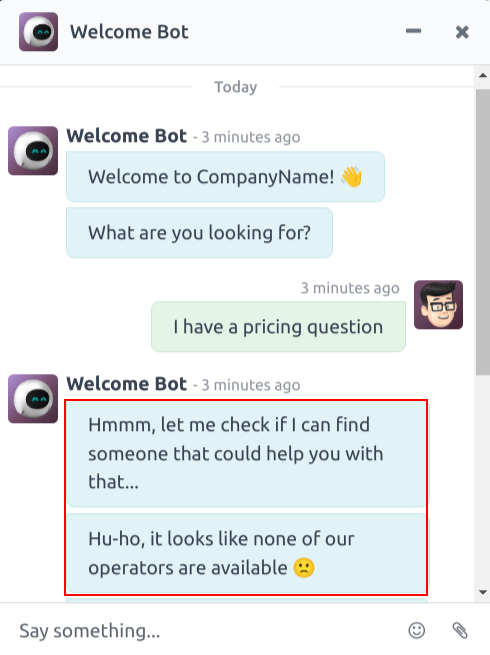
如果频道中没有在线的操作员,聊天机器人会继续与访客对话。因此,应在此步骤之后添加其他步骤,以确保对话不会突然中断。这些附加步骤既可以告知访客当前没有可用操作员(例如 哎呀,看来我们的操作员现在都不在线 ),也可以继续对话(例如 您愿意留下您的电子邮件地址吗? )。
自由输入/多行
自由输入 步骤允许访客在不选择预设答案的情况下回答问题。这些回复中提供的信息会存储在聊天记录中。
根据要求访客提供的信息类型和数量,在 自由输入 和 自由输入(多行) 之间进行选择。
创建线索
This step creates a lead in the CRM application. Select an option from the Sales Team drop-down field that appears to assign the created lead to a specific team.
Note
This step is only available if the CRM application is installed on the database.
创建工单
This step creates a ticket in the Helpdesk application. Select an option from the Helpdesk Team drop-down field that appears to assign the created ticket to a specific team.
Note
This step is only available if the Helpdesk application is installed on the database.
仅当
聊天机器人脚本基于“如果/那么”的逻辑运行,这意味着呈现给访客的下一个问题取决于其对上一个问题的回答。
To continue the progression of the conversation, the Create Script Steps form for a new step contains a field labeled Only If. This field is where the progression of questions are defined.
If a step is intended to follow all of the previous messages, this field can be left empty. However, if a message should only be sent conditionally, based on a previous response, or several previous responses, those responses must be added to this field.
Important
If any selections are made in the Only If field, they must all be selected during the conversation before this step is included. Only include selections in this field if they are necessary for this step to be displayed.
Example
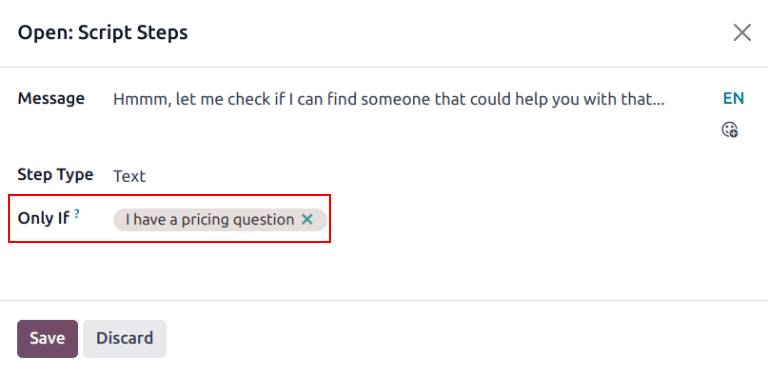
In the Welcome Bot script, a visitor can ask about pricing information. If the visitor selects this response, a step is included to forward the conversation to an operator. The chatbot first sends a message informing the visitor that it is checking to see if an operator is available to assist with pricing information.
However, this message should only be delivered if the visitor requests pricing information. In that situation, the conversation would proceed as below:
欢迎机器人:“您在寻找什么?”
访客:“我有一个关于价格的问题。”
欢迎机器人:“嗯…让我看看是否能找到可以帮您处理这个问题的人…”
In the details form for the Text step, the I have a pricing question response has been selected in the Only If field. As such, this step is only shown in conversations where that response has been selected.
脚本测试
为确保所有访客都能获得满意的聊天机器人体验,每条消息都需要导向自然的结束。应测试聊天机器人脚本,确认没有死胡同,并了解访客与聊天机器人互动时看到的内容。
Important
If the visitor provides an answer, or input, that is not assigned a corresponding follow-up response, the conversation stops (dead-ends). Since the visitor cannot re-engage the chatbot, they must restart the conversation by refreshing the chat window, or their browser. They may also click on the (refresh) icon at the top of the message window.
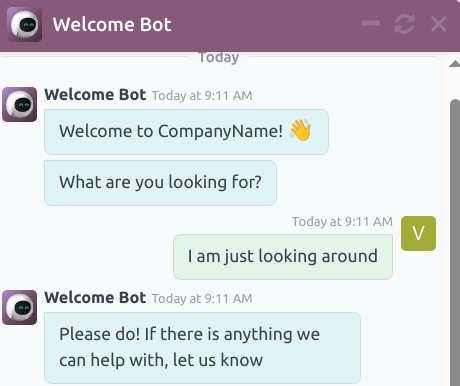
The (refresh) icon only appears when the chatbot script has reached a dead-end.
要测试聊天机器人的性能,首先点击聊天机器人脚本页面左上角的 测试 按钮。然后,在重定向到测试屏幕后,像潜在网站访客一样回答聊天机器人的提示。
When the script has reached an end-point, the message Conversation ended… appears at the bottom of the chat window. To begin the conversation at the beginning of the script, click on the (refresh) icon at the top of the message window. To return to the script page, click Back to edit mode at the top of the page.
将聊天机器人添加到频道
创建并测试聊天机器人后,需要将其添加到实时聊天频道中。
First, open the application, find the Kanban card for the appropriate live chat channel, hover over it, and click the (vertical ellipsis) icon to open the drop-down menu. Click Configure Channel to open the channel detail form.
Note
要创建新的实时聊天频道,请打开 并点击 新建 。更多信息请参阅 实时聊天 。
点击 频道规则 选项卡。然后打开现有规则,或通过点击 添加一行 创建新规则。
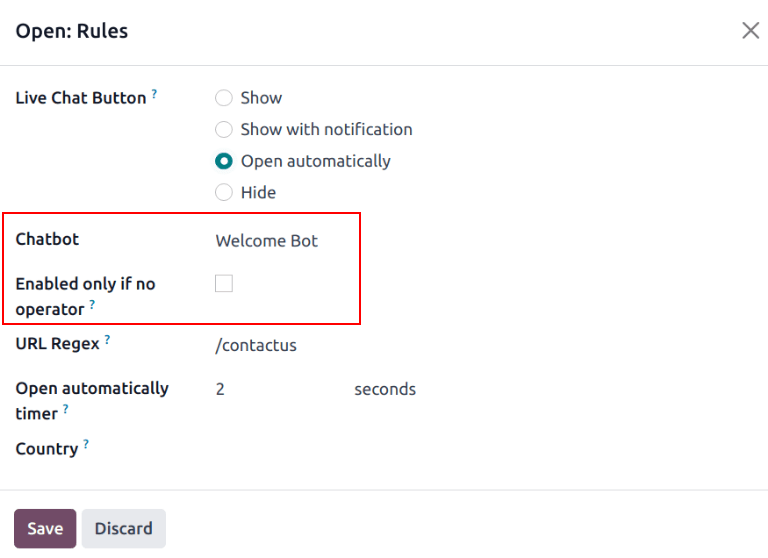
On the Create Rules pop-up window, choose the appropriate chatbot in the Chatbot field.
If the chatbot should only be active if there are no live chat operators available, check the box labeled Enabled only if no operator.
更多内容
